
POS Closing Entry
A cashier can access the POS Closing Entry at the end of their shift. It publishes the counted closing balance in relation to the system’s predicted balance. This ensures that the process is accurate and that inconsistencies are discovered.
1. How to Access
Go to:
Selling > POS > POS Closing Entry > Add POS Closing Entry (or use Close the POS from the menu of the Point of Sale screen)
2. Field Descriptions
The cashier’s shift is almost over.
- POS Opening Entry: This is the opening entry that corresponds to this closing entry. Sums that are physically counted are known as closing amounts.
- Expected Amounts: Calculated automatically from invoices.
- Difference: Indicates overages or shortages.
- Closing Time: Recorded automatically.
3. Steps to Create POS Closing Entry
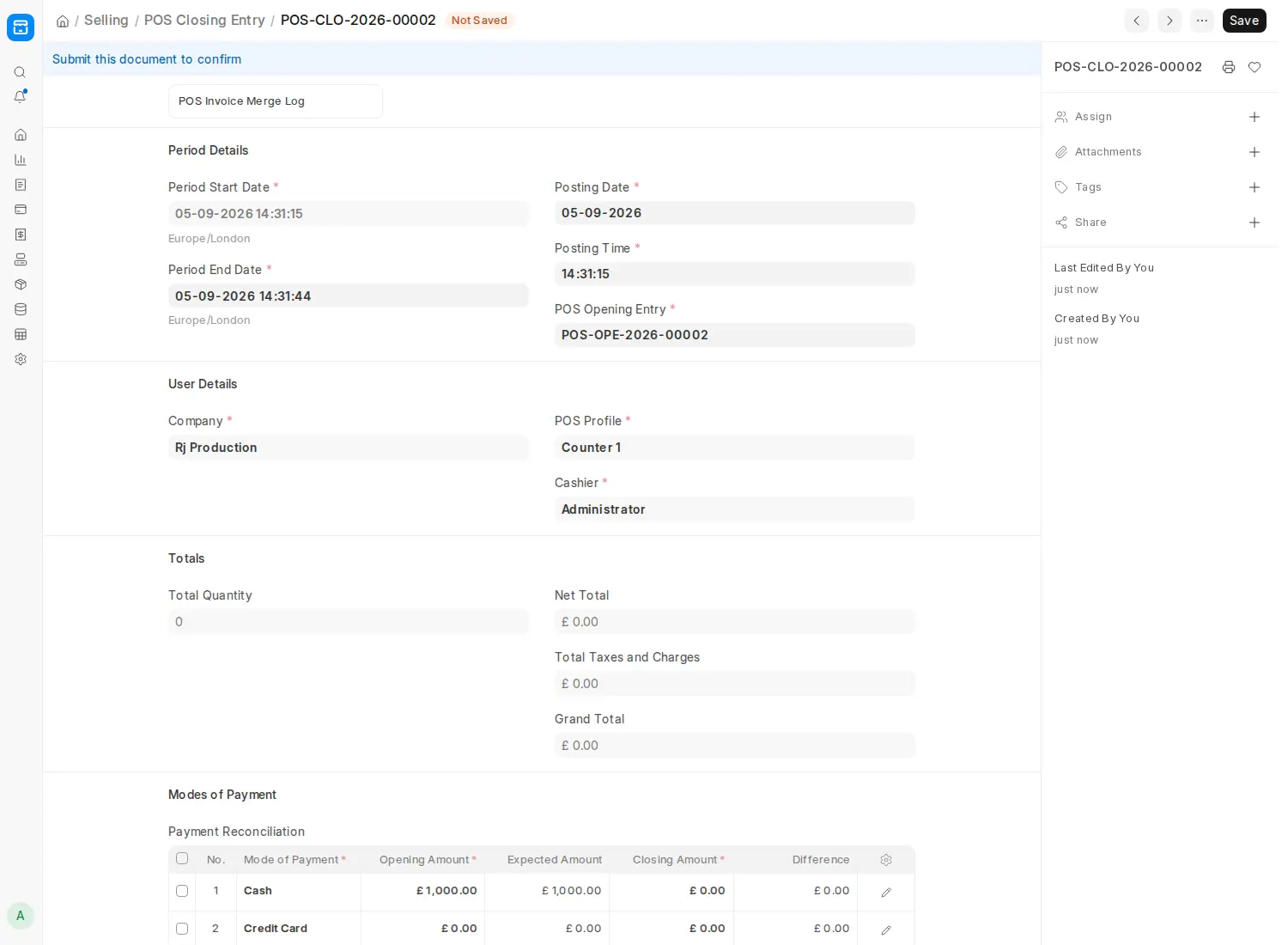
- Select POS Closing Entry → Add POS Closing Entry.
- Select the relevant POS Opening Entry.
- The Cashier, POS Profile, Period Start Date and the linked POS transactions are fetched automatically.
- Enter Counted Amounts for every payment category.
- Cash > £5,400
- Credit Card > £5,300
- Save and Submit.
4. Example
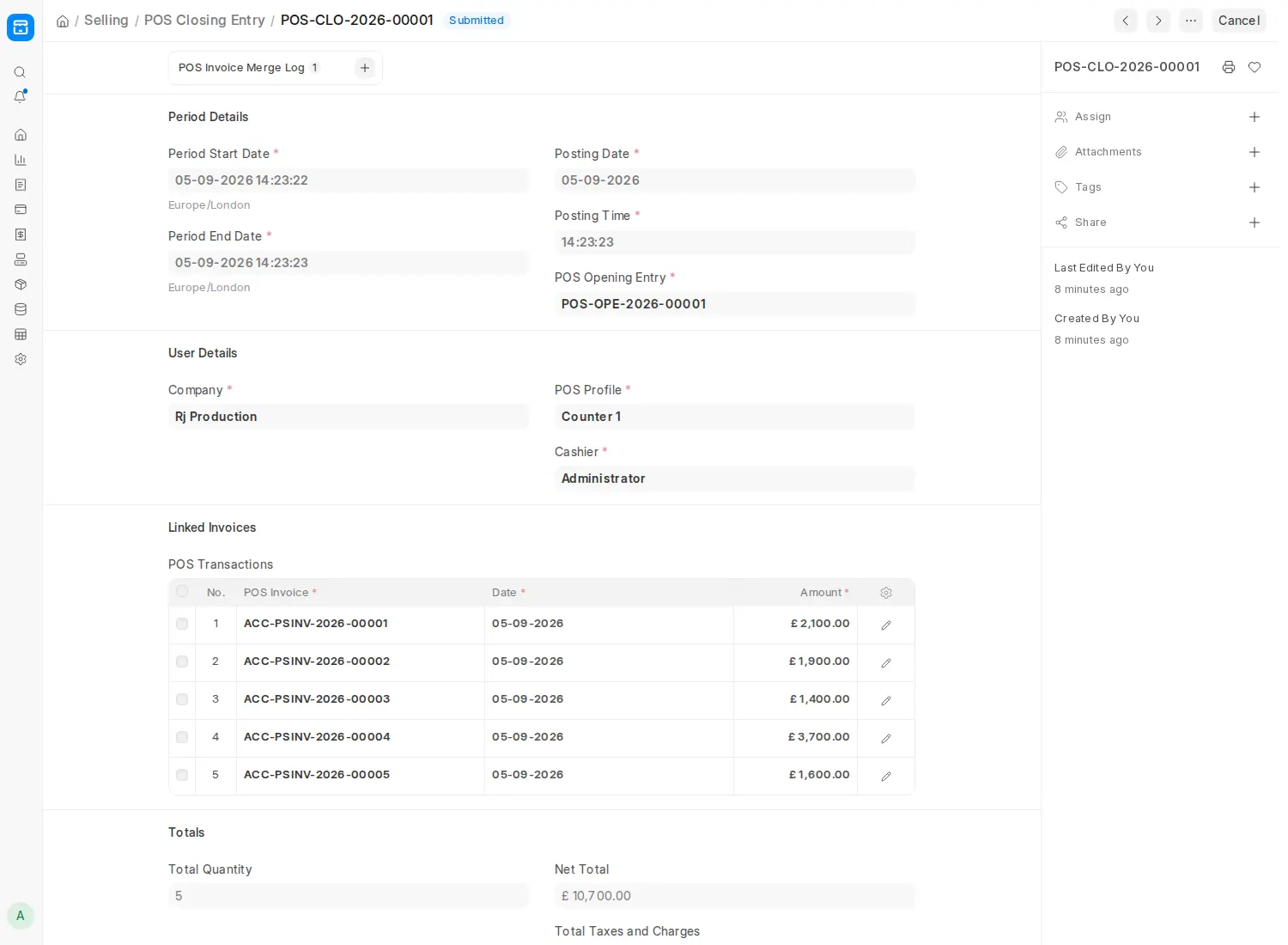
- Starting balance: £1,000.
- Sales: £10,700 (£5,400 in cash, £5,300 via Card). £11,700 is the expected balance.
Note: At the end of the shift, sessions should be closed because persistent discrepancies could indicate operational or security problems. These issues can be found and resolved with the aid of analytical and auditing reports.

