
Salary Component
Companies pay their workers a salary in exchange for the work they do. Salary Components are the several parts that make up the Salary Structure. Employees’ pay usually includes things like basic pay, allowances, bonuses, deductions, incentives, arrears, reimbursements, and more. In ERPNext, each of these parts is set up as its own Salary Component. The current version of Frappe HR lets you define, group, and manage these things with a lot of freedom. For example, you can use rule-based calculations, formula-based reasoning, and payroll account and tax integration.
1. Making a Salary Component
To make a new Salary Component:
- Go to the Salary Component list and click + Add Salary Component.
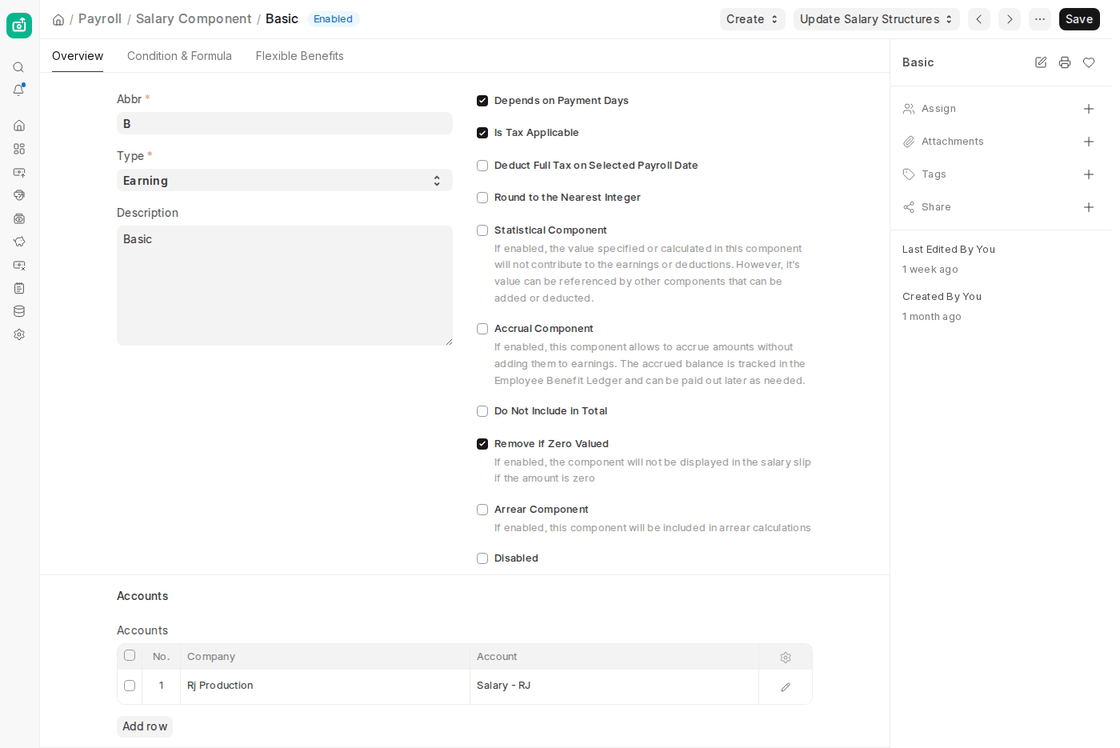
- Put in its name and abbreviation, which are used in reports and formulae.
- Choose the Type: Earning, Deduction or Employer Contribution (Employer Contribution is new in v16, for amounts the employer pays on top of salary).
- (Optional but beneficial for documentation) Enter a description of the salary component.
- In the Accounts table, type in the name of the company and the Default Account for the Salary Component.
- Keep the document.
- You can utilise the Salary Component in Salary Structures, Additional Salaries, and Employee Benefit Claims once it is stored.
2. Characteristics
In addition to the required fields listed above, the following are some of the other and better features of the Salary Component in the current version of ERPNext/Frappe HR.
2.1 Condition and Formula
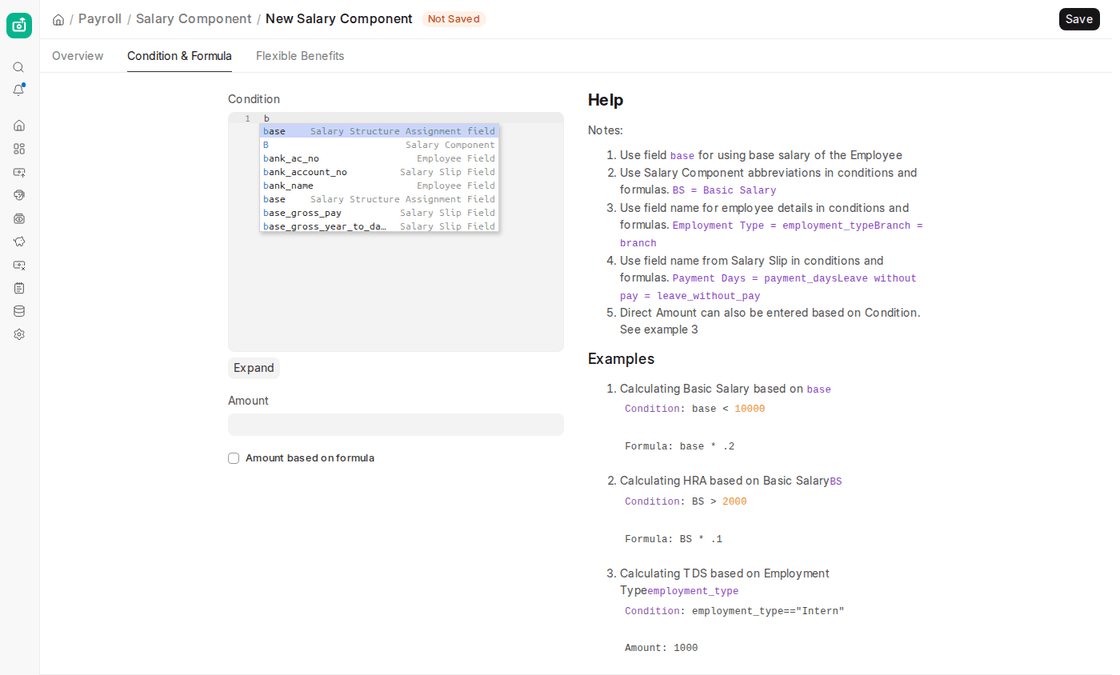
- This field lets you establish more complicated guidelines for how to calculate a Salary Component. You can create conditions and formulas that tell the system how to figure out the value of the component depending on other payroll fields.
- To set the formula, tick the box next to “Amount based on formula.” When turned on, you can type in mathematical, logical, or Python-based expressions along with other things like base salary or system variables like startdate, enddate, or payment_days.
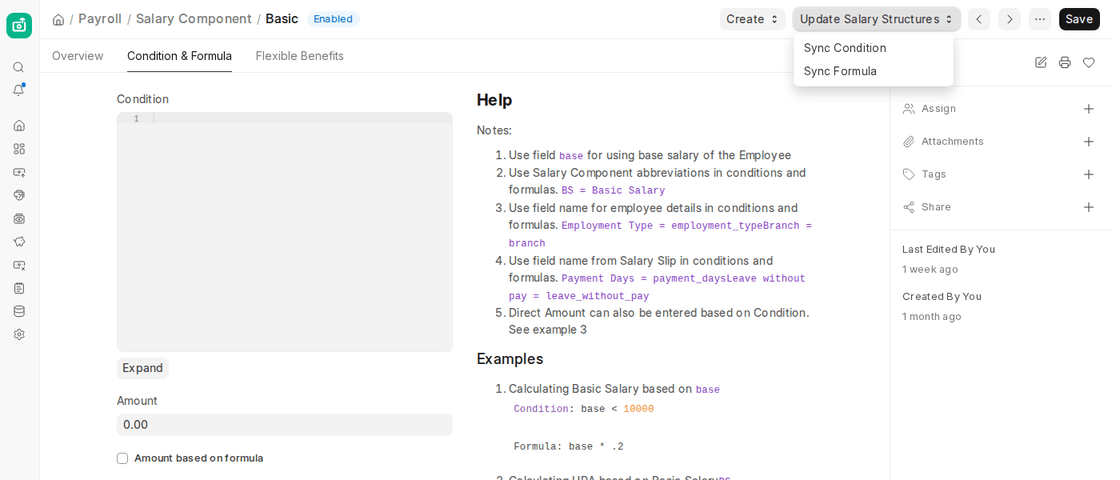
- You can also sync the new Condition and Formula values in any Salary Structures that already use this component by opening the Update Salary Structures menu and choosing Sync Condition or Sync Formula.
- You can uncheck the “Amount based on formula” option and type the amount directly into the Amount field if the component is set to a fixed amount.
- Frappe HR now has more complex functions and operators for constructing formulas, such as if, and, or, not, date-based logic, rounding functions, and casting functions.
Here are some math and date functions:
- For example, basic = 1220.32
- int: cast the amount as an integer. int(basic) returns 1220.
- flt – cast the amount as a float with precision flt(basic, 1) yields 1220.3
- round: rounds the value using Banker’s Rounding. round(basic) # returns 1220
- rounded – rounds based on the System Settings method specified rounded(1220.5, rounding_method=”Commercial Rounding”) # returns 1221
- ceil – rounds up ceil(basic) # returns 1221
- floor – rounds down floor(basic) # returns 1220
- getdate/date – changes the startdate of the salary slip into a date object 300 if getdate(startdate). month == 2 else 200
ERPNext now features hierarchical dependency, which means that one Salary Component can depend on another, and the numbers are automatically computed based on the order of dependency.
2.2 More Properties
- We use the following properties to narrow down how each Salary Component behaves and how it is accounted for. You can turn these on by checking boxes on the Overview tab. Some options only show for Earnings or only for Deductions.
- Depends on Payment Days: If checked, the component will figure out how much to pay based on the actual working and payment days of the payroll period.
- Is Tax Applicable: For Earning components. This option makes sure that the component is included in the calculation of income tax.
- Deduct Full Tax on Selected Payroll Date: If this box is ticked and the component is paid through Additional Salary (like a lump sum bonus), the whole tax on that amount is taken from that month’s salary.
- Variable Based On Taxable Salary and Is Income Tax Component (Deductions): the value is calculated from the taxable income and tax slab, as for an income tax deduction.
- Exempted from Income Tax (Deductions): marks the deduction as exempt when income tax is calculated.
- Round to the Nearest Integer: Rounds the calculated amount to the nearest whole number.
- Statistical Component: The value is calculated but not added to earnings or deductions. Other components can still use it in their formulas.
- Accrual Component (new in v16, Earnings): the amount is accrued instead of being paid in the salary slip. The balance is tracked in the Employee Benefit Ledger and can be paid out later.
- Do Not Include in Total: The component is left out of the total. Used for benefits that are part of CTC but not paid in cash, like the use of a company car. When this is ticked you can also tick Do Not Include in Accounting Entries.
- Remove if Zero Valued: The component is not shown on the salary slip when its amount is zero.
- Arrear Component: The component is included in arrear calculations.
- Disabled: The component can no longer be used, but past salary slips keep their history.
2.3 Benefits that can be changed
The Flexible Benefits tab only appears for Earning components that are not Statistical. Flexible Benefits let businesses offer benefit plans that employees can claim as part of their CTC.
To define a Flexible Benefit:
- Tick Is Flexible Benefit.
- Enter the Max Benefit Amount (Yearly). If greater than zero, this is the most that can be assigned to any employee in a year.
- Choose the Payout Method (new in v16): Accrue and payout at end of payroll period, Accrue per cycle, pay only on claim, or Allow claim for full benefit amount.
- With Accrue per cycle, pay only on claim, you can also tick Payout Unclaimed Amount in Final Payroll Cycle, so anything not claimed is paid in the last payroll of the period.
- Flexible Benefits can be used with Employee Tax Exemption Declarations, so taxable income is worked out correctly.


