
Stock Entry
A Stock Entry ERPNext document is used to record the movement of inventory items between warehouses or during internal processes like manufacturing, repackaging, or subcontracting. It plays a key role in managing ERPNext stock movements linked to documents such as Work Orders, Purchase Orders, and Delivery Notes.
To access the ERPNext Stock Entry list, go to:
Desktop > Stock > Stock Entry
Stock Entry Purpose Types:
There must be a purpose for every stock entry ERPNext. The supported purposes are listed below:
1. Material Issue
Also known as ERPNext stock entry material issue, this is used for internal use, scrap, donations, or sending items outside the company.
- Source Warehouse is mandatory
- Reduces stock quantity
2. Material Receipt
- Used for production, donations, opening stock, and other situations where new items are received without a purchase receipt.
- Target Warehouse is mandatory.
- Increases stock quantity.
3. Transfer of Materials
Also called ERPNext stock entry material transfer, this is used to move goods between warehouses.
- Requires both Source and Target Warehouse
- ERPNext material transfer same source and target warehouse allowed
In some cases, system configuration allows transfers even if the source and target warehouse are the same (useful for corrections or internal adjustments).
4. Material Transfer for Manufacture
Moves raw materials to the WIP warehouse for production.
- Linked with Work Order and BoM
- Supports ERPNext manufacturing WIP batch costing for accurate production valuation
5. Material Consumption for Manufacturing
- Documents raw material consumption in relation to a work order.
- From the WIP Warehouse, items are subtracted.
- Can be produced manually or automatically.
6. Manufacture
- Final entry for the production of finished goods into stock.
- The Target Warehouse receives finished goods.
- If necessary, raw materials may also be consumed in the same entry.
- Utilised when production takes place without a complete Work Order procedure.
7. Repack
- Used to repackage or repackage products into new SKUs.
- For instance, dividing a 12-bottle pack into separate bottles.
- Requires both the source and the target items.
8. Send to subcontractor
- Used to forward raw materials for processing to a vendor or subcontractor.
- Connected to a Subcontracting Order (created from a subcontracted Purchase Order).
- Creates a stock entry automatically to move items to the supplier warehouse.
In v16 the Purpose list also includes Disassemble and the subcontracting-inward purposes Receive from Customer, Return Raw Material to Customer, Subcontracting Delivery and Subcontracting Return.
1. Prerequisites
Before creating a Stock Entry ERPNext, ensure:
- Warehouse (There must be a minimum of one Source and/or Target Warehouse)
- Item (the item needs to be marked as “Stock Item” and be in use)
Item Settings Doctype ERPNext helps define item behavior used in stock transactions.
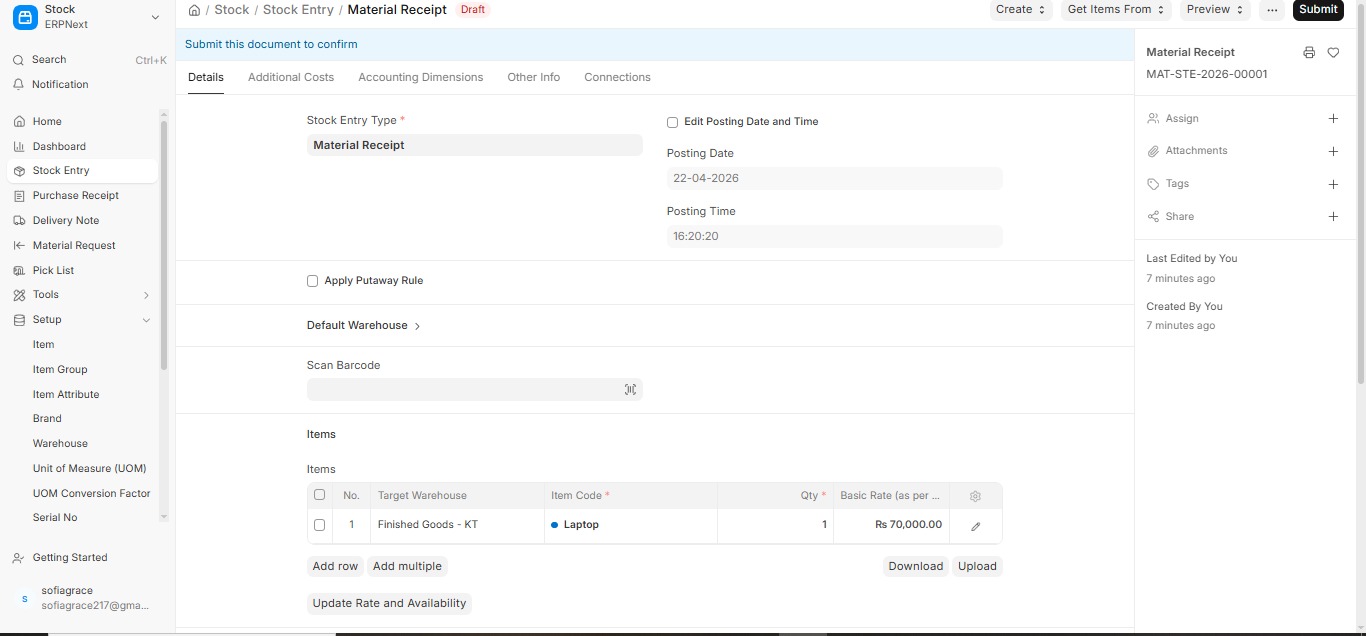
2. How to create a Stock Entry
Stock Entries may be made manually, by automated route (e.g. through Work Orders, Subcontracting, etc.).
- Go to: Stock > Stock Entry
- Click: Add Stock Entry
- Set:
- Purpose of a Stock Entry (e.g. Material Receipt, Material Transfer, etc.)
- The ERPNext will customize all fields such as Source-Warehouse or Target-Warehouse according to the purpose being chosen.
4. Warehouses:
- In case one of the Source Warehouses or Target Warehouses has been specified at the header level, it will be auto-filled in the Items table.
- Where necessary you can override warehouse values on a row by row basis.
5. Add Items:
- Select Item Code
- Enter Quantity
- System fetches valuation rate
- ERPNext allow zero valuation rate
- Allow Zero Valuation Rate lets you submit stock entries even if rate is 0
6. Additional Fields:
- Products on a per batch/serial basis should have the Batch/Serial Numbers entered.
- You will also be able to fill in Cost Center, Additional Notes and Reference No/DocType
- You can link entries using ERPNext stock entry project field under Accounting Dimensions.
7. Stock Entry Save And Submit
2.1 Additional Options When Creating a Stock Entry
1. Work Order
Appears only if the Purpose is:
- Manufacture
- Material Transfer for Manufacture
- Material Consumption for Manufacture
2. Edit Posting Date and Time
- Useful when recording entries after the actual stock movement.
3. Inspection Required
- When checked, it means a Quality Inspection document must be submitted before the stock entry can be submitted.
Mostly used for:
- Incoming stock (Material Receipt)
- Manufactured stock
- Ensures that quality checks are done before updating warehouse stock.
4. From BOM (Bill of Materials)
Appears only when:
- Purpose is Manufacture
5. Scan Barcode (Quick Entry)
- Built-in barcode scanner support for Stock Entry Items table.
3. Features
3.1 Items Table
The Items table is part of ERPNext stock entry detail doctype and includes:
- Item Code
- Quantity
- Valuation Rate
- Warehouses
You can also use ERPNext customize form stock entry detail to add custom fields as per business needs.
3.2 Loss of Scrap and Process
Secondary (Scrap) Item
- Scrap Item By-products produced during the manufacturing process are referred to as scrap. In v16 they are Secondary Items, and each row has a Type: Co-Product, By-Product, Scrap or Additional Finished Good.
- These goods are usually transferred to a scrap warehouse and may have a valuation rate.
- The Basic Rate field in the Stock Entry can be used to manually define the scrap item valuation rate.
- Apart from finished goods, scrap is regarded as a valuable output.
Process Loss
- Process Loss The unrecoverable loss that takes place during manufacturing is referred to as process loss.
- This affects the quantity of finished goods (FG) but does not produce a distinct stock item.
- For instance, ERPNext automatically determines the remaining 20 units as Process Loss Qty if you intend to produce 100 units but only 80 are produced because of waste.
- The value of the 80 completed units is increased by the cost of the 20 lost units.
3.3 Accounting Dimensions
ERPNext allows you to tag Stock Entries with Accounting Dimensions to enable more detailed financial tracking and reporting.
You can assign dimensions such as:
- Project
- Cost Center
- Department
3.4 Printing Settings
ERPNext gives you the options of customizing the way Stock Entries and other documents should be printed.
Letterhead
- It is possible to print the Stock Entry (as well as any other document) on the official letterhead of your company.
- The letterheads may be designed and posted through: Organization > Letter Head
- It would be helpful in terms of maintaining professional documentation standards.
Print Heading
- ERPNext can enable you to modify the heading/header of the printed document.
- You can, say replace the term Stock Entry with Goods Transfer Note or Scrap Movement so that it becomes Goods Transfer Note (printed) or Scrap Movement (printed).
- In order to do Print Headings: Choose Framework – Printing – Print Heading
3.5 Additional Details
These are also other fields that can be used in the Stock Entry form to enhance clarity and stem:
Is Opening
- Activate it in case you are recording opening stock balances.
- Applied in previous implementation or in the beginning of the new financial year.
Remarks
- A free-text box to add extra notes, directions or internal message regarding the Stock Entry.
Percentage Transferred
- It can be used in manufacturing entry or transfer entries.
- Indicates the percentage of the amount planned that has been transferred (particular where partial transfers may occur against a Work Order).
Total Amount
- Shows the amount of the stock items in total in the entry.
- The basic rate of each item is calculated by multiplying the Qty and calculated summed up.
3.6 Perpetual Inventory
If your company is using the Perpetual Inventory system in ERPNext, then stock transactions will have a direct impact on accounting.
3.7 After Submission
After a Stock Entry is entered in ERPNext, the system will update relative stock and Financial records depending on the nature of transaction.
Post-Submission Actions:
Similar records may be viewed by either Dashboard or Links section of Stock Entry form:
- Stock Ledger – depicts a movement of quantity and valuation.
- General Ledger (GL) – displays accounting effect (only when Perpetual Inventory is turned ON).
- Serial No. / Batch records- where applicable.
- Linked Work Order / Purchase Order – in case of the entry association.
4. How to Update a Stock Entry
Once a Stock Entry is submitted, you can’t edit it directly. To update it:
- Go to: Stock ➝ Stock Entry
- Open the submitted Stock Entry you want to update.
- Click Cancel (top-right).
- After canceling, click Amend. → This creates a new draft entry with the same data.
- Make your changes and submit the amended entry.
5.Conclusion
In summary, Stock Entry ERPNext is a powerful tool for managing all types of inventory movements, whether it’s ERPNext stock entry material issue, material receipt, or ERPNext stock entry material transfer between warehouses. It ensures accurate tracking of stock quantities, valuation, and ERPNext stock movements linked to documents like Work Orders and Purchase Orders.
With flexible options such as ERPNext allow zero valuation rate, support for inventory dimension ERPNext, and customization through ERPNext stock entry detail doctype, businesses can easily adapt the system to their operational needs. Features like manufacturing entries, WIP handling, and ERPNext manufacturing WIP batch costing further enhance its usefulness in production environments.
Overall, stock entry ERPNext plays a crucial role in maintaining inventory accuracy, improving traceability, and streamlining warehouse operations, making it an essential component of efficient inventory management in ERPNext
6. Related Topics
- Stock Entry Purpose
- Stock Reconciliation
- Opening Stock Balance Entry for Serialized and Batch Item
- Stock Reservation
- Work Order
- Production Plan
- Job Card

