
Subcontracting in ERPNext
Subcontracting in ERPNext is a type of job contract that seeks to outsource certain types of work to other companies. It allows work on more than one phase of the project to be done at once, often leading to quicker completion. It is practiced by various industries.
For example, manufacturers who make a number of products from complex components subcontract certain components and package them at their facilities.
If your business involves outsourcing certain processes to a third-party Supplier where you supply the raw materials and the third party does the labor/production, you can track this by using the subcontracting feature of ERPNext. In ERPNext v16, you can also manage subcontracting directly from Job Cards with support for Subcontracted Operations, allowing you to create Subcontracting Purchase Orders against those Job Cards.
Additionally, the system supports valuation rate tracking and batch/serial no. transfer to subcontractors, and automates receipt of finished goods after subcontracted processing.
How to manage subcontracting in ERPNext?
For demonstrating the outsourcing, we are considering below scenario:
A manufacturer of flowers produces raw, uncolored flowers. These flowers are packed in cartons (1 Carton = 1000 flowers) and sent for coloring to external vendor.
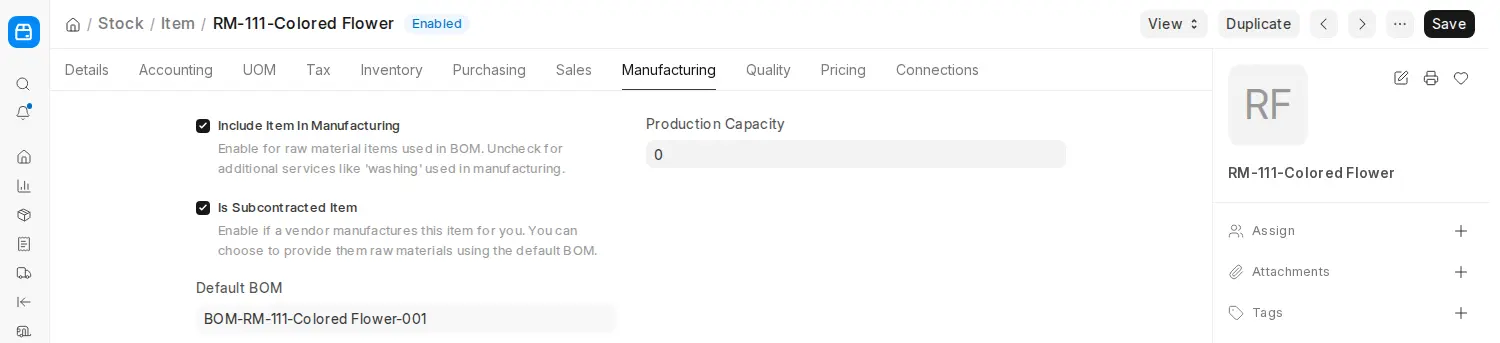
- In Item Master of subcontracted item, ensure that you have enabled the option, “Is Subcontracted Item” (Manufacturing tab). In our example, the Item is “RM-111-Colored Flower”
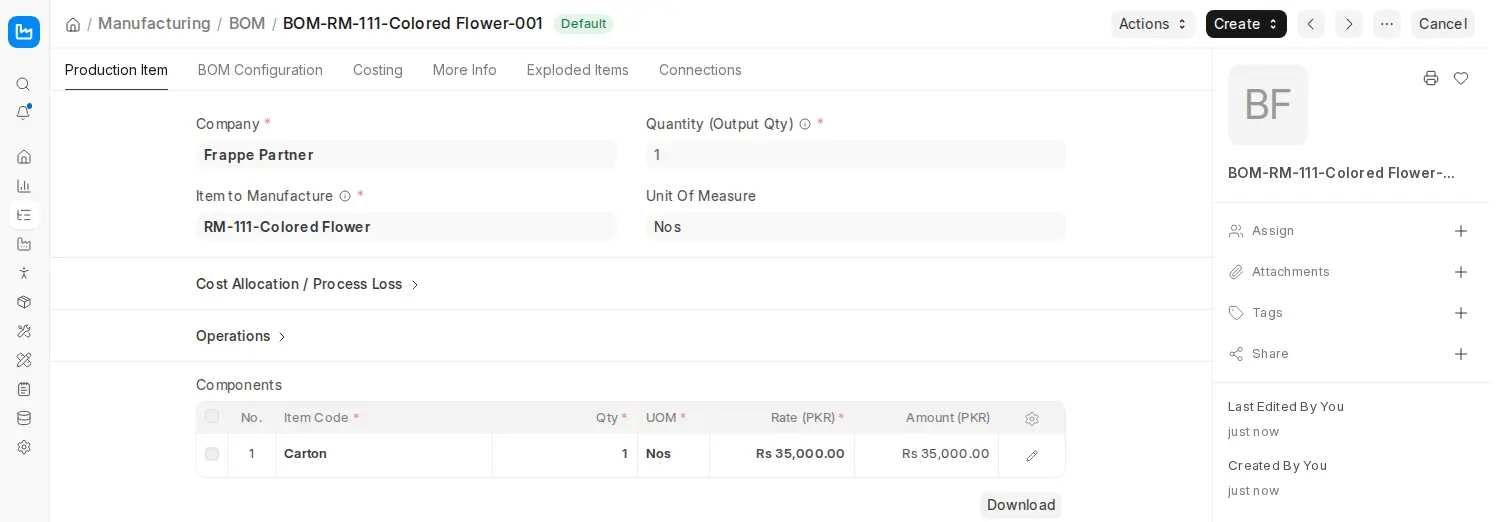
- Create a BOM (Bill of Material) for the subcontracted Item and include the raw materials that you send to the subcontractor so as to get the finished/semi-finished product. There will be no operations in this BOM since the activities are not done at manufacturer’s end. In our example, the BOM of RM-111-Colored-Flower is as below:
- Now, you need to create the Purchase Order for procuring this Item from the external party/vendor. Ensure that you tick “Is Subcontracted” and then select the Supplier Warehouse to which the raw materials will be transferred. Note that this can also be a virtual warehouse just to stand as a placeholder for the vendor’s stock. In the items table, add the service item (for example, Subcontracting Service Charges) with its rate, and set the Finished Good and Finished Good Qty in the row. Below is the Purchase Order as per our example:

In ERPNext v16, after submitting the Purchase Order with subcontracting enabled, use Create > Subcontracting Order (or enable Auto create Subcontracting Order in Buying Settings). The raw materials are then sent from the Subcontracting Order with a Stock Entry of type ‘Send to Subcontractor’, moving them to the Supplier Warehouse.
Upon receiving the finished goods, ERPNext will automatically account for the consumption of raw materials and receipt of the finished/semi-finished product into your inventory. The valuation is adjusted accordingly based on the material rate and subcontracting Charges defined in the Purchase Order and Subcontracting Order.
Note: The rate of the Item entered here will be your Service Cost rate.
- The Subcontracting Order has a Supplied Items table that shows the status of the raw materials to be transferred. In that table, you need to select the “Reserve Warehouse” from which the raw materials will be transferred to the virtual vendor warehouse that we selected in previous step. This table also tells you how many items have been supplied already, in our case, it is zero since we are yet to submit the order and supply the raw materials.
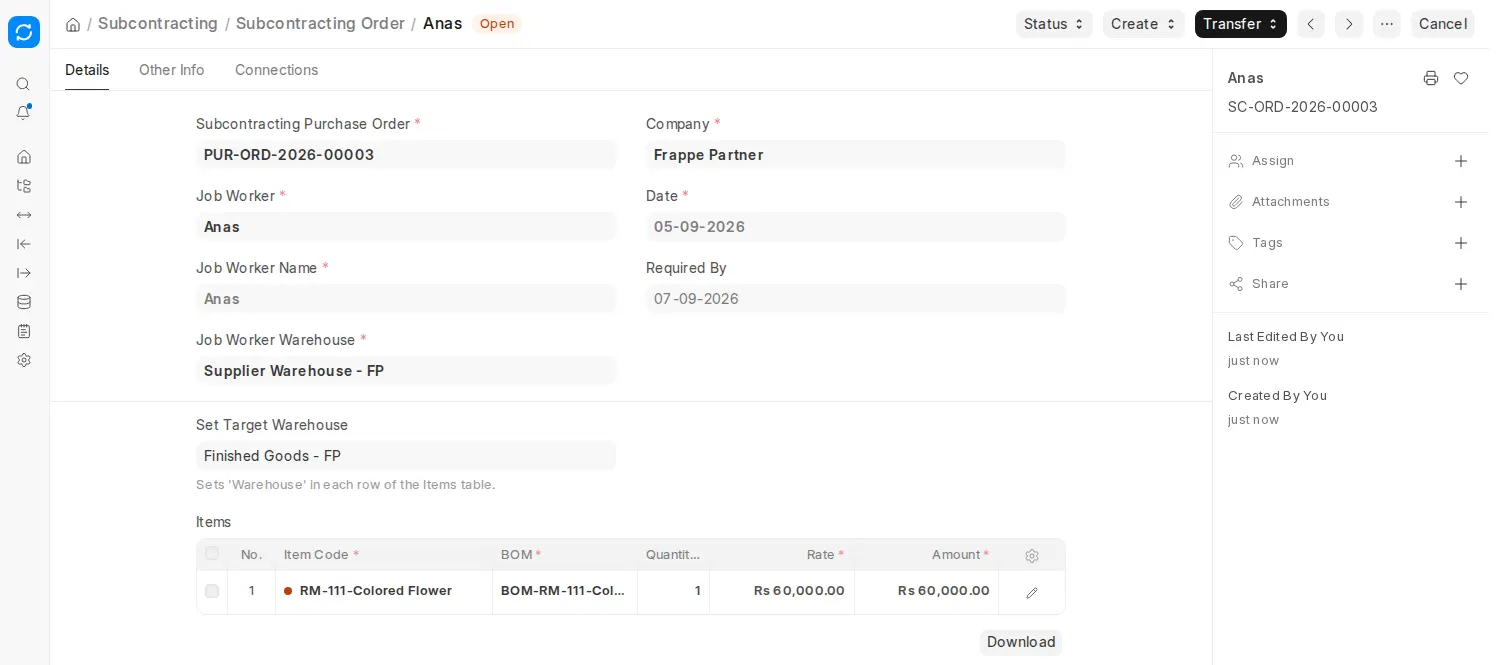
Note: In ERPNext v16, this child table now also supports tracking Batch Numbers and Serial Numbers (if enabled) for raw materials. This allows better traceability of components sent to the subcontractor. The table also shows Required Qty, Supplied Qty, Consumed Qty and Returned Qty for better planning.
- After submission of the Subcontracting Order, use Transfer > Material to Supplier to create the Stock Entry that transfers raw materials to the external vendor:
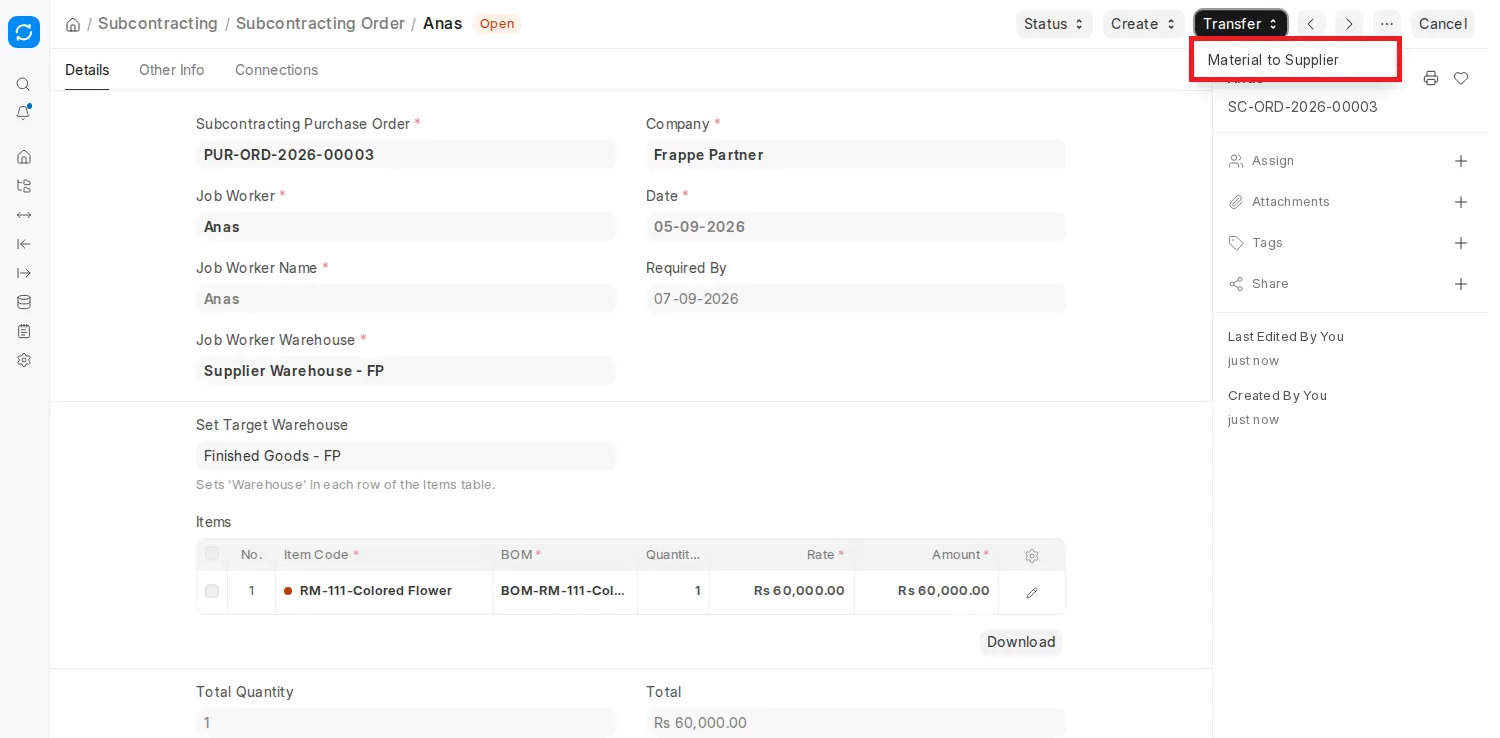
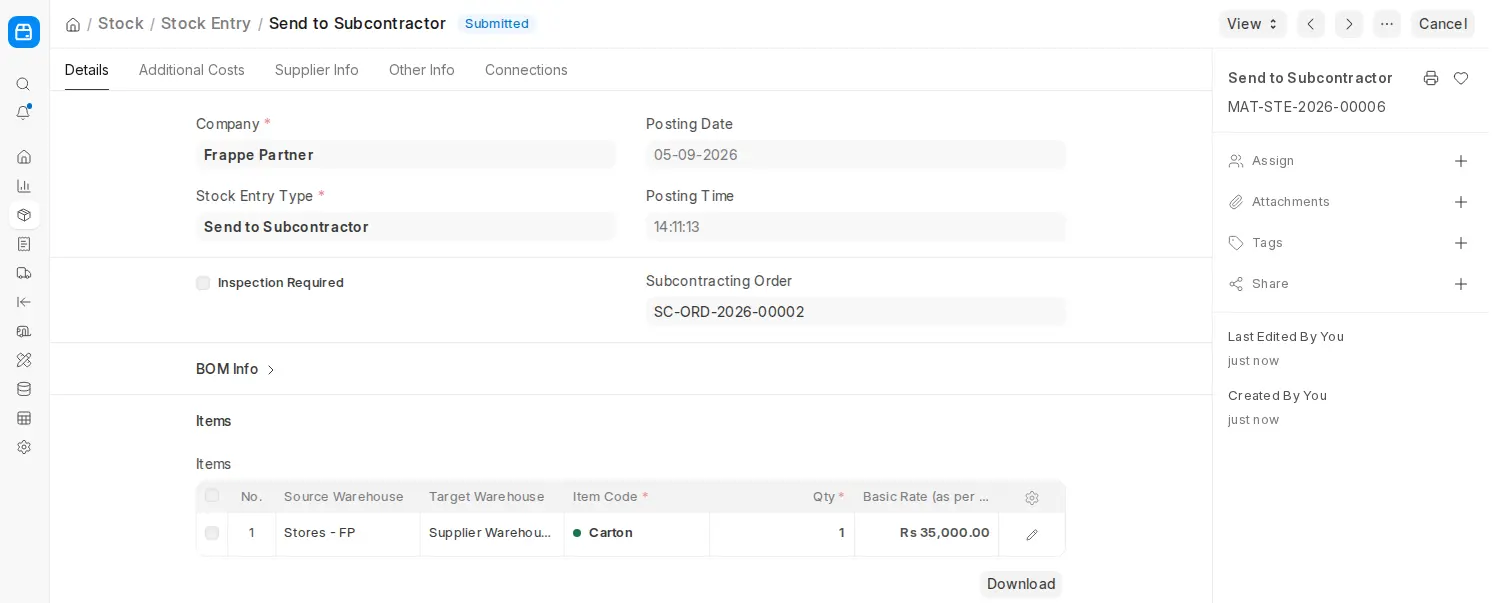
- The Stock Entry type will be “Send to Subcontractor”.
- The system will auto-fill raw material details, valuation rate, and source/target warehouses based on the Purchase Order and BOM.
- If batch/serial tracking is enabled for any raw material, you must select the batch or serial number before submitting the entry.Once the Stock Entry is submitted, the Supplied Items table in the Subcontracting Order is also updated to reflect the transferred quantity under “Supplied Qty”.
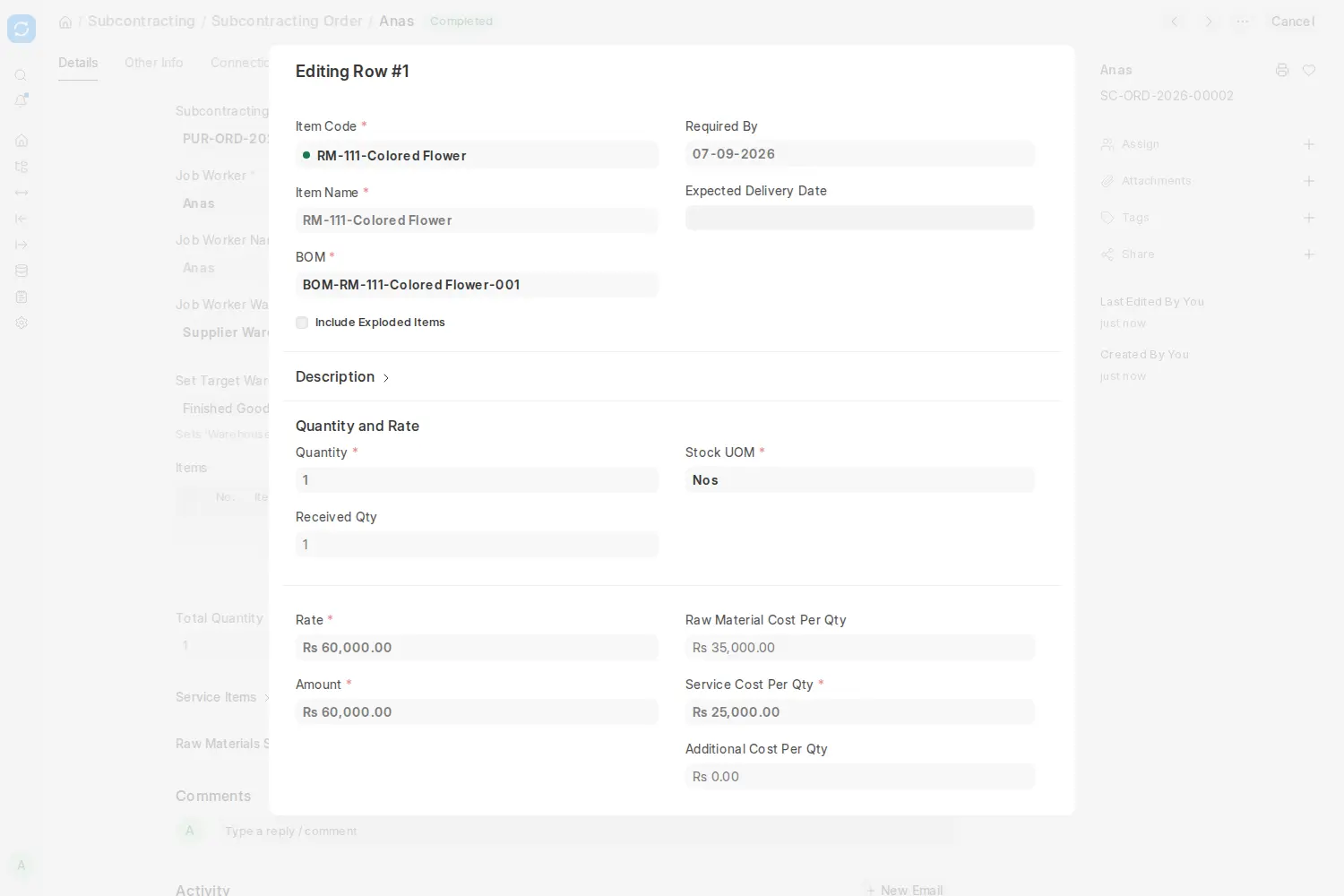
Note: Raw materials can be sent in multiple partial transfers; the “Supplied Qty” is updated with each transfer. This helps in staggered production and subcontracting schedules.
- As in when you receive the semi-finished/finished goods from the vendor, you can create a Subcontracting Receipt from the Subcontracting Order (Create > Subcontracting Receipt), and then a Purchase Receipt for the service item from the Subcontracting Receipt (Create > Purchase Receipt):
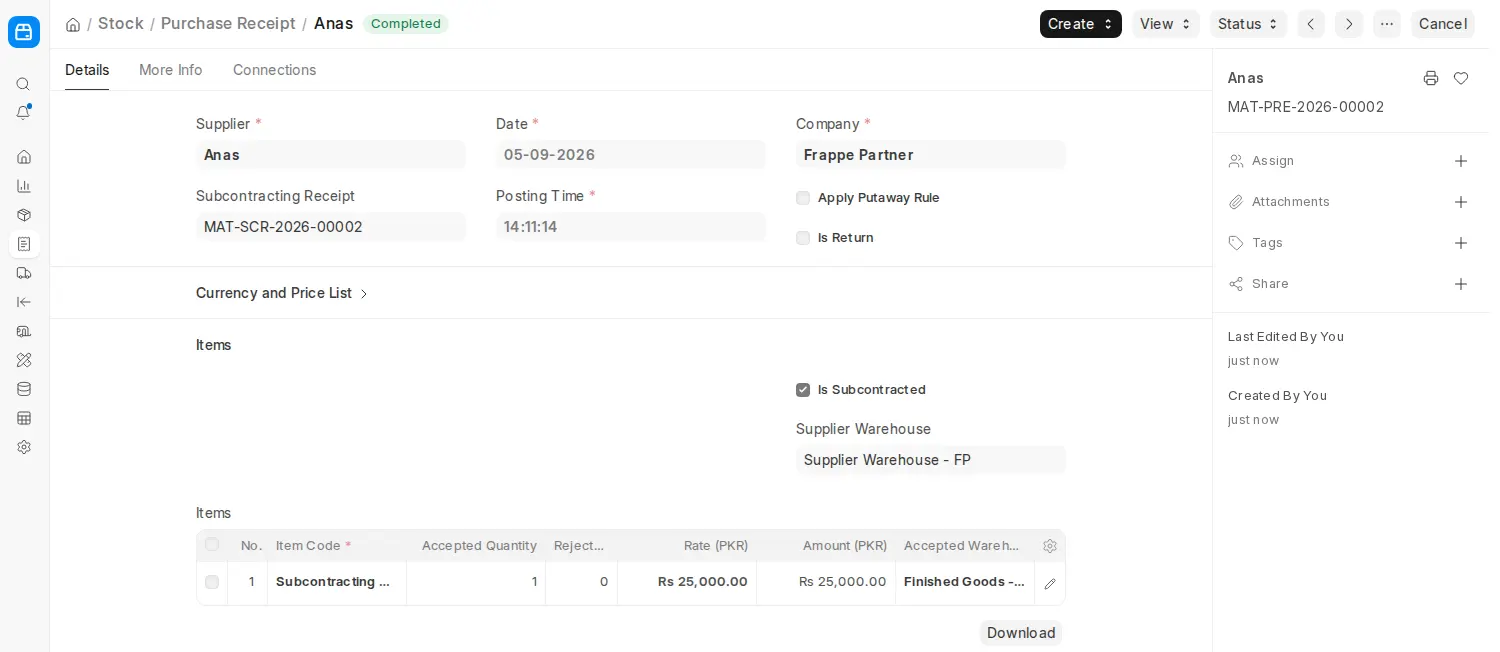
- The Subcontracting Receipt records the finished good and the raw materials consumed; the Purchase Receipt created from it fetches the service item, rate, taxes, and terms of the Purchase Order.
- The system checks if sufficient raw materials have been transferred before allowing submission of the receipt.
- Batch or Serial No. for the received item can be recorded if applicable.Note: In ERPNext v16, the system also calculates the valuation rate of the received item based on both the cost of raw materials supplied and the service cost entered in the Purchase Order (shown as Raw Material Cost Per Qty and Service Cost Per Qty in the Subcontracting Order). This ensures accurate landed cost and stock value.
The next steps for invoicing follow as per regular Buying Cycle.
Purchase Order -> Subcontracting Order -> Subcontracting Receipt -> Purchase Receipt -> Purchase Invoice.
- Purchase Invoice created for this transaction: (Print Format Preview)
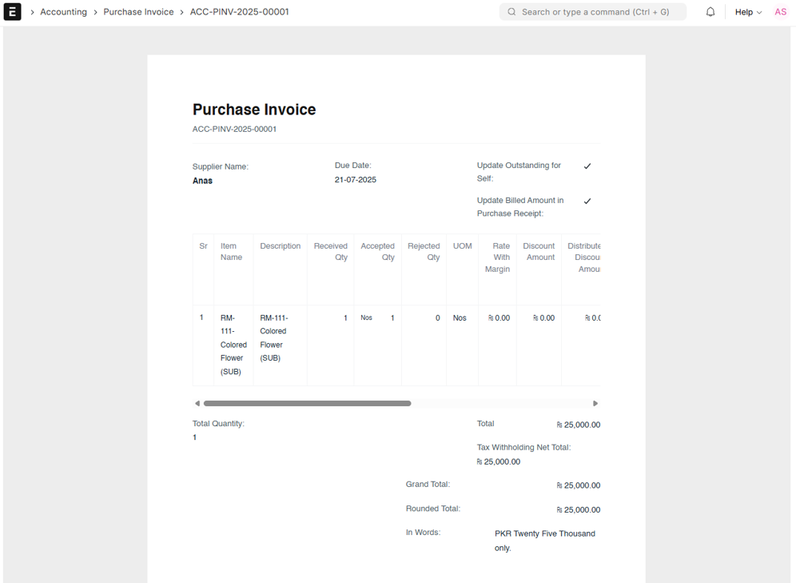
- The Purchase Invoice reflects the service cost charged by the subcontractor.
- If taxes or charges are applied in the Purchase Order, they are carried over to the invoice.
- The invoice can be linked to both the Purchase Order and Purchase Receipt for full traceability.
Note: ERPNext v16 allows cost center and accounting dimension mapping for service items in subcontracting invoices. This helps in reporting and budgeting of subcontracting expenses more effectively.

