Training Event
A Training Event allows you to schedule organized learning activities such as seminars, workshops, conferences, or classroom sessions within a given Training Program.
- It allows businesses to schedule, conduct, and monitor training sessions with complete records of who participated and what occurred.
- You can also use this tool to invite staff to the Training Event. This ensures that they are aware in advance, and you can keep a record of who attends.
- This makes it easier for companies to develop employees and understand how good their training programs are.
To access the Training Event, go to:
Home > Human Resources > Training > Event for Training
1. Requirements
It is a good idea to ensure that the following records are created and present in the system before establishing a Training Event.
- Training Program: The event has to be linked to a current Training Program so that it is logical and aligned with the goals of the organisation.
- Employee: Employees need to be in the system so that they can be invited, enrolled, and tracked as attendees of the Training Event.
2. How to Plan a Training Event
- Click on New in the list of Training Events in order to create a new event record.
- The Event Name so that you will know how to find the training session again.
- Select the kind of event, such as a workshop, seminar, conference, or web session, depending on how it will be organized.
- Select the Event Level (Beginner, Intermediate, or Expert) to indicate who the training is targeting and how difficult it will be.
- To contact the trainer and schedule, complete the Trainer’s Name, Email, and Phone Number.
- Select the Event Course, and enter the time and venue where the training will occur.
- You may also add a short description of the training event to define its objectives, topics, or what individuals will be learning.
- Once you are through entering all the details, click “Save and Submit” to complete and initiate the Training Event.
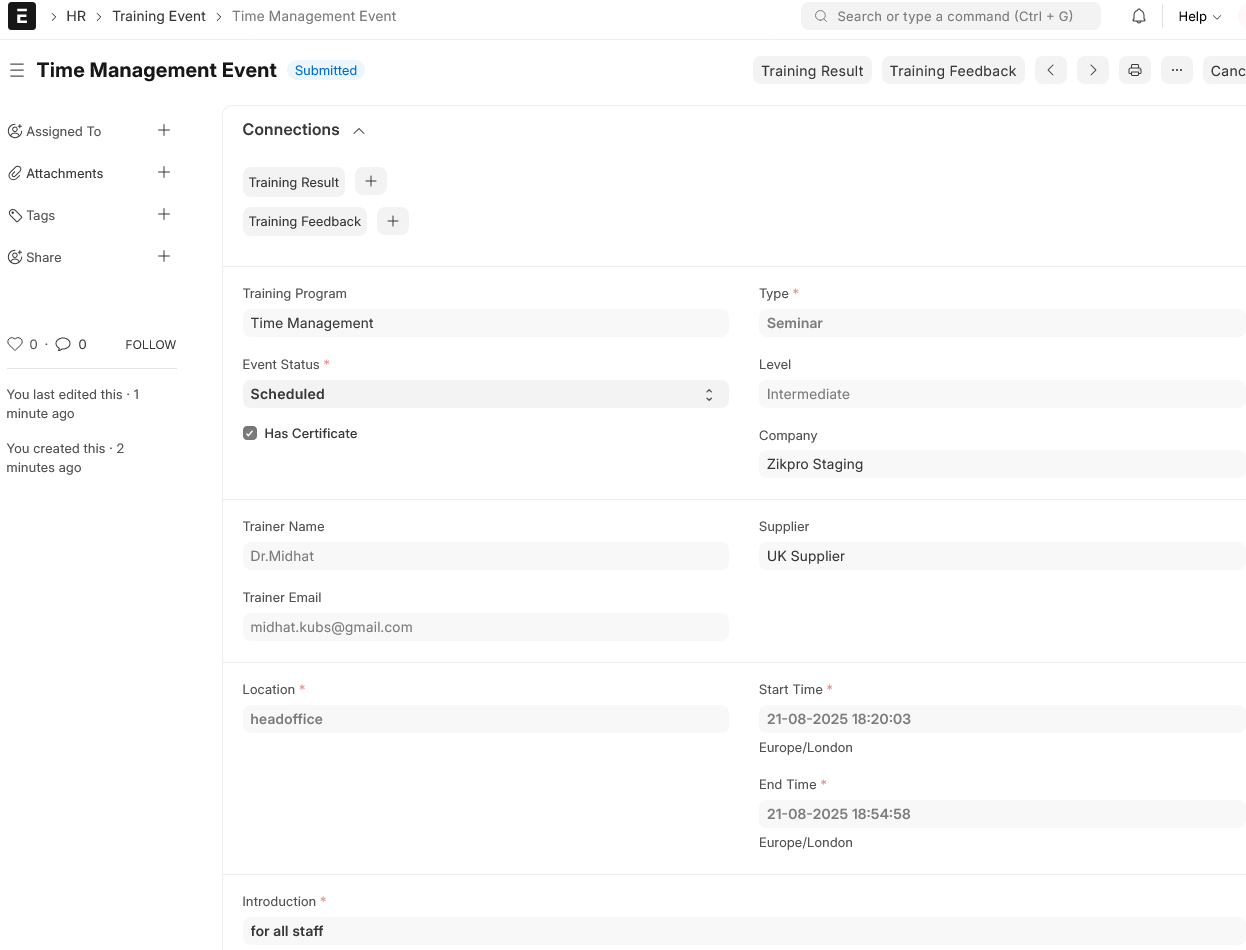
- If the Training Event is a certificated course, check the box beside “Has Certificate” so that individuals who complete it are able to obtain credentials.
3. Characteristics
3.1 Inviting Employees to Attend the Event
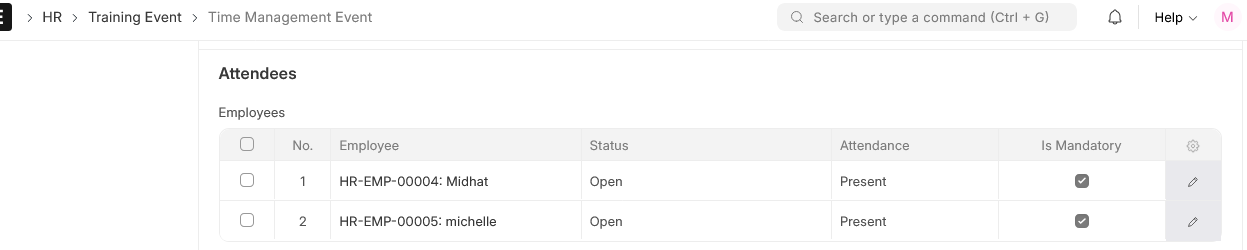
- You are able to invite employees to attend the Training Event directly by selecting them from the Employees table in the document.
- Each employee’s status will default to “Open” when you create them. This indicates they are invited but not yet confirmed.
- When you publish the training event, the email will automatically go out to all invited employees.
- It is based on the system’s default “Training Scheduled” email alert, and you can modify the content of this alert to suit the requirements of your organisation.
- This ensures that employees are aware of when they are undergoing training, and HR is able to monitor who was invited and who attended in ERPNext.