Production Plan
A Production Plan assists in scheduling both production and material planning of products that are to be manufactured. This aligns production effectively with real demand.
The plan may be based on:
- Sales Orders (for customer orders)
- Material Requests (for internal stock requirements)
By producing a Production Plan, you can:
- Schedule manufacturing work on several finished goods
- Consolidate demand for several Sales Orders or Material Requests
- Automatically determine the raw materials needed
- Automate material procurement according to production needs
The system will help in the determination of how much of each raw material is required according to the Bill of Materials (BOM) of the finished products to be produced.
The production plan simplifies the production process by aggregating demand and assisting in:
- Shortening lead time
- Preventing shortages of materials
- Keeping stock levels accurate
To enter the list of Production Plans, go to:
1. Prerequisites
It is recommended before you make and utilize a Production Plan that you first make the following:
- Item: The raw material or finished item that will be utilized in manufacturing or must be planned for.
- Material Request: Requests within the company that define the materials that need to be replenished to stock or for particular jobs.
- Sales Order: Customer orders that assist in determining what products must be made.
- Bill of Material: Identifies the raw materials and operations required to produce a given Item.
- Routing: (Optional) A group of operations or set of steps necessary to produce the Item, which can be linked to the BOM.
2. How to Create a Production Plan
As mentioned earlier, a Production Plan can be used for planning the manufacture of Items against Sales Orders or Material Requests.
The common steps are:
- Go to the Production Plan list, click on + Add Production Plan and select the Company.
- Select whether to get items from a Sales Order or a Material Request in Get Items From: This will decide how the system will pull the items to be produced. It will automatically bring in the necessary finished goods and determine raw material requirements based on associated BOMs.
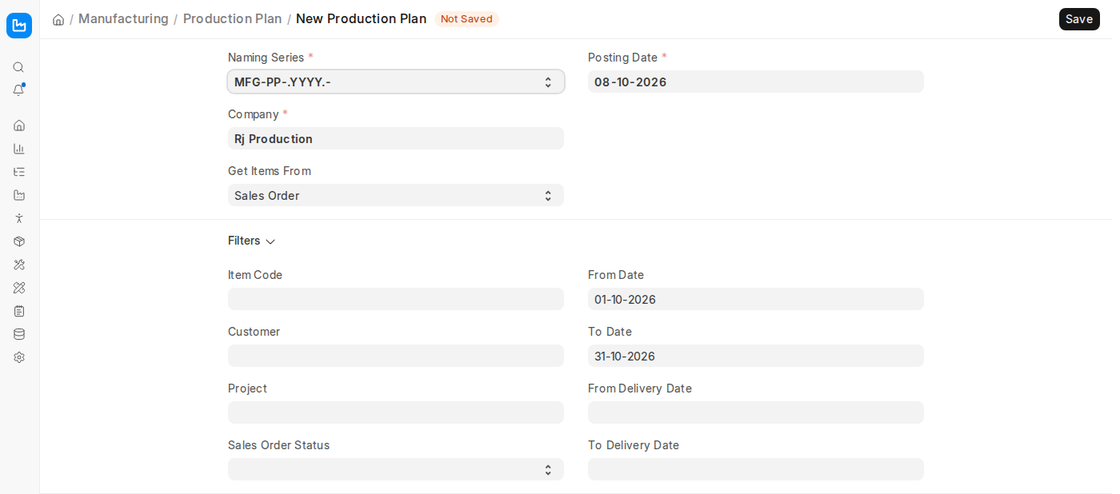
- A Production Plan can also be manually created, where you directly add the Items to be produced in the Assembly Items table without linking a Sales Order or Material Request.
Production Against Sales Orders
Choose Sales Order from the ‘Get Items From’ drop-down menu.
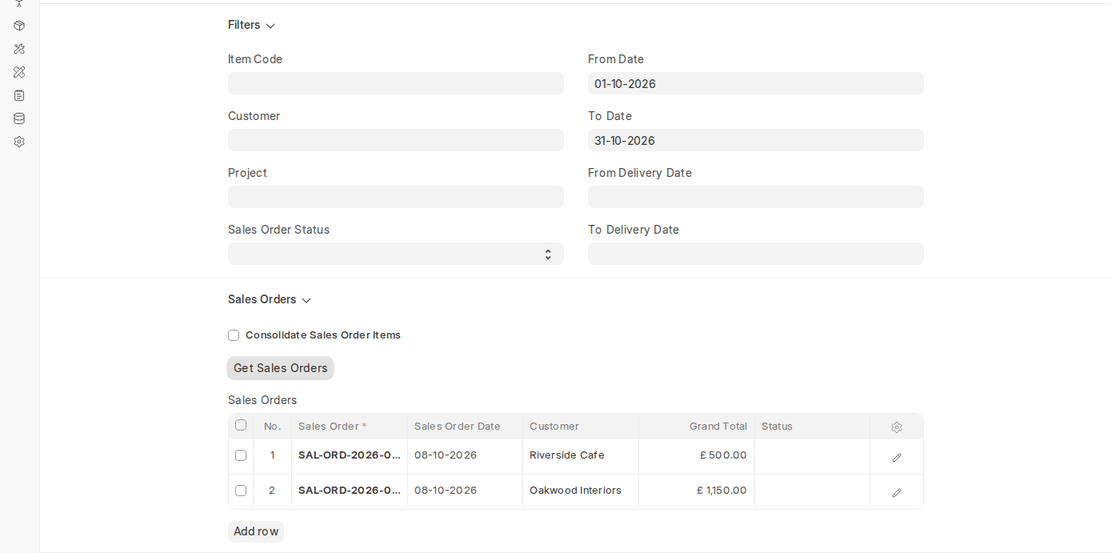
The system will display a Filters section with Item Code, Customer, Project, Sales Order Status, From / To Date and From / To Delivery Date, which enable you to retrieve the Sales Orders to be included in production planning.
You don’t necessarily have to use all the filters if you have few Sales Orders in a given time period.
Production Plan fetch items
Click on Get Sales Orders to retrieve all matching Sales Orders based on the applied filters. They are added to the Sales Orders table with the Sales Order, date, customer and grand total. Remove any row you do not want to plan.
This step is to make sure that only open and applicable Sales Orders are included for manufacturing planning. The system checks whether each Sales Order contains Items which are stock items and possess a valid, submitted and active Bill of Materials (BOM). Only such Items shall be taken into consideration for the next step.
Sales Order Filters
The filter dialog consists of the following fields to restrict the Sales Orders:
- Item Code: Only Sales Orders containing this item.
- Customer: Choose a customer to retrieve Sales Orders from that customer.
- Project (optional): If you are tracking production by projects, you can use this filter to collect related Sales Orders.
- Sales Order Status: To Deliver and Bill, To Bill or To Deliver.
- From / To Date: Filter by Sales Order date.
- From / To Delivery Date: Filter by the promised delivery date of items in the Sales Order.
You can apply any mix of the above filters. The more filters used, the more specific your selection will be when retrieving Sales Orders.
Get Finished Goods
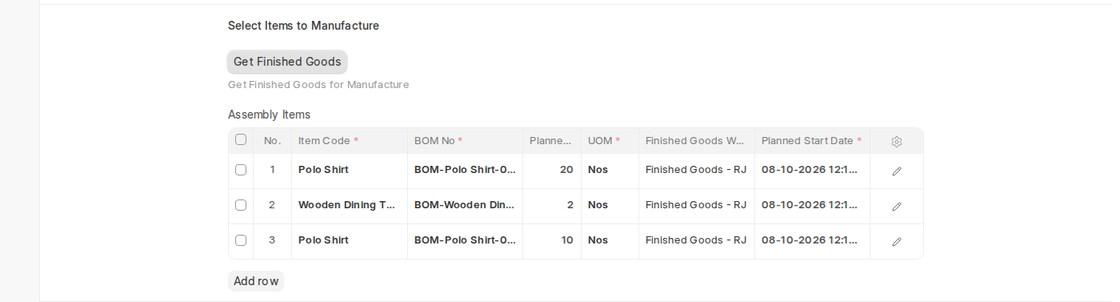
In the Select Items to Manufacture section, click on Get Finished Goods to retrieve Items from the chosen Sales Orders into the Assembly Items table. The system will only include Items that have an associated submitted and active BOM. Items without a valid BOM will be automatically eliminated from the plan, only including manufacturable Items.
Get items for Production Plan
The Assembly Items table will now fill with valid Items retrieved from the chosen Sales Orders. Each row is one distinctive Item to produce, along with the quantity needed.
When you expand a row, you can see the checkbox ‘Include Exploded Items’. If checked, the system will also add all child-level raw materials of the multi-level BOM for any sub-assembly items associated with the finished product.
Get items Combined for Production Plan
If the “Consolidate Sales Order Items” check box (in the Sales Orders section) is ticked before you click Get Finished Goods:
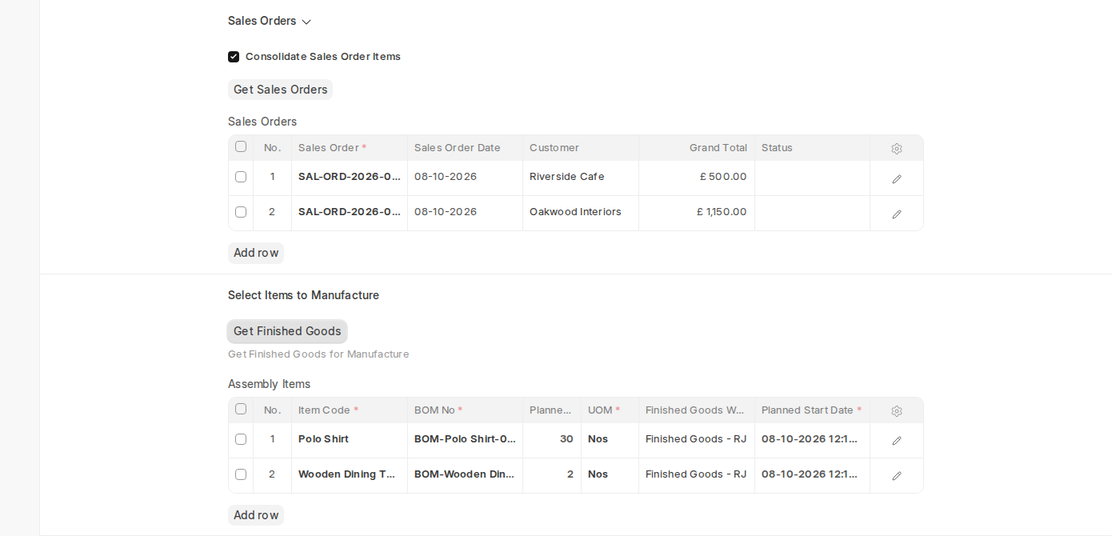
Items on multiple Sales Orders having the same Item Code and BOM will be combined together into a single row. The Planned Quantity of the row will capture the cumulative total of quantities needed of all combined Sales Orders.
This minimizes Duplication in planning and streamlines the overall generation of work orders.
2.2 Production Against Material Requests
Select the option Material Request in Get Items From. The system will display a series of filters to allow you to find the appropriate Material Requests to be scheduled in production. These filters help you in streamlining the internal material requirements into orders that will make them manufactured.
Material Request Filters: When choosing the Material Request filter, the following selection filters are offered:
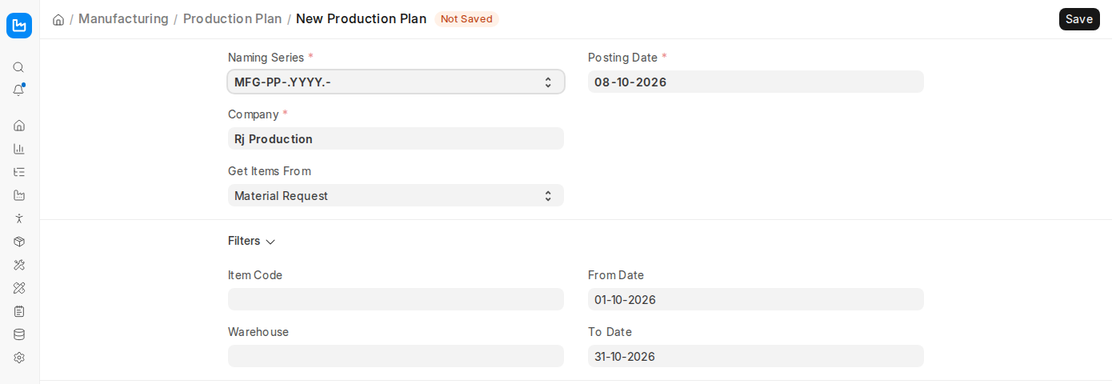
- Item Code: Only Material Requests containing this item.
- Warehouse: Filter by the warehouse the items are requested for.
- From / To Date: Filter by Material Request date.
Only submitted Material Requests of type “Manufacture” of the selected company are fetched. These are the requests which are created to reflect the internal requirement for finished goods to be manufactured.
Material Requests
Click Get Material Request to add the Material Requests that fit the filters to the Material Requests table, which shows:
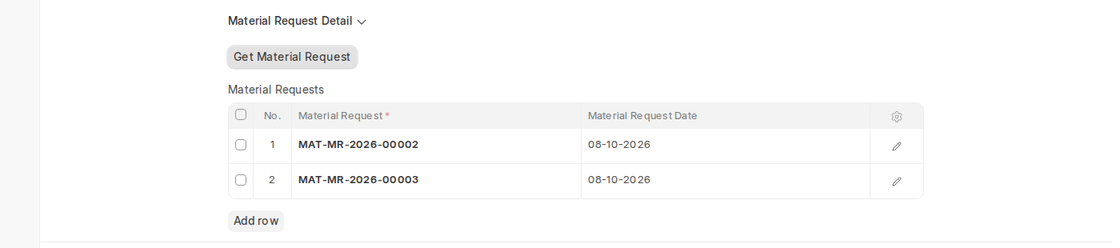
- Material Request
- Material Request Date
Remove any row you do not want to plan. Only Items that are stock items and have a valid, submitted Bill of Materials (BOM) will be added to production planning. If a BOM is absent or not submitted for an Item, it will be skipped automatically.
Material Request Item
Click on Get Finished Goods to retrieve all the Items from the chosen Material Requests into the Assembly Items table in the Production Plan.
There will be one line in the table for each and every line:
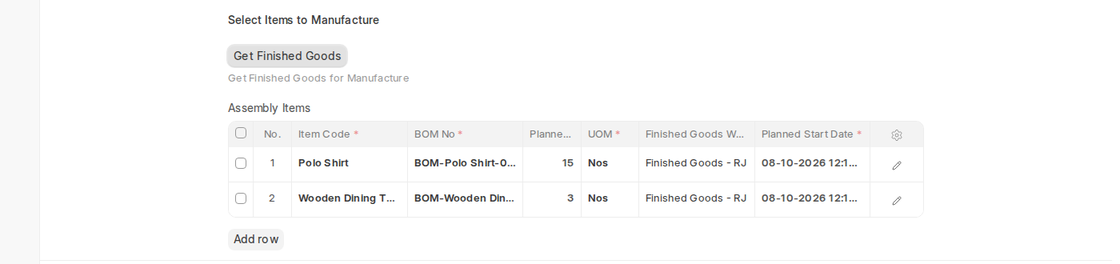
- Item Code
- BOM No
- Planned Qty
- Finished Goods Warehouse
- Planned Start Date
After listing the Items, you can expand each row to check or make changes in the corresponding BOM. If there are sub-assemblies, you can have an option ‘Include Exploded Items’, which will explode the sub-assembly in terms of raw materials depending on the multi-level structure of BOM.
Note that Consolidate Sales Order Items is only available when items are fetched from Sales Orders; items from Material Requests stay one row per request line.
2.3 Material Request Planning
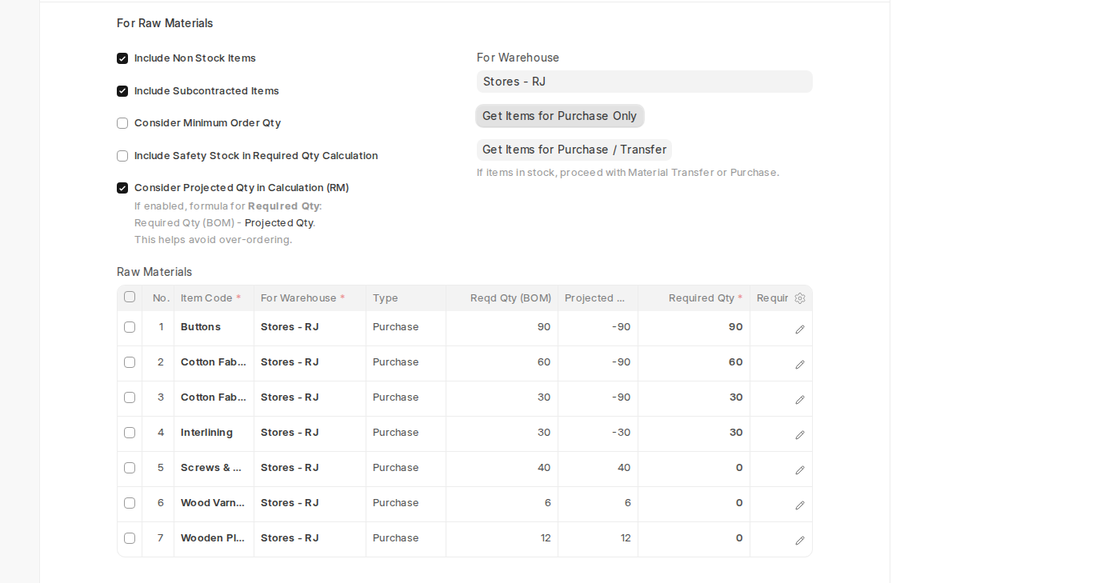
In the For Raw Materials section, set the For Warehouse and click Get Items for Purchase Only or Get Items for Purchase / Transfer. This retrieves all needed raw material Items for the Assembly Items (and sub-assemblies) in the Production Plan.
The system computes the raw material shortfall quantity after verifying the amount of available stock in the given source warehouse. For instance, to produce 200 plastic canes, if the Bill of Materials for the production is 100 plastic Nos but only 20 Nos are found in the source warehouse, it will automatically determine the shortfall and show 80 Nos in the Required Qty column of the Raw Materials table.
Raw Materials
The Raw Materials table is filled with the raw materials needed for the planned production. All rows in this table indicate:
- Item Code
- For Warehouse
- Type (for example Purchase or Material Transfer)
- Reqd Qty (BOM)
- Projected Qty
- Required Qty
- Required By
This table assists the user in determining shortages and planning procurement accordingly. It also allows the generation of Material Requests directly from the Production Plan for the raw materials included here.
Use the following checkboxes to initiate certain actions:
- Include Non Stock Items: Check this box to allow planning of non-stock items. These are the products, in which the Maintain Stock option is disabled in the Item Master. This will enable the planning of even services, consumables or indirect materials in the production, especially when the services are needed yet not stocked.
- Include Subcontracted Items: Selecting this checkbox adds the raw materials of the subcontracted Item to the planning. This is useful in case ‘Include Exploded Items’ is not selected, yet there is a need to include the raw materials of subcontracted parts which will be treated externally. This ensures that all the input materials such as those treated internally as well as externally are applicable in the Material Request Plan.
Consider Projected Qty in Calculation (RM):
If this checkbox is ticked, the Required Qty is calculated as Reqd Qty (BOM) − Projected Qty, so materials that are already in stock or on order (Purchase Orders, open Material Requests) are not requested again. This helps avoid over-ordering.
For instance, suppose you require 100 units of raw material (e.g., Item A) and the Projected Qty is 150 units: with this option ticked, no further quantity is requested.
Two more options affect the quantities: Consider Minimum Order Qty (rounds the request up to the item’s minimum order quantity) and Include Safety Stock in Required Qty Calculation.
- For Warehouse:
This option sets the Warehouse for which the raw materials are planned (the warehouse they are needed in). When making Stock Entries or Material Requests, the system will use this warehouse to check availability and process the transactions.
Set it before fetching the raw materials; ERPNext asks for it (“Select the Warehouse”) if it is empty. After saving, Download Required Materials (Preview Required Materials section) exports the material requirement to a file.
This assists users in making better procurement decisions and monitoring material availability from various warehouses if required.
2.4 After Submitting
After the Production Plan is submitted, the system enables key downstream manufacturing functions to move from planning to actual execution.
Following submission, the following operations become accessible:
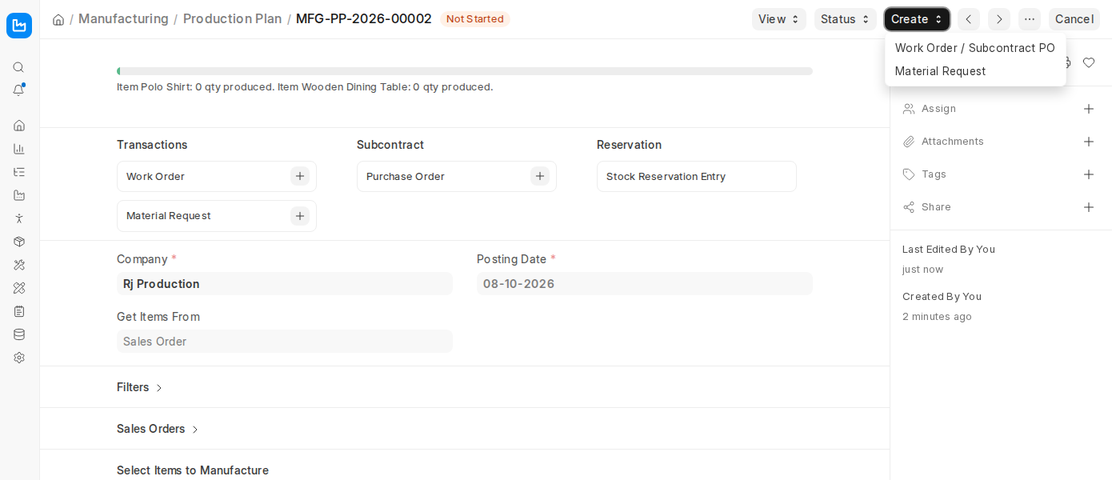
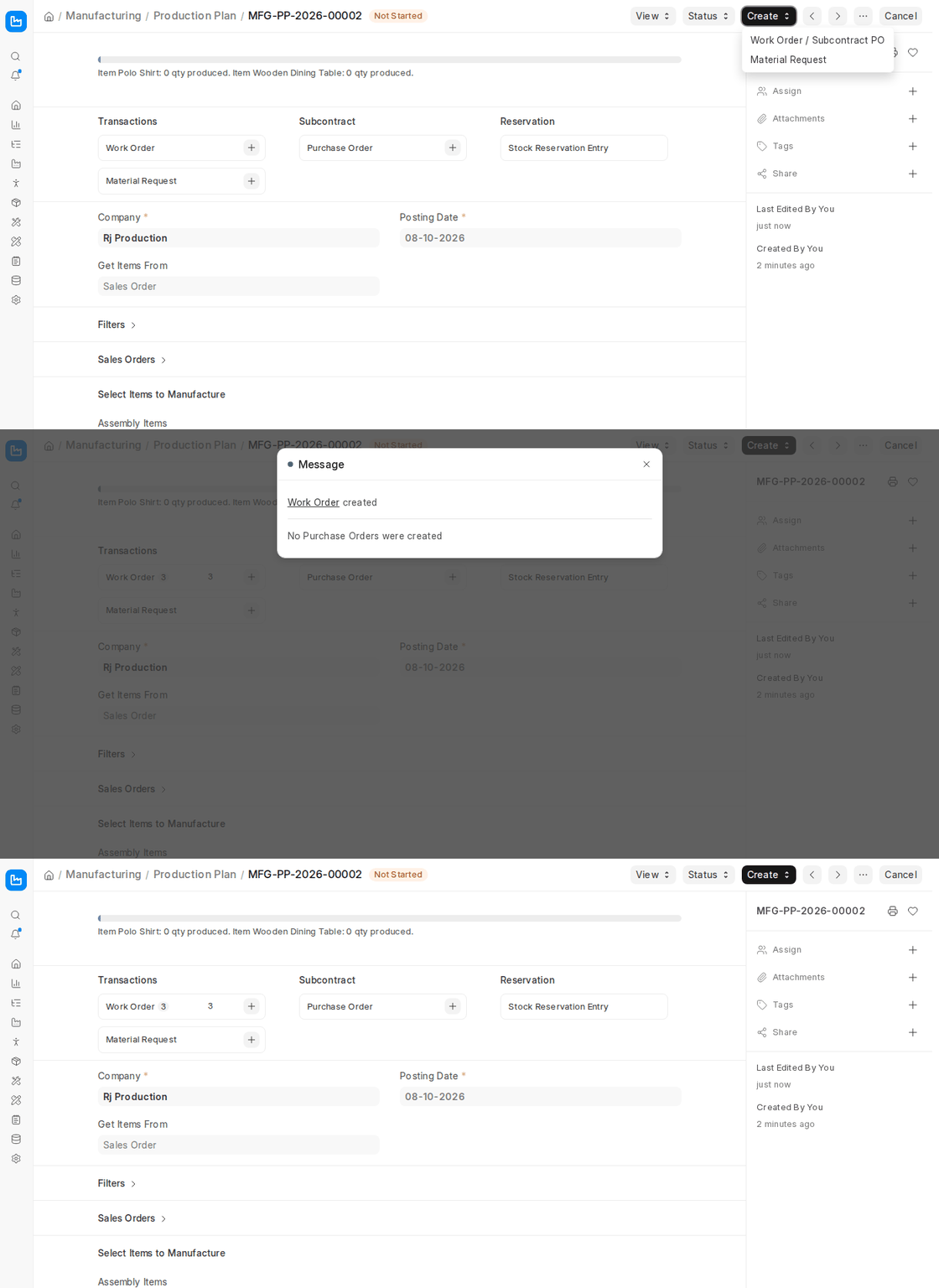
- Create > Work Order / Subcontract PO: Work Orders are created for each item in the Assembly Items table and for in-house sub-assemblies, and Subcontracting Purchase Orders for subcontracted sub-assemblies. By clicking this option, specific documents will be automatically created and linked with the Production Plan. Production scheduling is therefore automated and traceability to the plan is attained.
- Create > Material Request: The system can also automatically generate Material Requests for the raw materials listed in the Raw Materials table. Such Material Requests will arrange raw materials to be ordered or transferred in advance so that a free production may be possible without the shortage of raw materials at the same time. You may construct or create:
- Material Requests for Purchase (for raw materials procured outside),
- Transfer (between warehouses)
- Track and Review: Once Work Orders and Material Requests have been created, the reference to these documents can be tracked easily right in the Production Plan. Activity outputs generated or booked are updated with regard to actual progress against plan.
- Status Management: From the Status menu, the Production Plan can be Closed once all or some items are resolved and are no longer to be processed.
Tip: You can reopen a previously closed Production Plan at a later time should there be a shift in production priorities or other requirements are needed.
2.4.1 Closing a Production Plan
In other instances, a Production Plan may not be entirely executed because of changing demand, lack of materials, or management decisions. Closing the Production Plan prevents unnecessary Work Order or Material Request creation. This functionality provides greater production control and data reliability.
Common scenarios for closing a Production Plan are:
- Independent Production Completion: Certain items in the Production Plan could already have prior production already completed within other Work orders that are not linked to the plan.
- Manufacturing Priority Shift: Due to a change in sales forecasts and capacity availability shortages or stock changes, management may opt to exclude some items in the Production Plan.
- Partial Compliance: Only a small part of the products to be manufactured is completed and the other either stopped to be accepted any more or permanently placed on deferral.
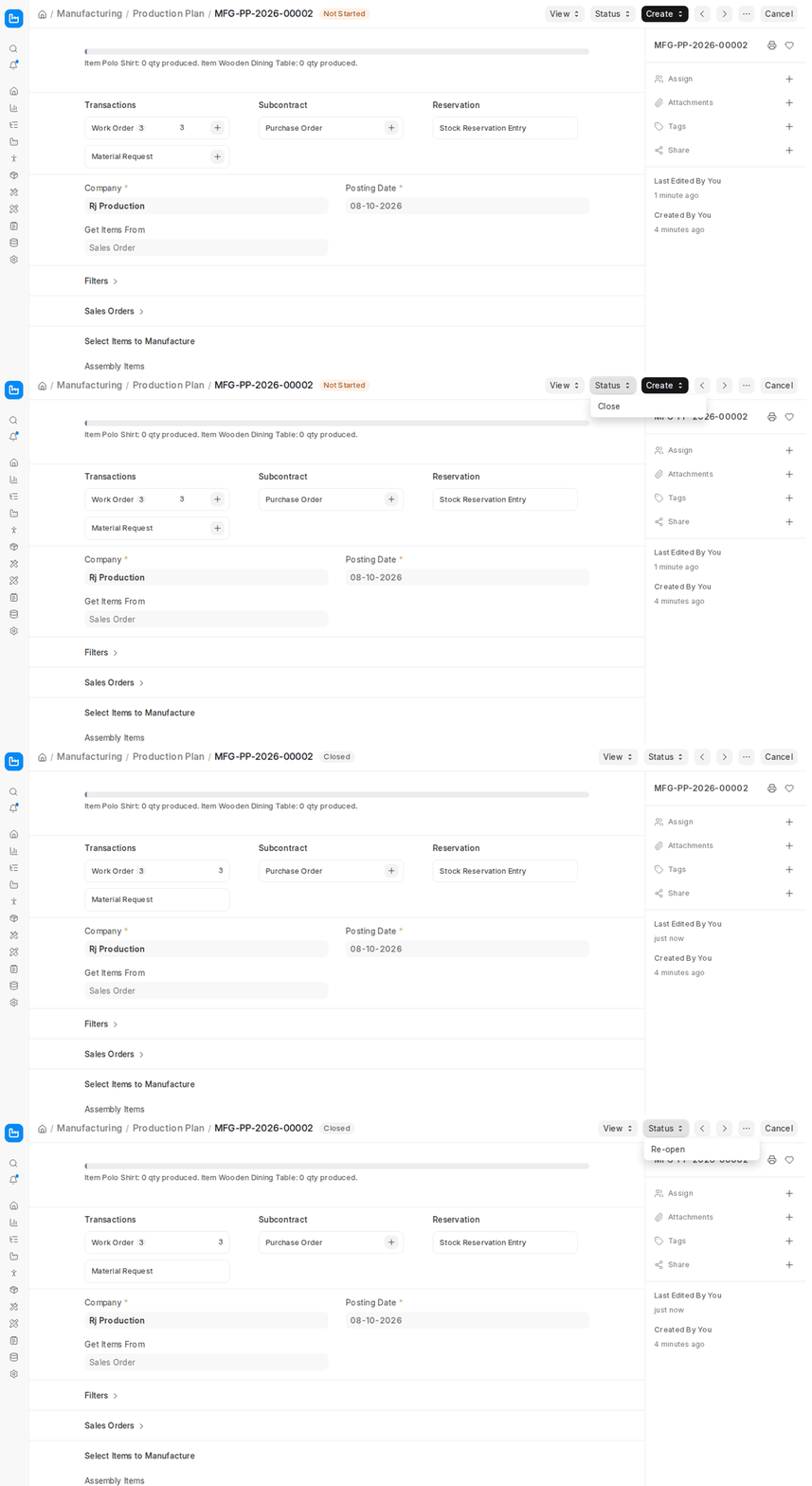
To close a Production Plan, open the Status menu and click Close. After closure:
- The plan is read-only for most fields.
- The system will no longer accept creation of further Work Orders or Material Requests against the closed plan.
- Linked documents are still available for reference.
If things change, and additional production must be ongoing, the Production Plan can be reopened from Status > Re-open, again in full functioning mode.
2.5 Creating Work Order for the Sub-Assembly Items
In production situations where a finished product is made up of sub-assemblies, you might need to generate Work Orders for those sub-assemblies before the final assembly. ERPNext makes this possible through the Sub Assembly Items section of the Production Plan.
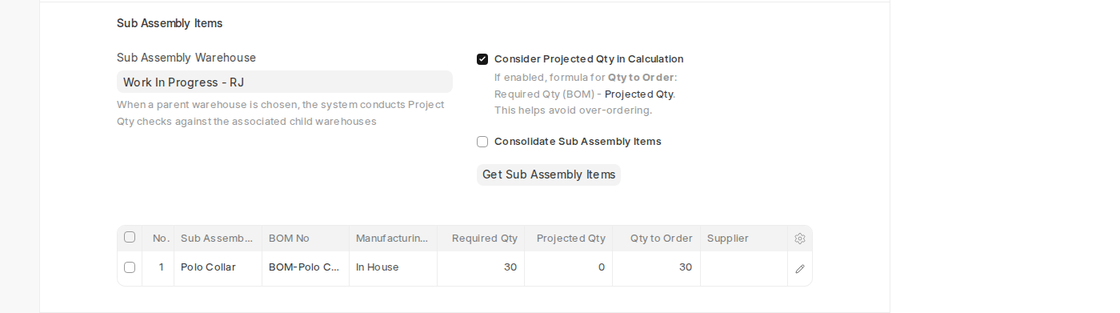
In the following example, the Polo Shirt’s BOM contains the sub-assembly ‘Polo Collar’, which has its own BOM. The plan creates a Work Order for the Polo Collar as well as for the Polo Shirt.
This guarantees that all parts that are required to be manufactured are done so in sequence and are ready before actual finishing work is initiated.
Enabling the Feature
For creating Work Orders for sub-assembly items:
- After fetching the Assembly Items (e.g., Polo Shirt), go to the Sub Assembly Items section and select the Sub Assembly Warehouse (it is required).
- Optionally tick Consider Projected Qty in Calculation (Qty to Order = Required Qty (BOM) − Projected Qty) and Consolidate Sub Assembly Items.
- Click Get Sub Assembly Items. ERPNext reads the BOMs and lists every sub-assembly (e.g., Polo Collar) with its BOM, Manufacturing Type (In House or Subcontract) and Qty to Order.
Generating the Work Orders
After the sub-assembly items are listed:
- Submit the Production Plan and click Create > Work Order / Subcontract PO.
- ERPNext generates Work Orders not only for the finished good items (Polo Shirt) but also for the in-house sub-assemblies (Polo Collar), and Subcontracting Purchase Orders for subcontracted ones.
Every Work Order generated will:
- Be referenced to the Production Plan, ensuring traceability.
- Possess its own routing, operations, raw material planning, and job cards (if applicable).
- Make dependencies transparent — Work Order of the end product is contingent on fulfillment of sub-assembly Work Orders.
This organized procedure facilitates improved material flow planning, operation sequencing, and visibility in multi-level manufacturing processes.