
Job Card
A Job Card holds real production data on a specific Operation executed on a specific Workstation.
A Job Card is generated from the Work Order and provided to each of the Workstations in the production floor to initiate the manufacture of an item with a specific quantity in each of the operations scheduled in the Work Order.
Job Cards now have the pause and resume functionality, enabling better time tracking. When paused and resumed, a Job Card, time logs get automatically updated based on actual production time. It enhances labor cost estimation and scheduling accuracy.
Job Card enables every Operation’s workstation to raise a Material Request and Stock Transfer for manufacturing for the raw material required on a Job Card.
In ERPNext v16, the Job Card shows an Elapsed Time panel with Start Job, Pause Job, Resume Job and Complete Job buttons, and it can also record Secondary Items (such as scrap) produced during the operation.
At the time of execution of the job, a Quality Inspection can be linked directly on the Job Card. This assists in capturing quality defects and production defects at the operation level, enhancing traceability and corrective measures.
Job Card completion will update the production status in Work Order, and you can now trace the completion of production progress per one of the operations defined in the Work Order more accurately because of these additional metrics.

To view the Job Card list, navigate to:
1. Prerequisites
Prior to creating and utilizing a Job Card, it is recommended that you first create the following:
- Bill Of Materials: Make sure that the Item to be produced has a valid Bill of Materials (BOM). The BOM must have operations and raw materials. Secondary items (such as scrap) defined in the BOM can also be recorded on the Job Card.
- Operation: Specify the Operations needed to produce the Item.
- Workstation: Establish the Workstations wherein the Operations are to be executed. The working hours set on the Workstation are used when Job Cards are scheduled.
- Work Order: A Job Card is generated from a Work Order. Make sure that the Work Order has been submitted and includes all the necessary information such as associated BOM and operations. If an operation has a Batch Size, the Work Order creates a separate Job Card for each batch.
2. How to Create a Job Card
Operations Job Card is created automatically when you submit a Work Order.
Here’s how a Job Card appears:
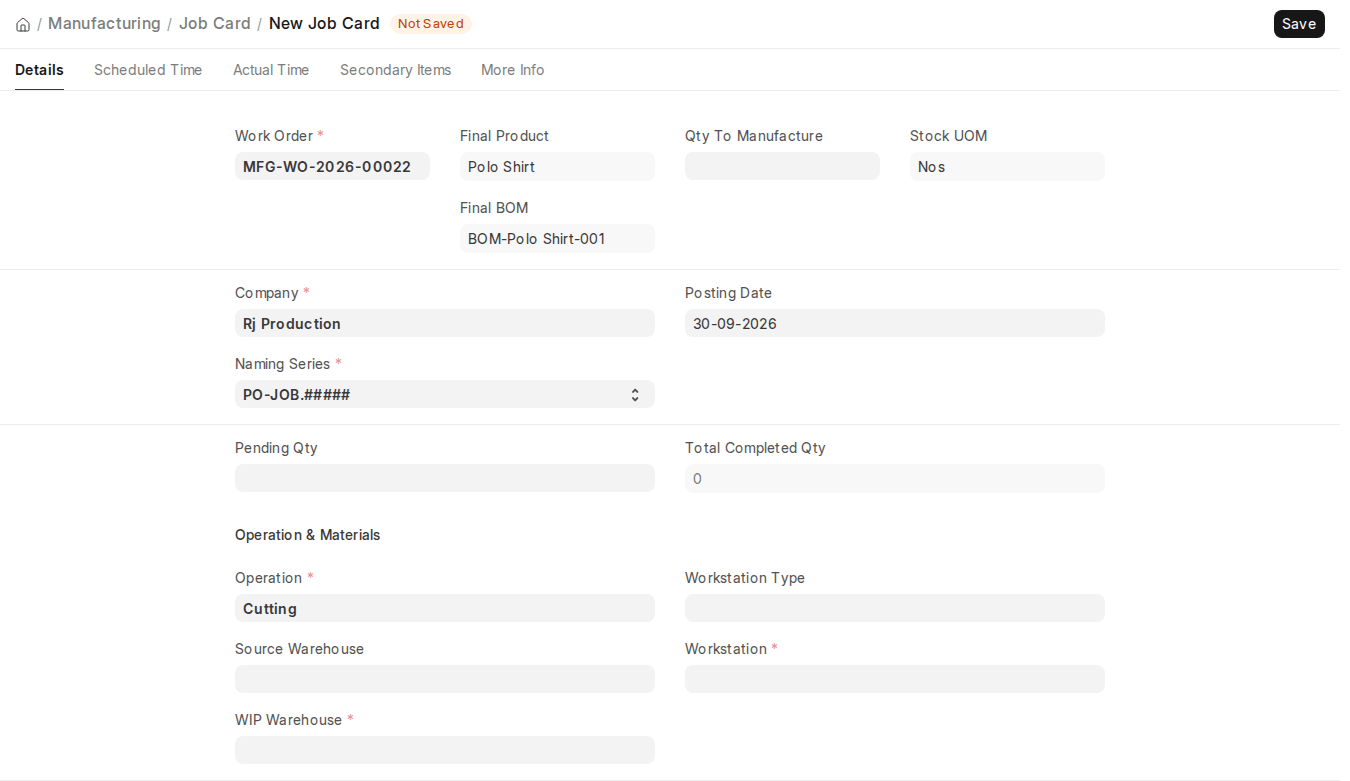
Job Card
Here’s how you use a Job Card:
- Click the Start Job button in the Elapsed Time panel, and then on Complete Job when finished. If no employee is set on the Job Card, ERPNext first asks you to assign the job to one or more employees. While the job runs you can use Pause Job and Resume Job, and on Complete Job you enter the Completed Quantity.
- Alternatively, you can also enter the From Time and To Time in the Time Logs table on the Actual Time tab.
- Choose the Employee to whom the Job Card was allocated. The Employee field accepts one or more active employees from the Employee master.
- Input the Completed Quantity. This is the count of Items on which Operation was undertaken for the chosen time period.
- Increase rows in the Time Logs table and enter time through the Start/Complete buttons. This enables operators to log partial or staggered operation times per shift or batch. Each time log row records the Employee, From Time, To Time and Completed Qty.
- Click on Submit. Upon submission, the Job Card updates the completed quantity and actual operation time of that operation in the Work Order.
Operations and Workstations in a Work Order are retrieved from the BOM of an Item. For simplicity, you should make sure the Routing is done in the BOM.
In a Routing, you can also set a Sequence ID for each operation:
- Parallel Operations: Operations with the same Sequence ID can be scheduled to run in parallel; otherwise they run one after another.
Every Job Card generated will be assigned Workstation & Operations. Raw material needed from every Source Warehouse will be determined by quantity needed for manufacture.
- Raw materials to be transferred against the Job Card are listed in its Raw Materials table.
Upon Work Order submission, Job Cards will be automatically created from the Operations table values. The Job Cards will have:
- The attached Operation and Workstation
- Expected time based on the operation time in the BOM
- Auto-filled fields such as the Final Product, Final BOM and Qty To Manufacture.
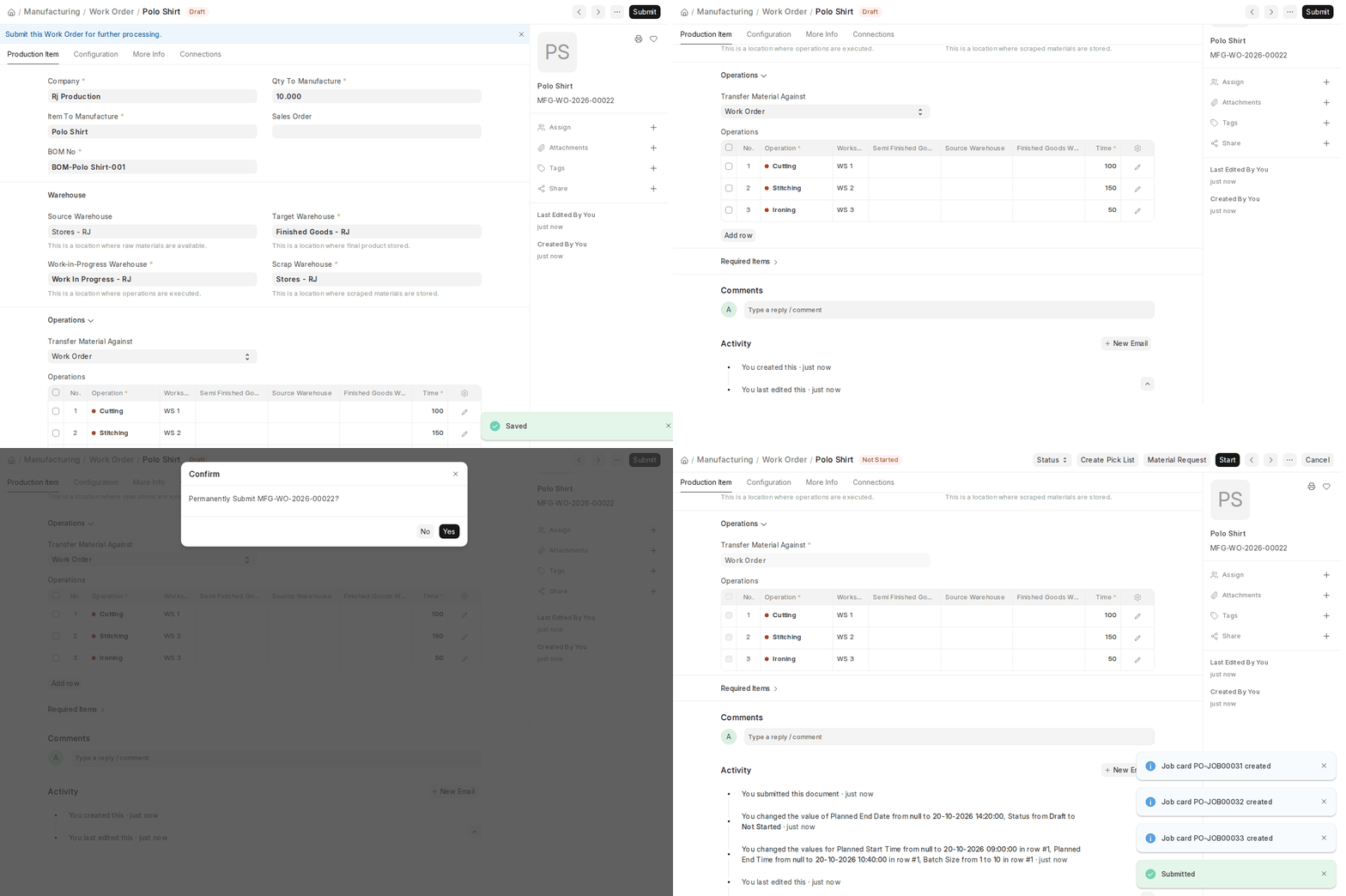
Each Job Card also:
- Books capacity on the workstation, shown on its Scheduled Time tab (when capacity planning is enabled).
- Records the actual time worked in Time Logs on its Actual Time tab.
2.1 Select Work Order with Item to Manufacture
You can choose ‘Transfer Material Against’ as ‘Job Card’ on the Bill of Materials to transfer raw materials for Production against separate Job Cards. This setting is in the Operations section of the BOM’s Production Item tab and is copied to Work Orders created from the BOM.
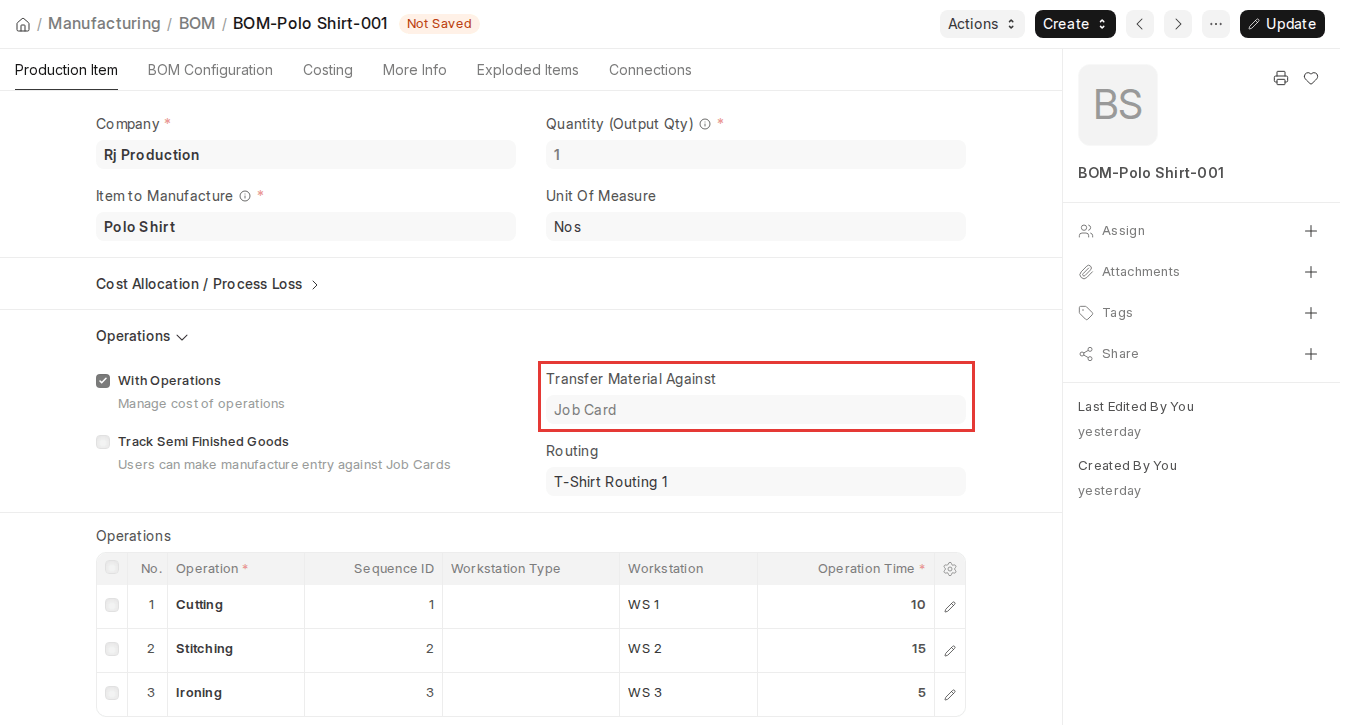
This lets you raise Material Requests and material transfers against each Job Card (using Create > Material Request and Create > Material Transfer on the Job Card), so raw material can be pulled at Workstations as needed during production execution.
In the Work Order, you can choose the correct transfer type depending on how your operations are set up.
2.2 Utilizing a Job Card
Employee assignment and timing detail are specified directly within the Job Card. The time taken to complete a job can be tracked either automatically by clicking the Start/Complete buttons or manually using Time Log entries.
If several employees are performing the same Operation, you can create multiple Job Cards by clicking the ‘Create Job Card’ button within the Work Order or from the Job Card list.
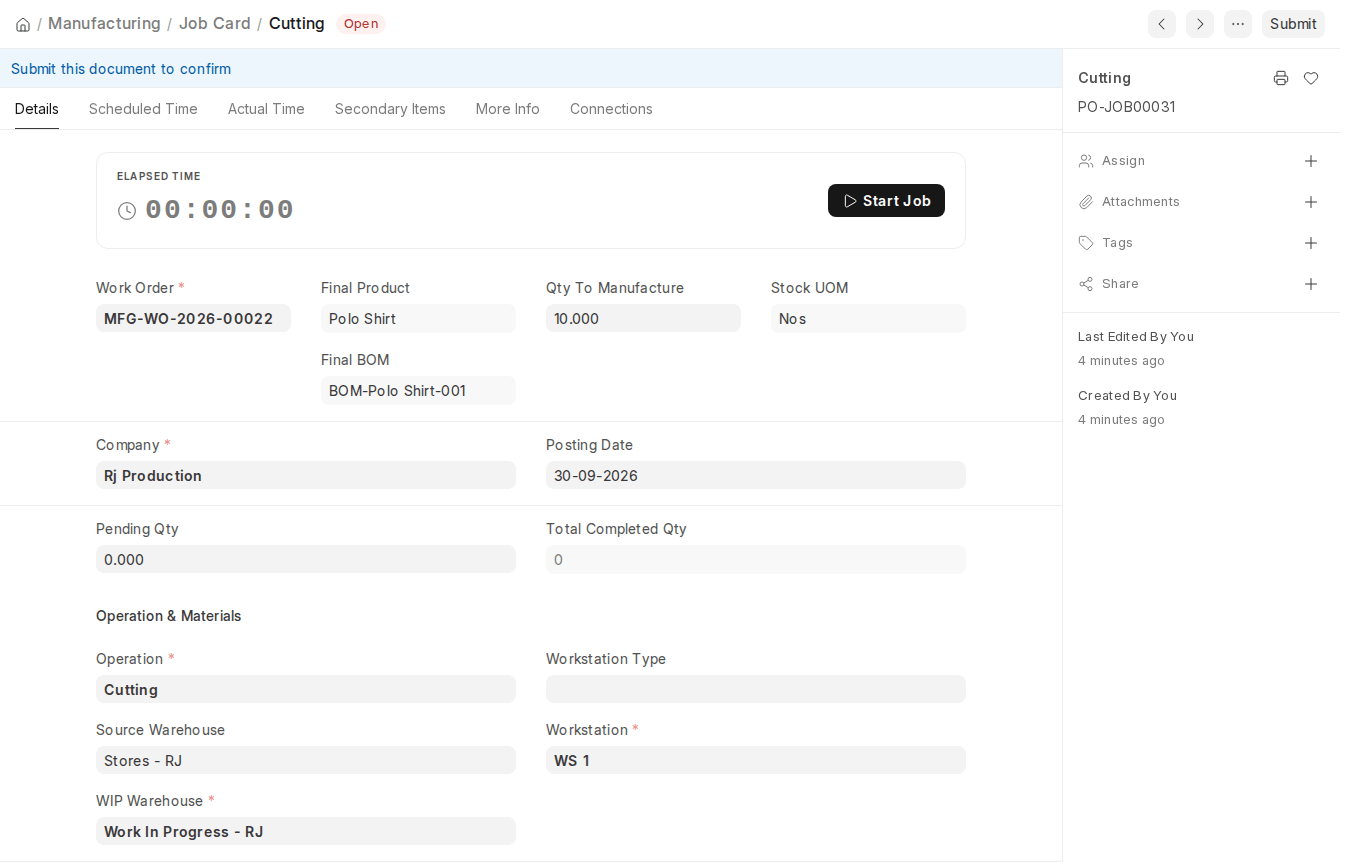
2.3 Material Request against Job Card
A Material Request is initiated from the Job Card as an in-house instruction to make and issue raw material needed for that particular operation. The Material Request will contain a direct reference to the original Job Card number so that there is traceability and operation-wise material control.
You can create it from the Job Card using Create > Material Request.
Monitor the Manufacturing Status in the Work Order by the Completion of Every Operation specified in Work Order.
Job Card completion allows real-time monitoring of the production status in the Work Order. Since every Job Card is submitted with quantities completed, the system automatically updates the status of the respective Operation in the parent Work Order.
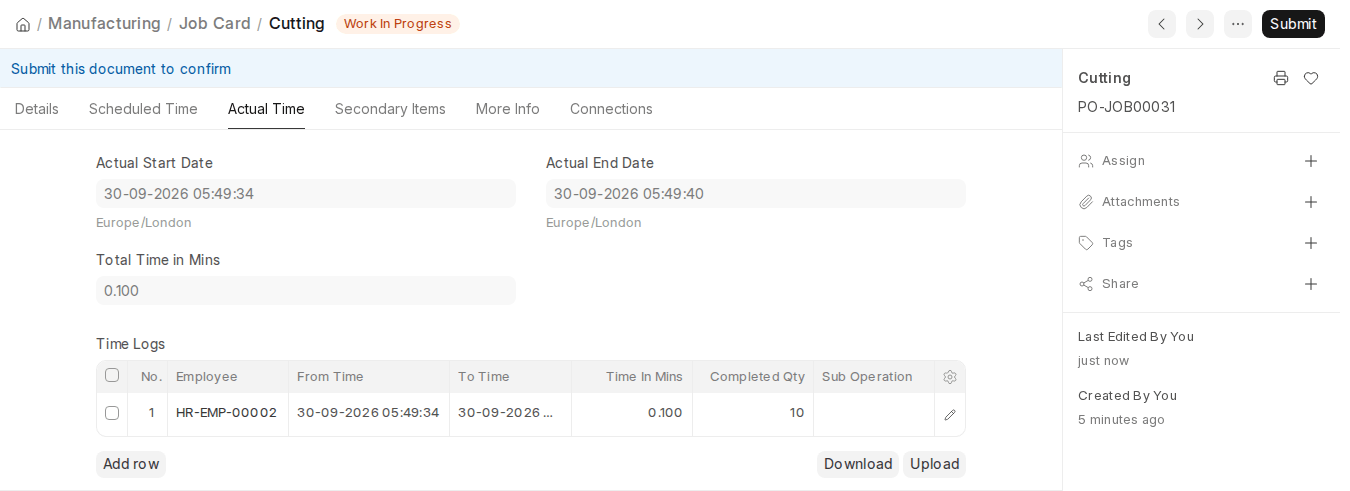
The completed quantity of each operation is updated in the Work Order’s Operations table, giving production planners an immediate view of production progress.
2.4 Secondary Items (Scrap)
During the process of completing the operations, there may be possibilities that a few scrap materials may be created. These scrap materials need to be added to inventory.
To do that, the user has to enter the details of the scrap items straight into the Job Card in the Secondary Items tab (called Scrap Items in earlier versions), with the Type set to Scrap. This will ensure proper recording and accounting of scrap output within the system.
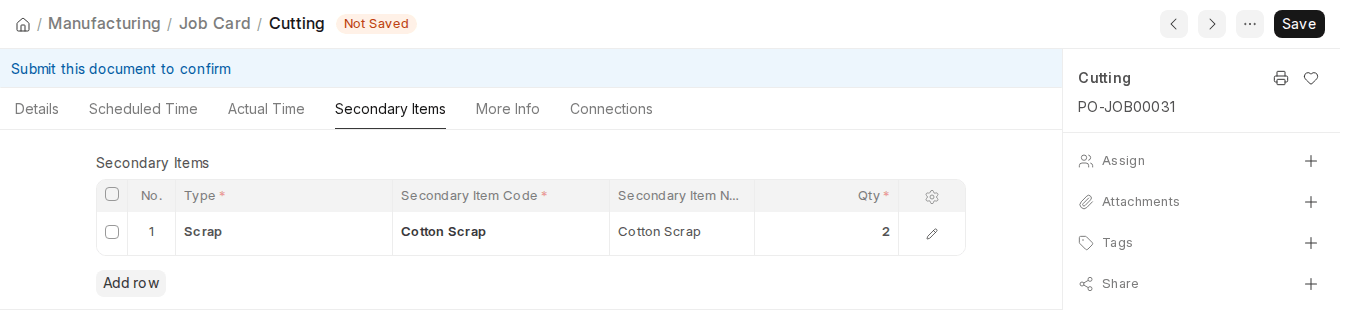
You may also mark defective or damaged material in the Secondary Items table. Every entry records the Type, the Secondary Item Code and the Quantity.
The Scrap Warehouse for these items is set on the Work Order.
3. Features
3.1 Tracking Quality Inspection
For order of production, the quality of in-process (half-finished) goods must also be monitored. It is determined by the process (operation) carried out on the item, which is itself determined in the Job Card.
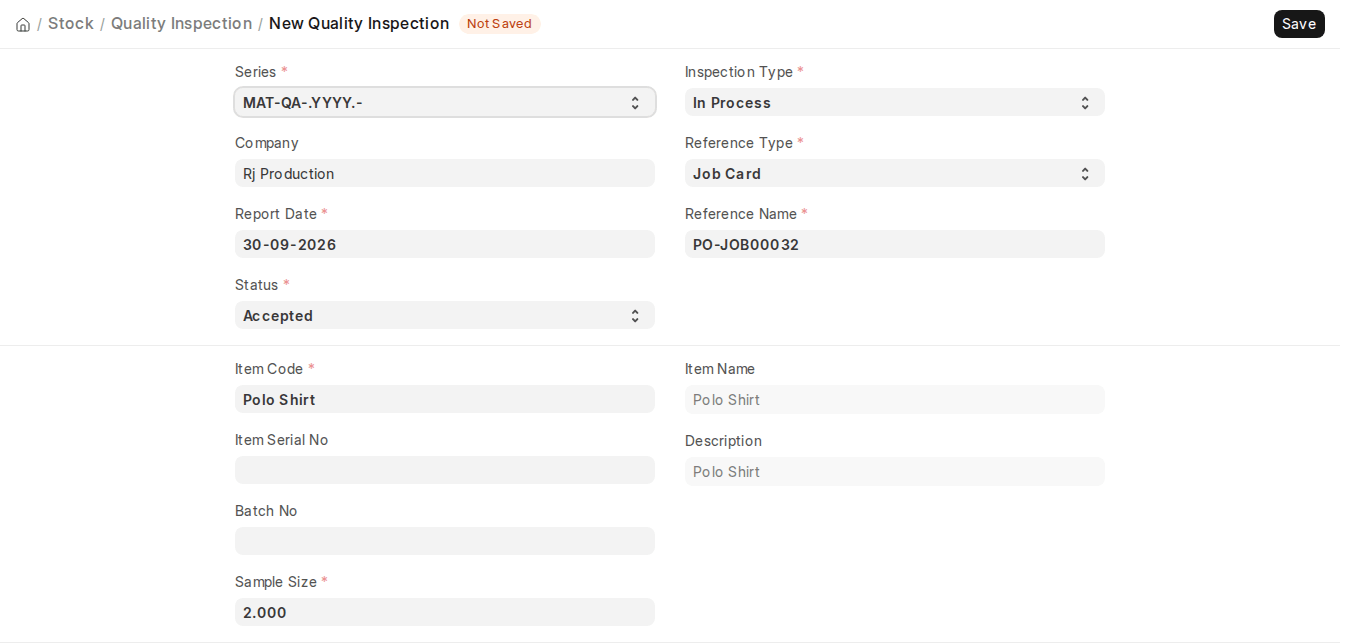
In-process inspection tests are distinct from incoming and outgoing materials inspection. In-process quality monitoring ensures that the finished product being produced is of the specified quality.

You can design a Quality Inspection for the Production Item against the Job Card. A link to create or view the associated Quality Inspection is provided directly within the Job Card form under the Quality Inspection section.
In ERPNext v16, you can:
- Set a Quality Inspection Template on the Job Card,
- Mark individual Work Order operations as Quality Inspection Required (when Inspection Required is enabled in the BOM),
- Define pass/fail parameters for every test
- And block the completion of a Job Card until the Quality Inspection has been submitted, depending on the action set in Stock Settings.
This integration provides process-level Compliance and assures traceability of quality results per operation.

