
Routing
A Routing is a blueprint of BOM Operations.
A Routing stores all Operations along with the description, hourly rate, operation time, batch size, etc. Creating a Routing for your BOM Operations is useful where repeating Operations are used to manufacture various items. In the latest version of ERPNext, Routing also allows you to specify the sequence of operations through a Sequence ID so that operations are carried out in a specific sequence. Operations that share the same Sequence ID can run in parallel.
To display the Routing list, navigate as follows:
1. Prerequisites
- Operation: Operations identify single operations in manufacturing. Each Operation should be established before you create a Routing. You can assign details like the default workstation, time consumed, and whether the operation is active or inactive.
- Workstation: Workstation is a single location or equipment on which the Operation is currently being carried out. A workstation can have such attributes as working hours, holiday list, rate per hour, capacity, and operating cost. Workstations are utilized to find operating cost when routing and BOM costing.
2. How to Create a Routing
- Go to: Routing list, click on New.
- Give a name to the Routing.
- Enter the Operations into the BOM Operation table:
- Select the Operation. The default Workstation will be automatically picked up based on the Operation settings. You can override this manually if needed.
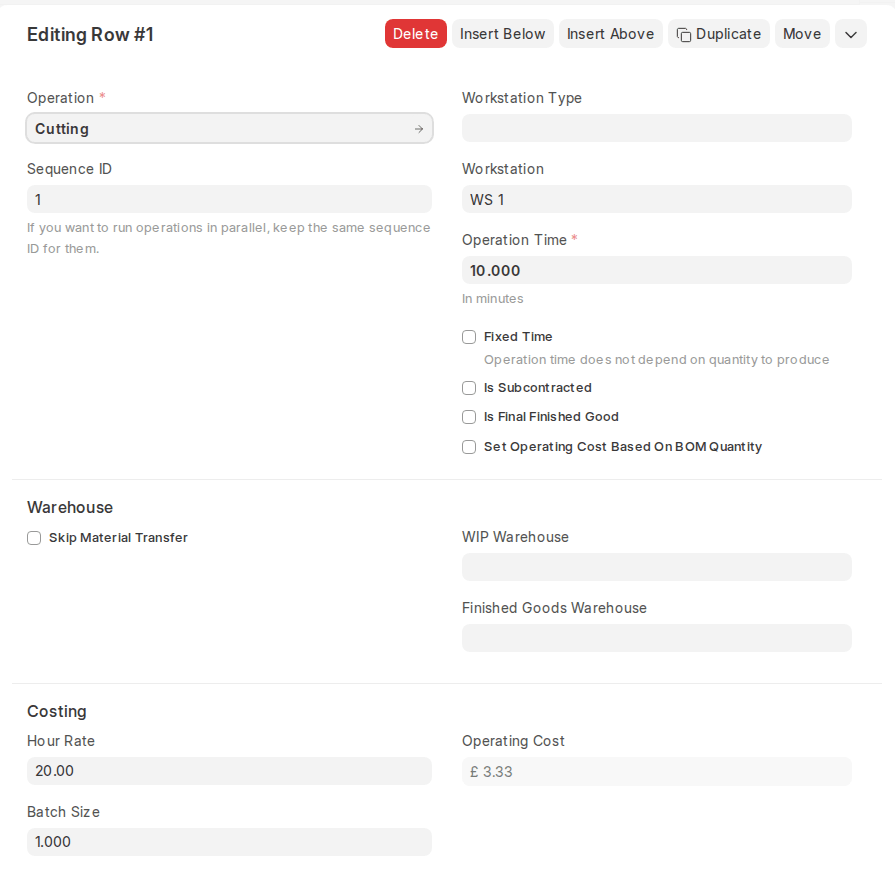
- Enter the Hourly Rate to execute this Operation. The Hourly Rate sets the price for each hour to perform the operation on the selected workstation. It can either be derived from the workstation or filled manually.
- Enter the Operation Time in minutes. This is the time for processing one batch. Tick Fixed Time if the operation time does not depend on the quantity to produce.
- Insert the Batch Size, i.e. the number of units handled in this Operation. The Batch Size is used to work out the Cost Per Unit of the operation.
- The Operating Cost will be calculated based on the Hourly Rate and the Operation Time, and the Cost Per Unit spreads it over the Batch Size. The formulas used are:
- Operating Cost = Hourly Rate × Operation Time (in minutes) / 60
- Cost Per Unit = Operating Cost / Batch Size (used when Set Operating Cost Based On BOM Quantity is ticked, so the BOM’s operating cost becomes Cost Per Unit × BOM quantity)
- You can also assign a Sequence ID to each operation. This numeric ID strictly imposes the order of operation execution. In case a Job Card tries to complete a next operation before an earlier operation (based on Sequence ID), the system will throw a validation error, upholding proper workflow compliance.
- Each operation row also has options such as Skip Material Transfer, Is Subcontracted and Quality Inspection Required, used when tracking semi-finished goods and subcontracted operations.
- Save
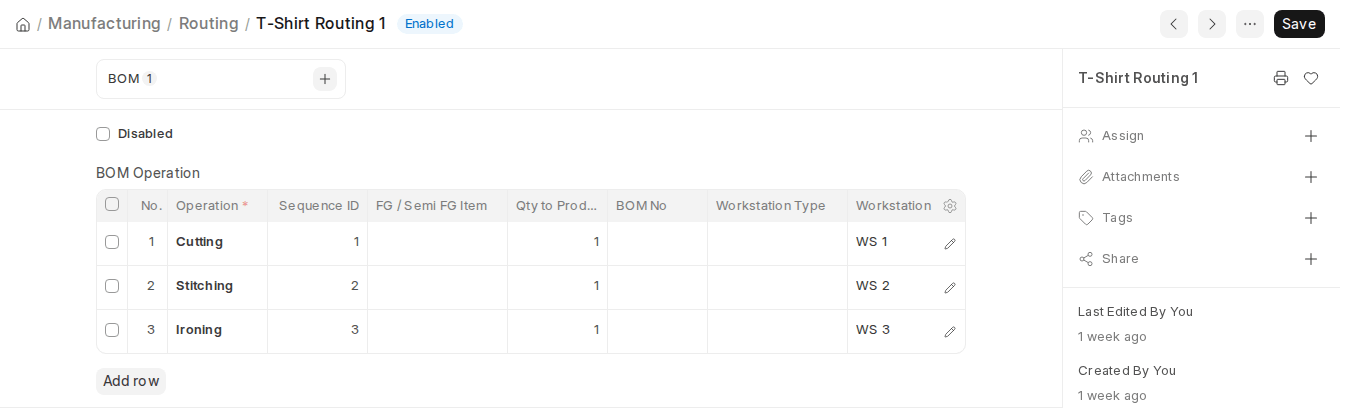
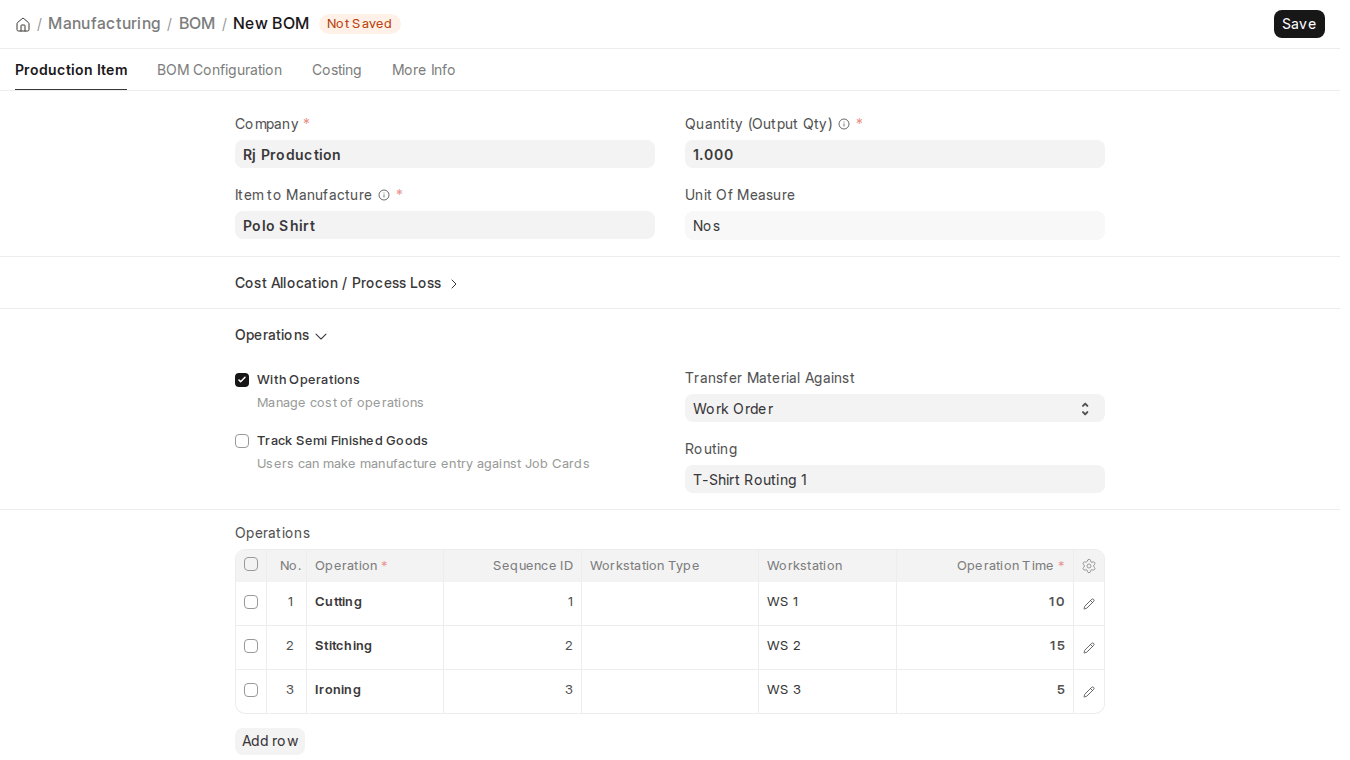
Once created, a Routing can be selected in a BOM to obtain the Operations saved in the Routing. The Operations, as well as all the specifics defined such as hourly rate, batch size, time, and cost, will be auto-updated in the BOM.
This supports standardization of manufacturing steps on numerous items and maintains costing and planning constant. Changes made to a Routing later are not pushed to existing BOMs automatically. Re-selecting the Routing on a draft BOM (for example, a new BOM version) replaces its operations with the Routing’s current operations.
3. Sequence ID in Routing
Routing Sequence ID enforces the users to complete the operations in succession using Job Card. If a user tries to complete an operation without completing any of its preceding operations based on the Sequence ID, the system raises a validation exception.
Each Operation within a Routing has a Sequence ID field. It has a numerical value which indicates the order in which the operations will be carried out. This sequence is used by the system for verifying the correct execution flow during production.
If a Job Card for a higher Sequence ID operation is posted prior to finishing all lower Sequence ID operations, ERPNext will not allow it and display an error message, preventing out-of-sequence completion. This helps maintain tracking of manufacturing steps and maintains production discipline.
If you want two or more operations to run in parallel, give them the same Sequence ID.

