Appraisal Cycle
An Appraisal Cycle in ERPNext is a fixed time interval when employees’ overall performance, contributions, and goal achievements are officially reviewed. It provides ratings on a fixed schedule, ensuring that all ratings within the firm are equitable, aligned with one another, and completed within a fixed amount of time.
1. Requirements
You must have Appraisal Templates prepared for all the various Jobs in your company before you can create an Appraisal Cycle. These templates define the KRAs and Feedback Criteria by which individuals will be assessed throughout the cycle.
You can link the templates directly in the Designation master. That way, the system will automatically receive them when you create the cycle. You can also select the correct templates manually in the Appraisees child table when you create the cycle. This flexibility allows you to use either pre-set automation or customise individual cycles manually as required.
2. Creating an Appraisal Cycle
- Open the Appraisal Cycle list and click on “Add Appraisal Cycle.”
- Enter the Cycle Name that clearly shows what the review period is, for “Annual Appraisal 2025” or “Mid-Year Review Q2.”
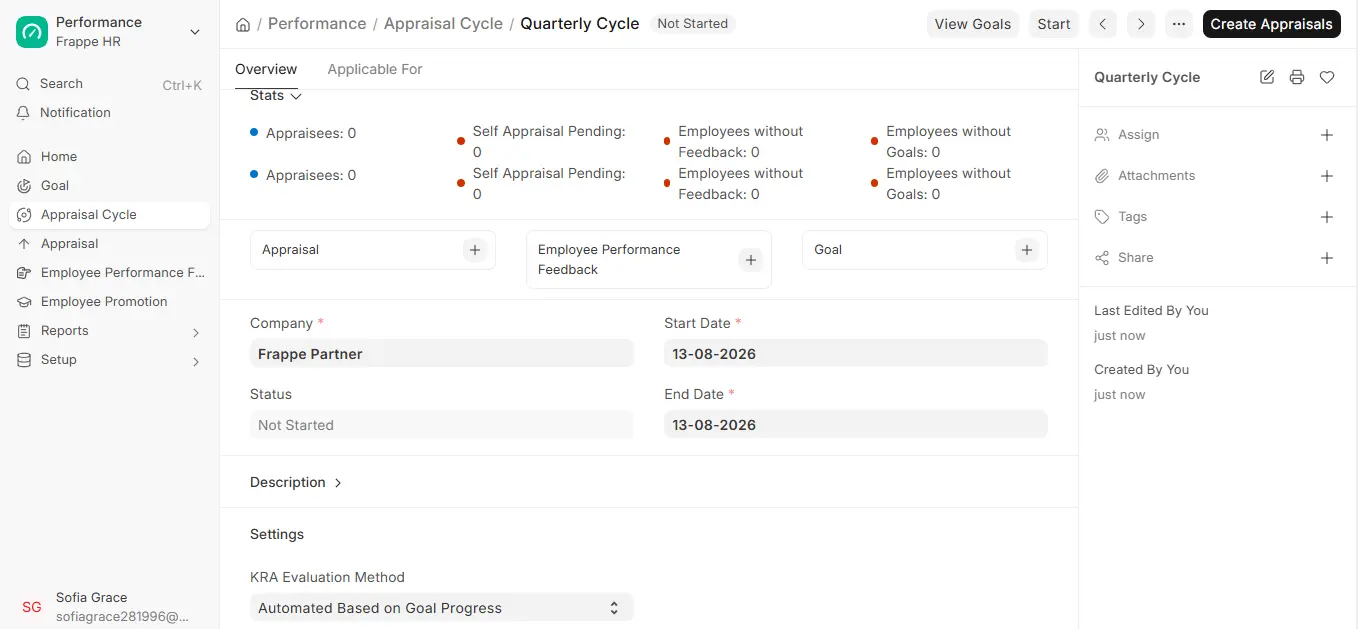
- Select the Company this cycle applies to, then enter the Start Date and End Date to reflect the official review period.
- Select the KRA Evaluation Method:
Automated depending on objective Progress (Default): The KRA/Goal score will be automatically calculated depending on how much of the objective has been met for that KRA. This makes sure that everything is correct and gets rid of mistakes that people make when they do maths. The Goal Progress manual has explicit methods for setting things up.
Manual Rating: Managers or assessors can rate Goals/KRAs a score according to their judgment, observations, and other qualitative factors. This was the initial method of assessing things until ERPNext v13, and it still exists for businesses that prefer to do it manually.
Final Score is my default combination of Goal Score, Feedback Score, and Self-Appraisal Score. If you prefer using your own scoring, enable “Calculate Final Score based on Formula” and enter your own formula expression. This allows you to determine how much emphasis to place on each factor.
3. Things to do
3.1 Make Appraisals
- You can make a large number of appraisals simultaneously from the Appraisal Cycle setup, which is time-saving for HR teams.
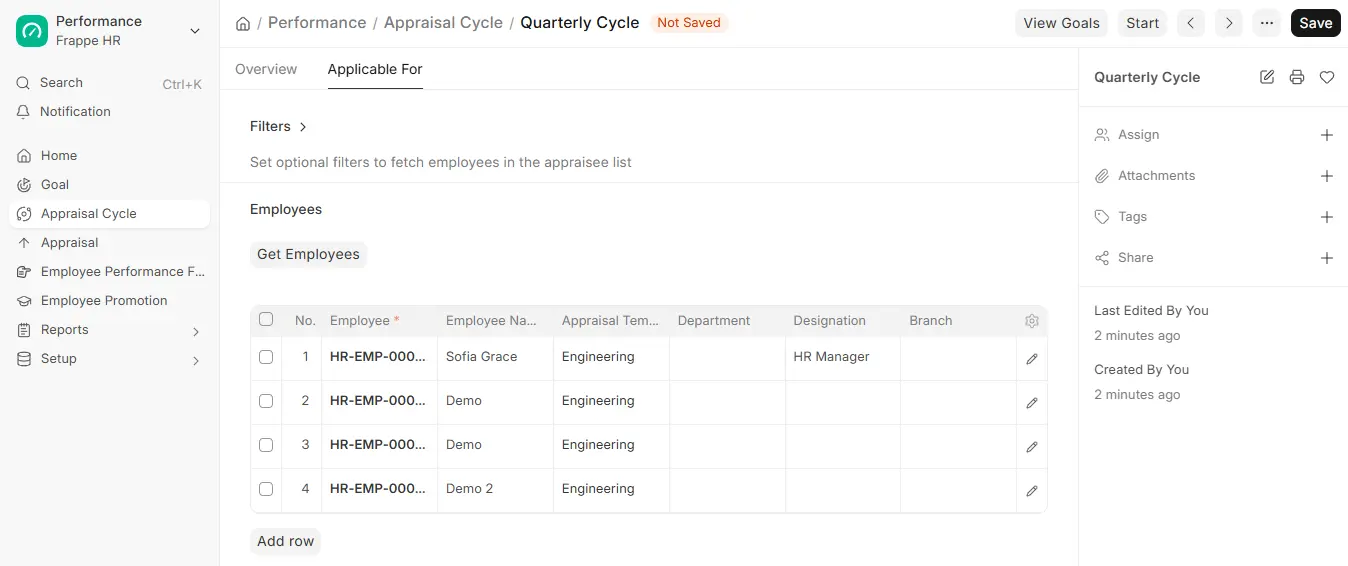
- Under the Applicable For tab, apply the criteria to select the employees who shall be included in the cycle. You may filter based on Branch, Department, or Designation.
For example, the Engineering Department may have a six-monthly review cycle, while the Sales Department would require a review cycle every year.
- Once you have established the filters, click “Get Employees” and then “Save.” This will automatically retrieve all employees who fit the criteria you selected.
- Verify the Employees table to ensure the people you want to appraise are listed properly. You can also enter additional employees manually by clicking on “Add Row.”
- Click on “Create Appraisals” to create Appraisal forms for all of the employees you have selected.
Click on the Start button to initiate the cycle and the appraisal process.

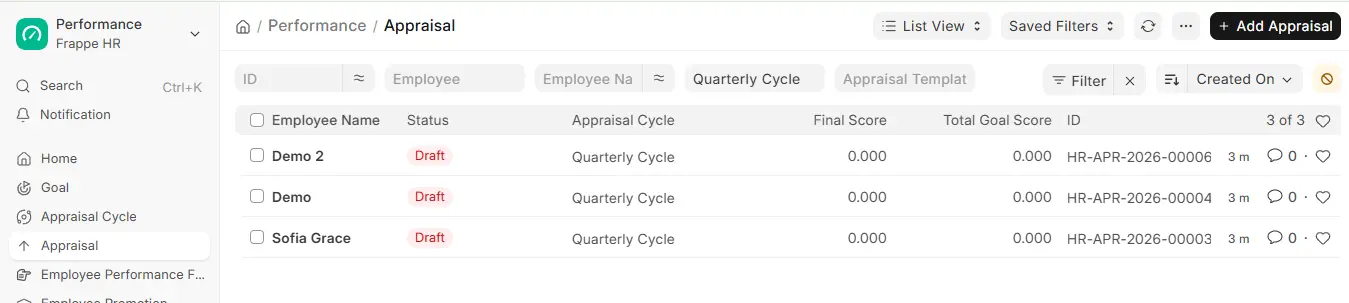
- If a person begins employment with the company after the cycle begins:
- You can either create an Appraisal document for that employee manually and select the cycle Or, append the new employee to the Employees child table of the cycle, save, then click Create Appraisals again to append them without modifying any existing records.
3.2 View Goals
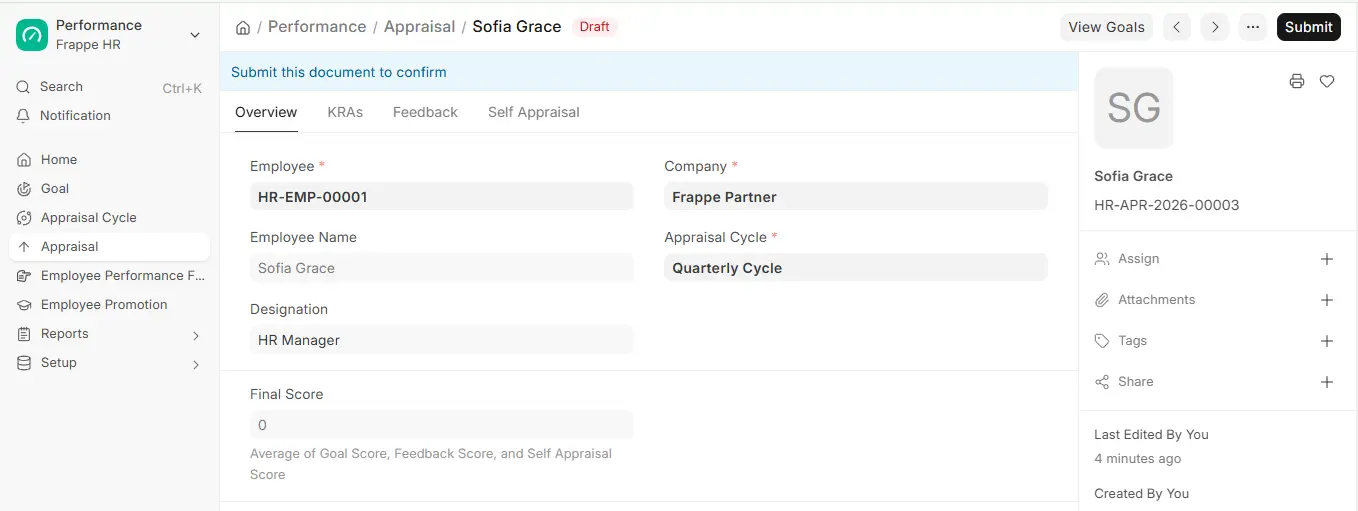
You can view all the goals included in the current cycle by clicking the View Goals button. This opens the Goal Tree with the particular Appraisal Cycle filter in place, which simplifies it to view how closely the goals and evaluation deadlines align.

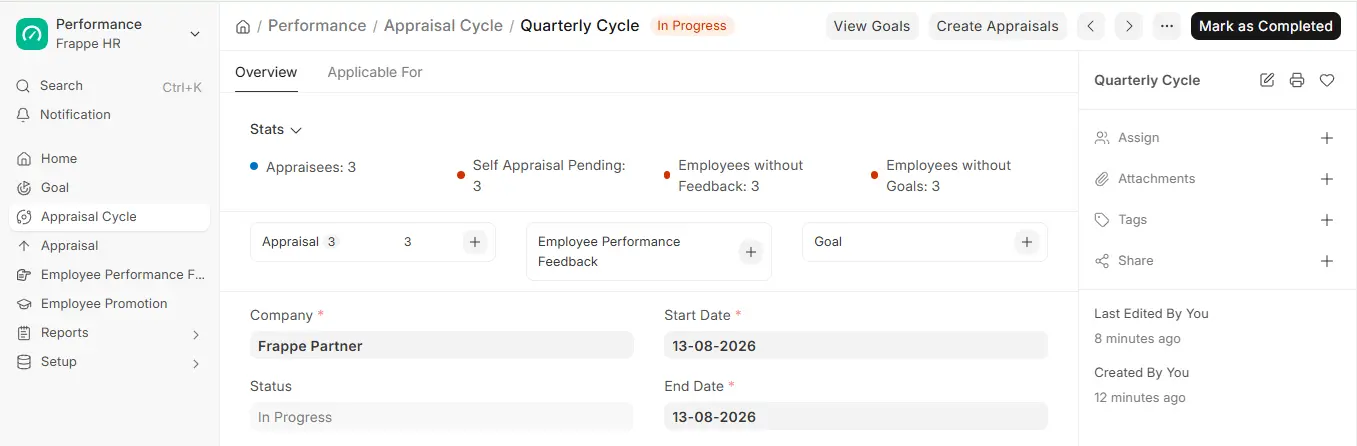
4 Stats for Appraisal
The Stats segment of the cycle provides you with a quick overview of the following key indicators:
- Appraisees: The number of employees that are included in the cycle.
- Self-Appraisal Pending: The number of employees that have yet to submit their self-evaluation forms.
- Employees Without Feedback: This is the number of employees that have yet to receive feedback from their manager or peers.
- Employees Without Goals: Employees who have no goals that are linked to their performance review.
This real-time snapshot allows HR teams to identify issues quickly and resolve them before the cycle closes.