
Goal
1. Prerequisites
Before creating a Goal, you should create the following:
If you want the goal’s progress to impact your appraisals, you will also need to create:
1.1 From the tree’s perspective (Goal)
Inserting new objectives from the Tree View is usually easier and more intuitive since goals are structured hierarchically. This view displays the parent and child goals’ relationship, showing you how small goals assist you in achieving a larger goal.
You can also accomplish the following from the tree view:
You can simply update the progress of your child’s goals.
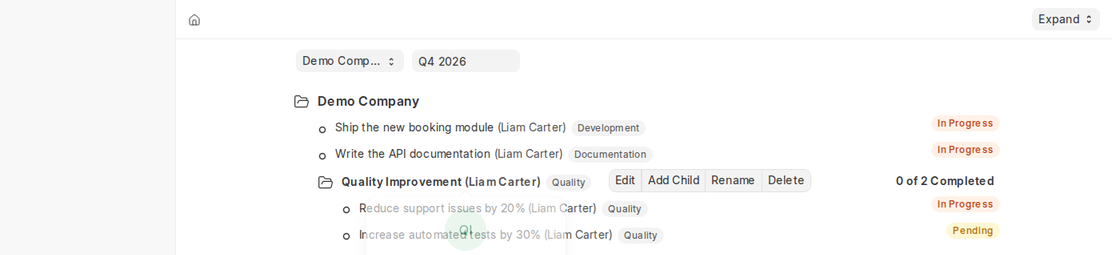
- Verify that the progress of a parent goal is calculated automatically from the average progress of its child goals.
- Utilize filters to switch quickly among various appraisal cycles and staff.
- When you apply a filter for the Appraisal Cycle and your Employee record, these fields will be defaulted in the New Goal dialogue, which will get you moving faster in setting goals.
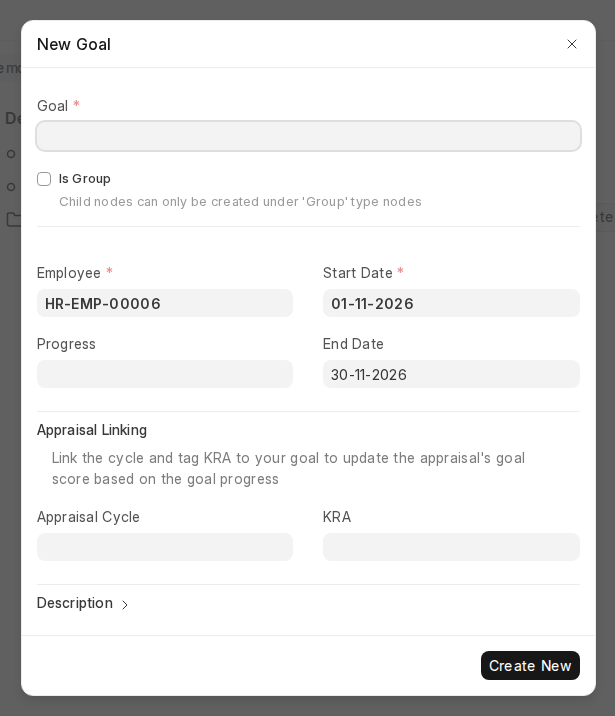
2. From the list view
- Click New in the Goal list.
- Enter the title of your goal. You can add a detailed description that clarifies what your goal is, what it is used for, and what you want to occur.
- If you are able to divide your goal into more manageable ones so you can keep it in mind more easily, use the Parent Goal field to link it with a higher-level goal.
- You have a goal called Quality Improvement that aligns with the Quality KRA. You can assign more than one sub-goal to this, like:
- Reduce support issues by 20%.
- Increase the number of tests by 30%.
- If the objective is expected to have sub-goals, flag it as “Is Group.”
- Select the Employee who will own the target.
- Select the goal start and end dates.
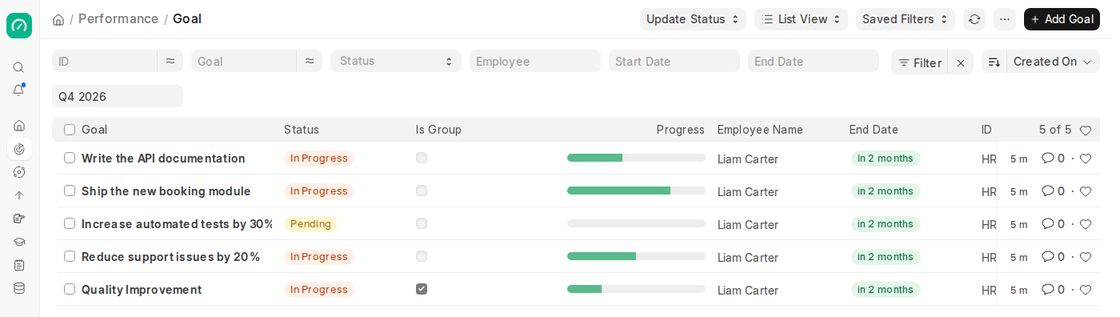
Select the Appraisal Cycle and label the KRA for the goal if you wish the progress of the objective to influence your appraisal. When your goal progress is refreshed, the goal score that is associated with your KRA will be recalculated.
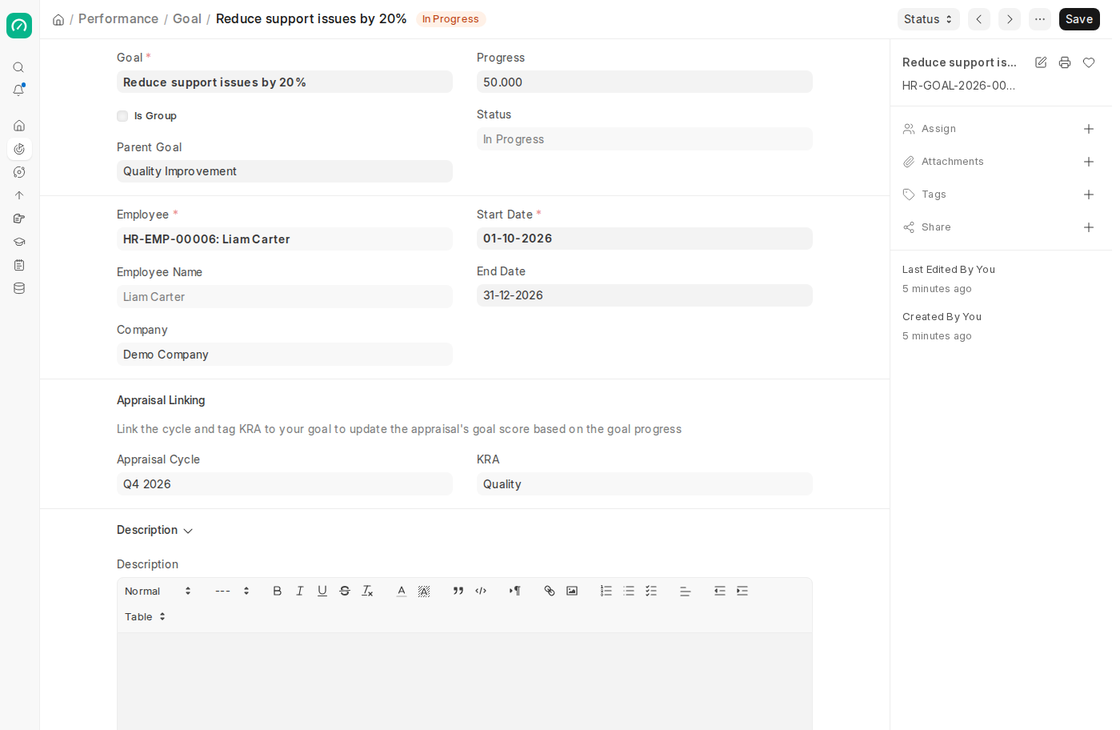
Keep your focus. Your goal status will change automatically based on your progress.
3. Things to Know
3.1 Update on Progress Towards Goals
- When a child goal is modified, the progress of its parent goal is automatically recomputed.
For instance, the computation is
- 25% toward objective child2.
- This is the average of its children, with child3 at 50% and child4 at 0%.
- Next, the parent objective average (parent) is calculated by summing up the child goals (child1 at 0% and child2 at 25%). This provides the parent with 12.5% progress.
- Edit parent (12.5%) |_ child1 (0%) |_ child2 (25%) |_ child3 (50%) |_ child4 (0%)
- The mean percentage of goals achieved is also displayed alongside the KRA that is linked to that goal whenever it is modified.
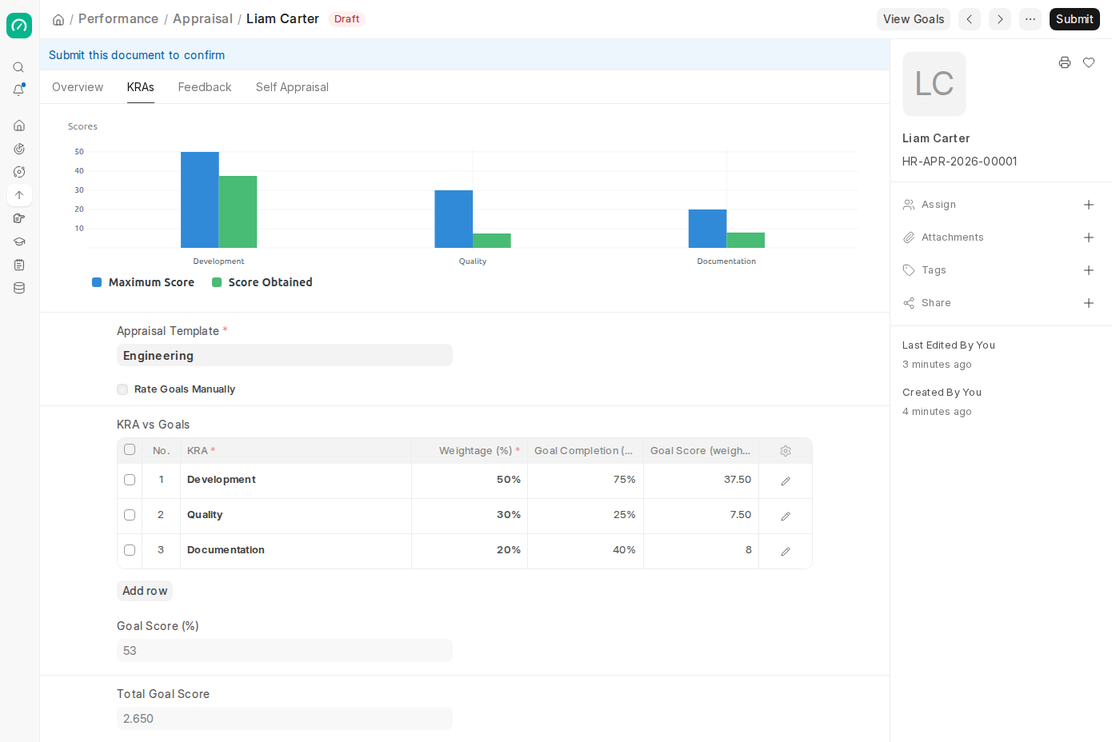
For example, in the appraisal above the Development KRA has a weightage of 50% and its goal is 75% complete, so its goal score is 37.5 out of 50
3.2 Goal for the Archive
- You can archive a goal if you add it in planning but then later choose not to undertake it.
- Archived goals will not contribute to the KRA/Goal score.
- They remain in the system for historical tracking but are not utilized to calculate progress.
3.3 Close Goal
When a goal has been closed, employees are not able to make any additional progress statements on it, but it will be included in the KRA/Goal score (as opposed to archived goals).
3.4 To close a goal
- Complete the goal form.
- Set the status to “Closed.”