
Brand
A Brand is applied to a category of items sold by a certain name, possibly or not the name of the real maker. Brands assist in the classification of items, Advertising, and dealing with defaults upon transaction.
What is a Brand?
A Brand can be described as the title under which an item is promoted and distributed. It could be the representation of the maker, distributor, or even reseller.
Important Distinction:
- A Brand is not necessarily the Manufacturer.
- For example, you might produce plastic cups, but market them under “EcoDrink” as a brand.
How to Access the Brand List
Go to:
1. How to Create a Brand
- Go to the Brand list.
- Click on “Add Brand”.
- Input the Brand Name.
- (Optional) Enter a Description to describe or provide notes for details of the brand.
- Click “Save”.
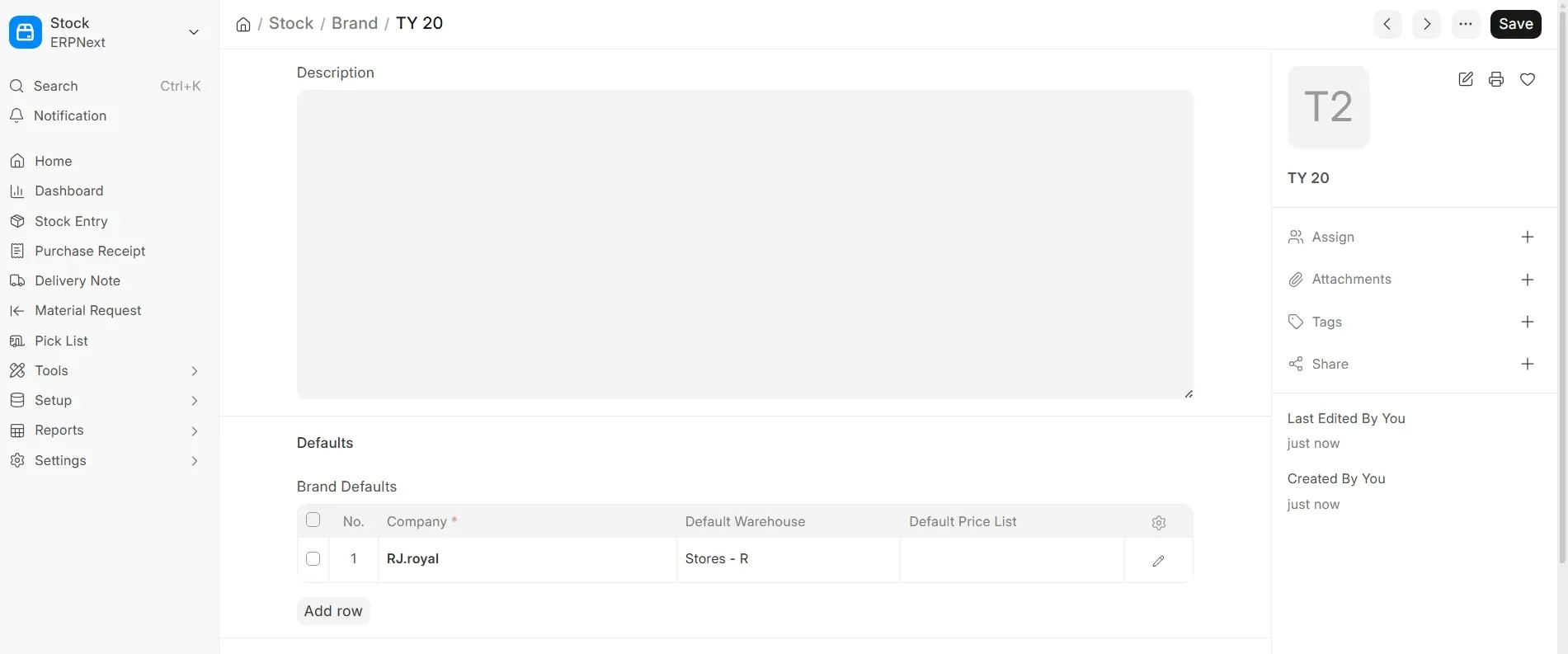
Once saved, you can apply this Brand to several items in your stock.
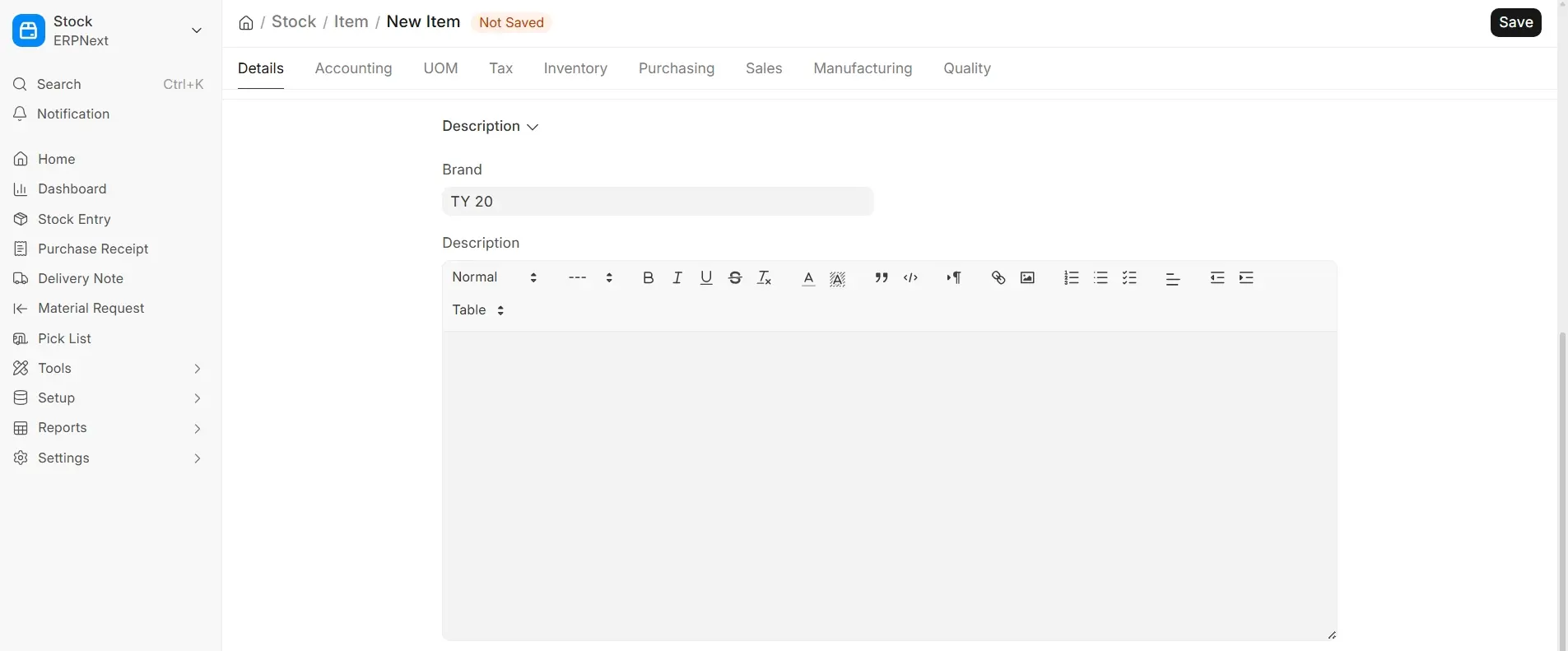
Applying a Brand to Items
After saving a Brand, you can navigate to an Item and apply the brand in the Brand field.
Go to apply in Item:
This associates the item to the brand and enables the system to apply brand-level defaults during transactions.
2. Features of the Brand Module
You can define brand-level defaults that will be used for all items under that brand in sale or purchase transactions.
To set these up:
Go to:
2.1 Brand Defaults
Brand defaults are:
- Default Warehouse
- Default Price List
- Default Supplier
- Default Cost Centers
- Income/Expense Accounts
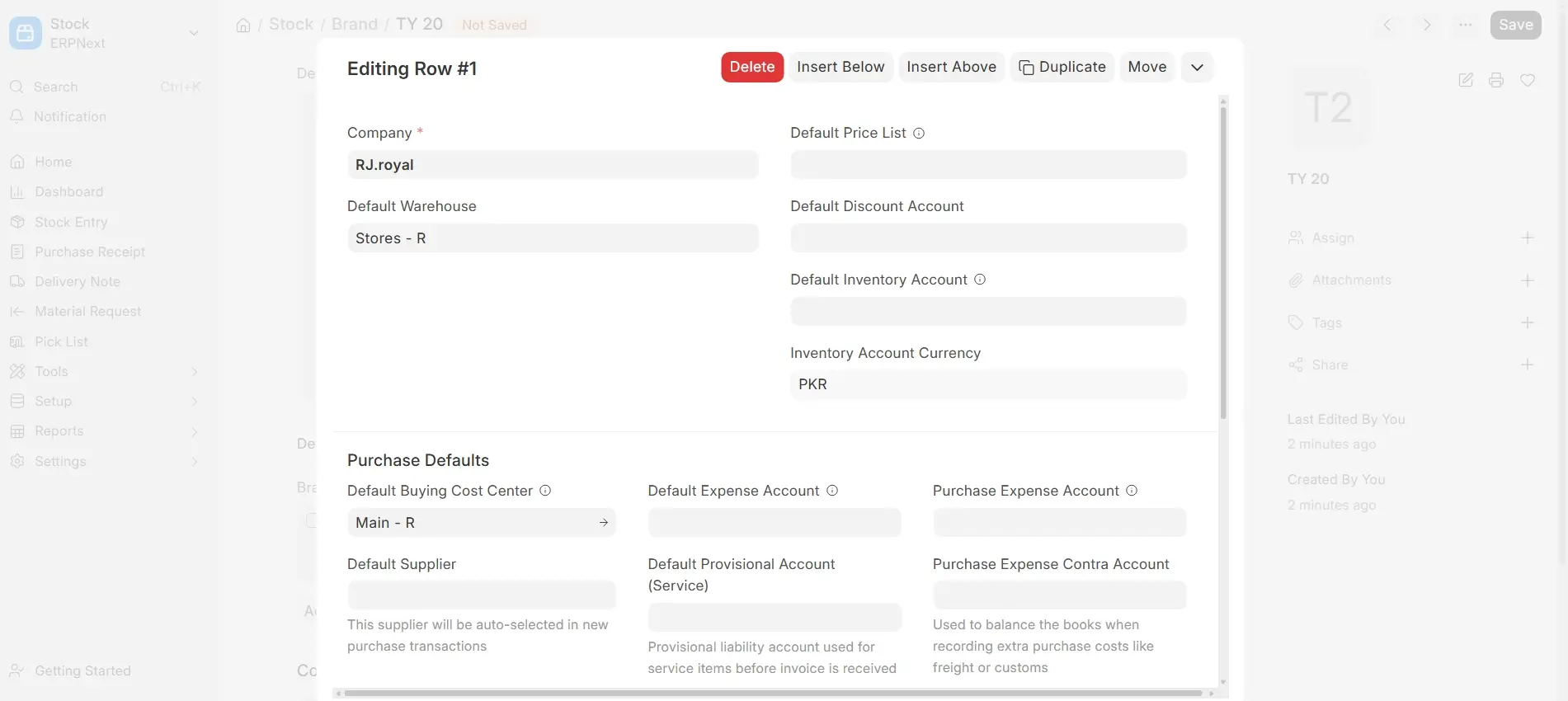
These settings speed up your transactions and make them more uniform by grabbing default information when an item with that brand is picked.

