
Customer Ledger Summary
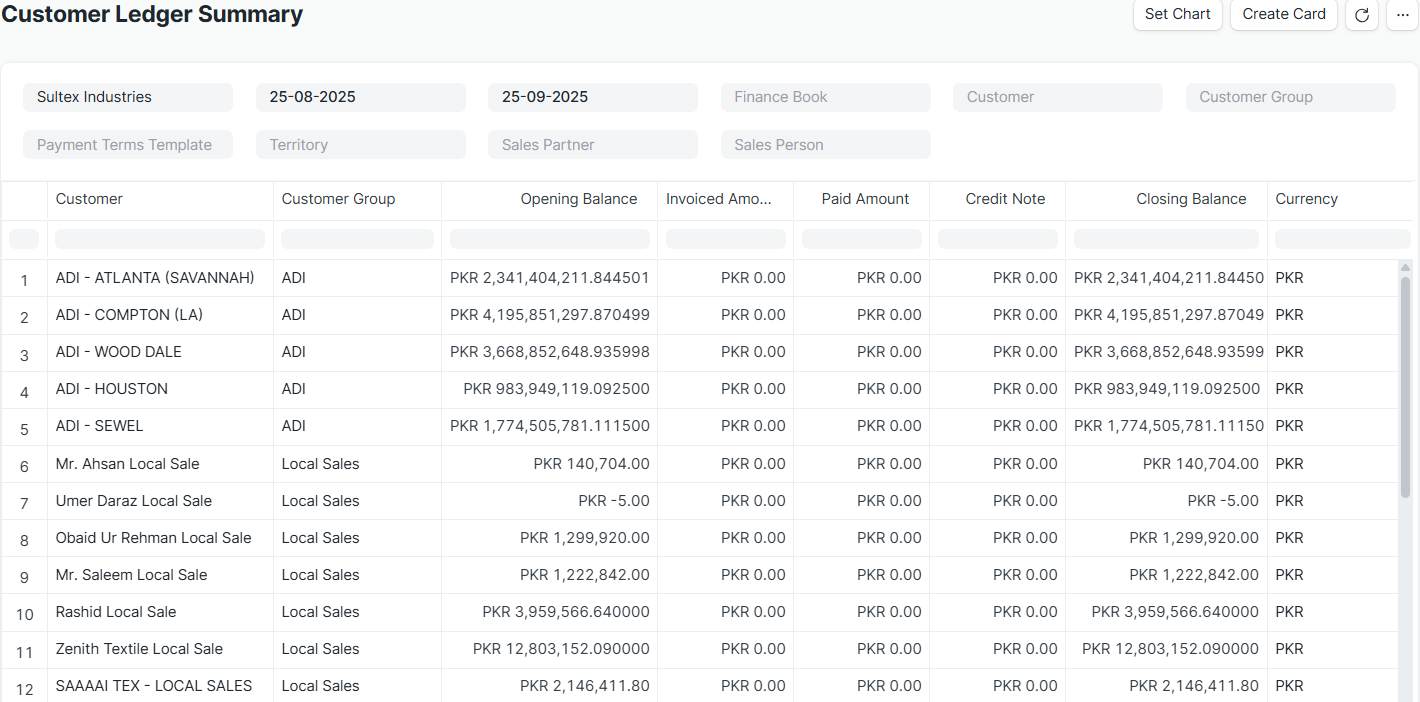
A financial report in ERPNext, named the Customer Ledger Summary, gives a complete picture of all your transactions with your customers (debtors) for the chosen period. It is the main instrument of accounts receivable reconciliation, unpaid balance tracking, and keeping your books accurate.
1. Main Purpose:
To display a running balance that summarizes, by date, all sales, receipts, and adjustments for a specific customer or customers.
2. Accessing the Report:
Go to:
Accounting > Reports > Customer Ledger Summary
3. Filters and Features
The filters at the top of the report provide a lot of flexibility.
The most important filters are:
- Company: Choose the organization whose report you wish to see.
- From Date & To Date: Enter the date range for which you would like to view the transactions.
- Customer: Enter details about a particular customer or leave it blank to view all customers.
- Customer Group: Apply a specific group to the customers to narrow down the customers (e.g., Wholesale Customers, Retail Customers).
- Show Reconciliation: A very important checkbox. You can show invoices as Reconciled against receipts if it is marked, which is important to ensure proper account balancing.
4. The columns of the report
The columns shown in the report are:
- Date: The posting date of the voucher.
- Type of Voucher: The voucher type, e.g., a sales invoice, payment entry, or journal entry.
- Voucher No: The ID of the transaction document. Here is a link to view the specific coupon.
- Customer: The name of the customer.
- Debit: A debit is a sum that is added to your accounts receivable. Usually, this would be a debit note or a fresh sales invoice.
- Credit: Refers to an amount that decreases the amount you owe. They may be sales returns through credit notes or payment received through payment entry.
- Balance: After every transaction, the running balance is done.
- A positive debit (Dr) balance means the customer owes you cash.
- An advance received (you owe the customer) appears in a positive credit (Cr) balance.
- Remarks: Any comments that have to do with the coupon.
- Aging Columns (0-30 / 31-60 / …): Displays the split of the outstanding balance by days overdue when “Aged” reporting is activated.
5. Key Features
- Detailed Transaction History: Gives a complete, auditable history of all transactions a customer has made within the selected time range.
- Direct Voucher Access: It is possible to view or edit the original transaction by clicking on any Voucher No.
- Reconciliation Tool: In order to make sure your books reconcile to the customer statements, the “Show Reconciliation” filter turns the report into a comparison tool between invoices and receipts.

