
Supplier Ledger Summary
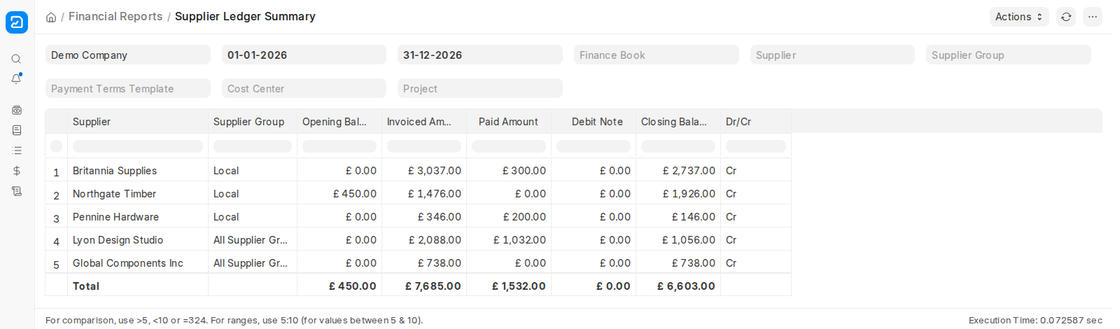
The Supplier Ledger Summary is a financial report in ERPNext that gives a one-line summary per supplier (creditor) of everything that happened in the period chosen. It is the main reconciliation tool for accounts payable, monitoring outstanding balances, and keeping track of your books accurately.
1. Main Purpose:
To show, for each supplier, the balance at the start of the period, what was invoiced, paid and returned during the period, and the balance at the end. To see the individual vouchers behind these figures, use the General Ledger or the Accounts Payable report.
2. Accessing the Report:
Go to:
Home > Financial Reports > Ledgers > Supplier Ledger (the Supplier Ledger Summary report)
3. Features and Filters
The report has the following filters at the top. The most important filters are:
- Company: Choose the legal entity whose report you wish.
- From Date & To Date: Specify the date range for which you wish to view the transactions.
- Supplier: Report on a particular supplier or leave blank for all suppliers.
- Supplier Group: Filter the suppliers on a particular group (e.g., Raw Material Suppliers, Local Suppliers).
- Finance Book: Show the figures of a specific Finance Book.
- Payment Terms Template, Cost Center and Project: Narrow the transactions further.
4. Columns in the report
The report shows the following columns:
- Supplier and Supplier Group.
- Opening Balance: What you owed the supplier at the From Date.
- Invoiced Amount: Purchase Invoices (and other credits to the supplier) posted in the period.
- Paid Amount: Payments made to the supplier in the period.
- Debit Note: Purchase returns / debit notes in the period.
- Closing Balance: The balance at the To Date, with Dr/Cr. A Cr balance is an amount you owe the supplier; a Dr balance means you have paid in advance (the supplier owes you).
- Currency: Shown when the report contains more than one currency.
- Adjustment columns: If amounts were adjusted against other accounts (for example a write-off or tax withholding account), an extra column per account shows those amounts.
5. Key Features
- Quick overview: One row per supplier, with a Total row at the bottom.
- Reconciliation with supplier statements: Compare each supplier’s Opening and Closing Balance with the statement the supplier sends you.
- Export: Use Actions > Export to download the report to Excel or CSV.

