
Contract
A Contract in ERPNext is an enforceable agreement between a Supplier and a Customer for the purchase of products or services. It defines the terms, responsibilities, and deliverables mutually accepted by both parties and serves as a formal document to prevent arguments.
A contract is enforceable in law as it meets the requirements and satisfaction of the law. It’s mostly an exchange of goods, services, money, or promises to deliver them at a future date. In ERPNext, contracts can be linked to the associated Quotations, Sales Orders, Invoices, and other reports for a complete end-to-end audit trail.
To go to the Contract list, follow:
1. Creating a Contract
- Go to the Contract list and click on Add Contract.
- Choose the Party Type (Customer, Supplier or Employee) and then the Party Name. If you require creating a new customer, you can create one on the fly.
- Enter the Contract Terms. You can enter them manually or you can just utilize an existing Contract Template for straightforward and identical insertion.
- Delegate the Party User – the staff member in your business who will oversee the contract and be the reference for the customer.
- Save the contract.
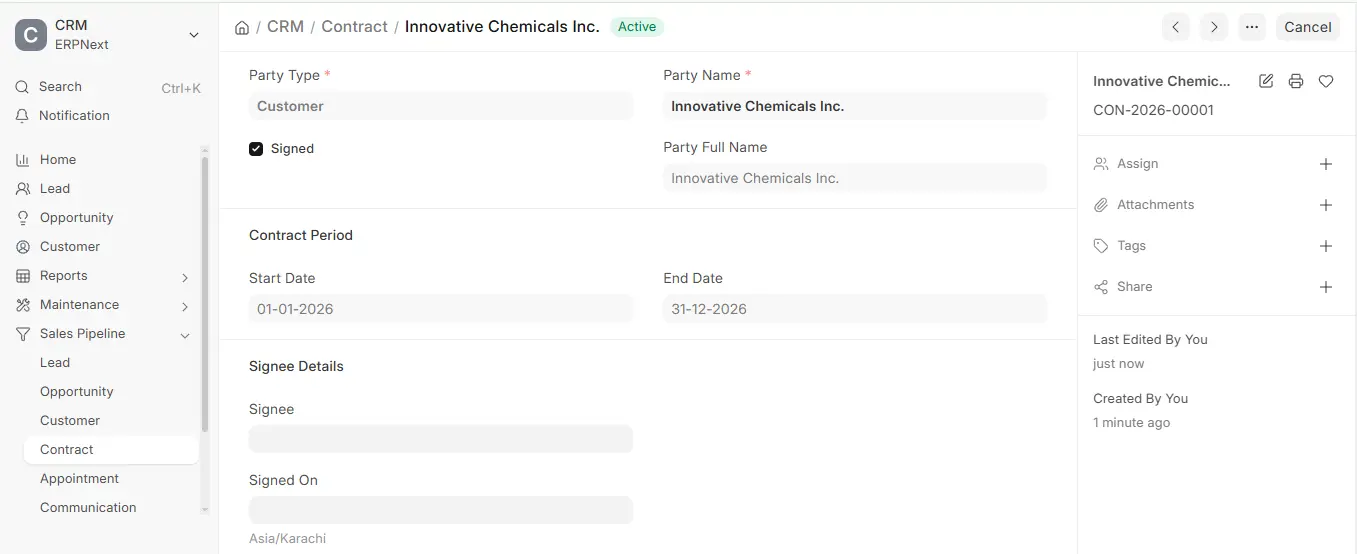
As of the latest ERPNext version, you can also:
- Attach scanned documents or PDF copies of signed contracts.
- Link the contract to a concerned Quotation, Project, order or invoice in the References section.
1.1 Statuses
- Unsigned: The client wrote but failed to sign.
- Active: The client signed the contract and is currently within the specified time frame.
- Inactive: The contract period has not started yet or has ended (ERPNext updates the status daily based on the Start Date and End Date).
- Cancelled: The contract has been cancelled.
2. Features
2.1 Contract Period
The Start Date and End Date determine the time period during which the contract is valid.
- ERPNext automatically changes the status of a signed contract from Active to Inactive once the End Date has passed.
- You can also track performance of the contract during the time period through linked sales and service data.
2.2 Signee Details
This section becomes available upon making the Signed checkbox active to determine whether the customer has signed and accepted the contract.
Signee: Enter the full name of the person signing in behalf of the customer. Signed On: Enter the exact date on which the contract is signed.

In the Authorised By section, the company side can add a signature in the Signee (Company) field; Signed By (Company) records the user who signed.
2.3 Contract Terms
Enter the entire legal terms and conditions of the contract into the Contract Terms field.
- You can select using an existing Contract Template to automatically fetch standardized clauses, ensuring uniformity in all customer contracts.
- Retrieved terms can still be tailored for deal-specific needs.
- Rich-text and bullet point activations as well as hyperlinks to internal policy/product documentation are possible in the version of ERPNext in use.
- You can also make use of external files (PDF, DOCX) that may consist of long legal jargon when needed.
2.4 Fulfilment Details
If the contract entails deliverables or services that are to be executed from your side of the company, they can be mentioned in the Fulfilment Terms table.
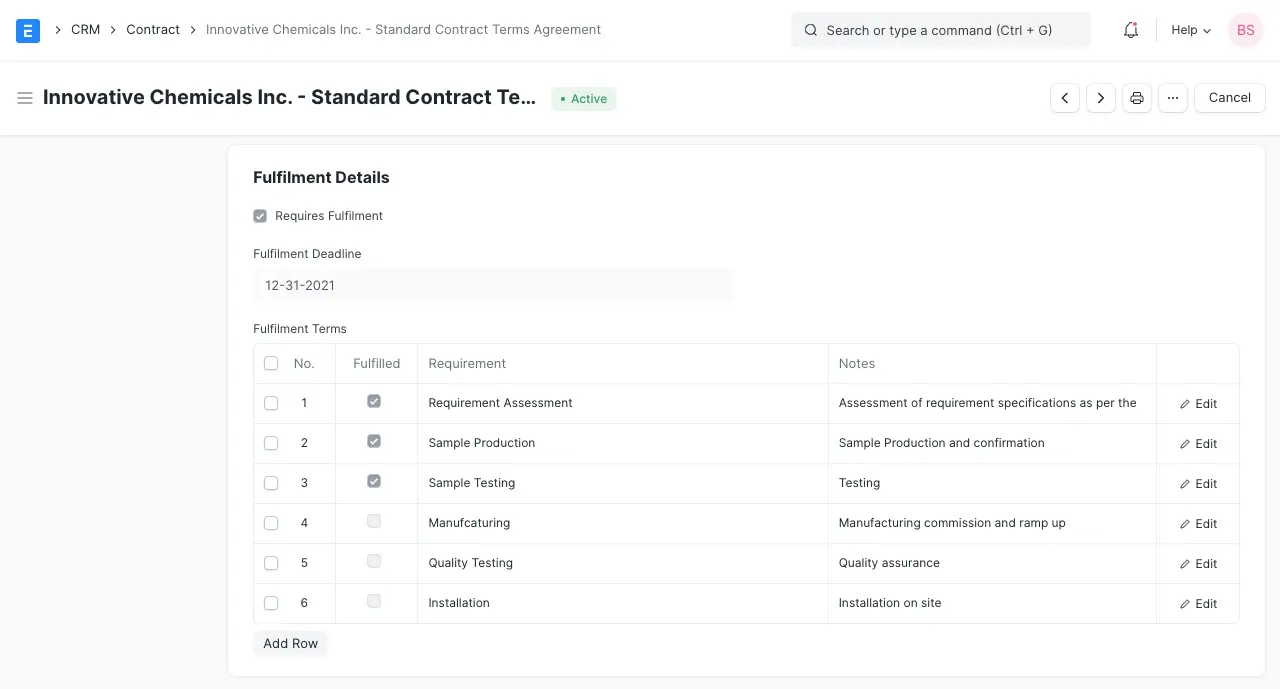
- Requirement – Clearly define every deliverable.
- Notes – Include any extra instructions, dependencies, or conditions.
Tip: Tick Requires Fulfilment and set a Fulfilment Deadline. ERPNext then tracks the Fulfilment Status (Unfulfilled, Partially Fulfilled, Fulfilled or Lapsed) from the Fulfilled checkboxes in the Fulfilment Terms table.
2.5 Contract Template
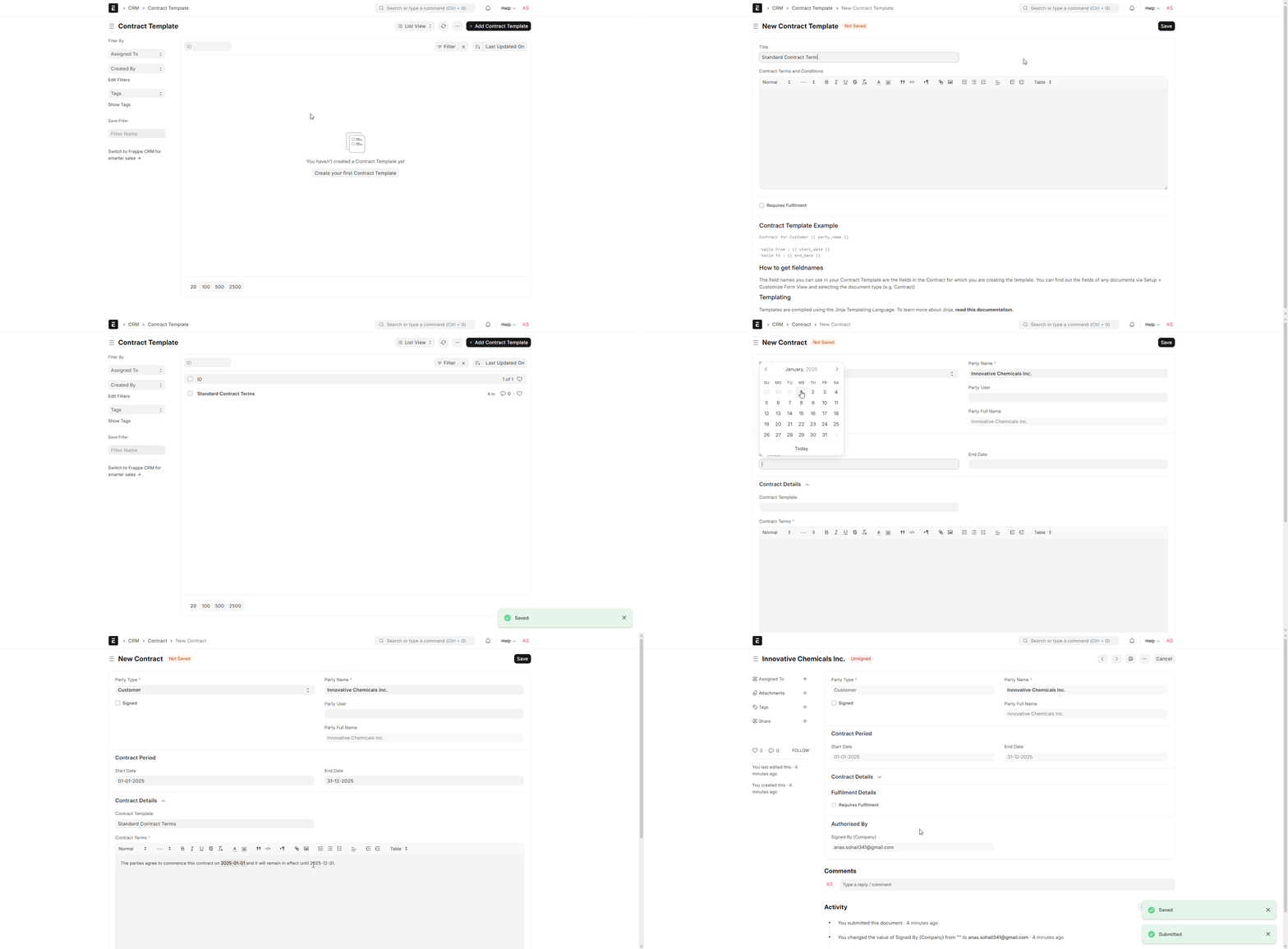
A Contract Template is a house standard form of composing contracts without unnecessary inclusion of standard clauses in their every newly-signed new customer contract.
To make a template, go to:
- Templates can be authored with Jinja templating to include dynamic placeholders for dates, names, amounts, and other variables. Example:
The parties consent to sign into effect this agreement on {{ start_date }} and it will remain effective until {{ end_date }}.
When you create a contract with this template, the instances of “{{ start_date }}” and “{{ end_date }}” will be substituted for values entered in the corresponding fields.
- The templates may also have default Fulfilment Terms, Signee Details, and References to speed up the contract generation process.
2.6 References
ERPNext also enables you to associate contracts with other documents for improved traceability and execution tracking.
You can link a contract to the following kinds of transactions:
- Quotation – When contractual terms are being referred from an approved quotation.
- Project – When the contract is linked to a specific implementation or service delivery project.
- Sales Order – To connect sales execution to contractual obligations.
- Purchase Order – For supplier-side contracts pertaining to the same contract.
- Sales Invoice – To link billing cycles directly with contractual terms.
- Purchase Invoice – For tracking costs against contract terms.
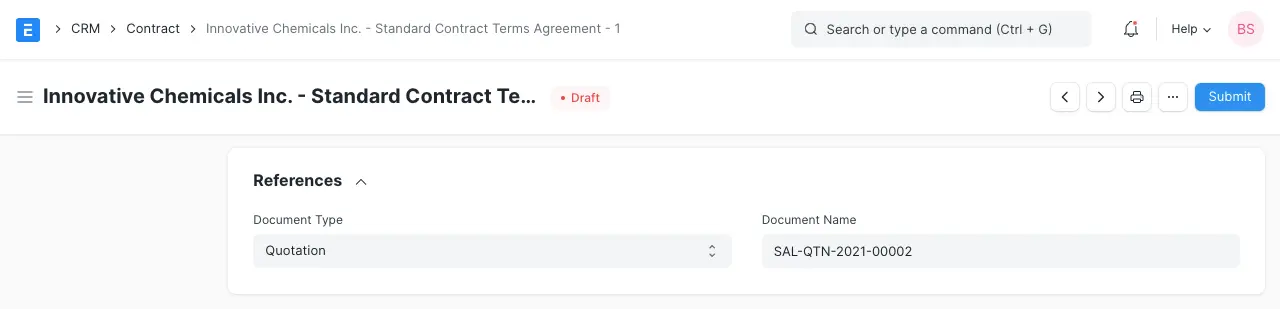
Each contract links to one document through the Document Type and Document Name fields.

