
Expense Claim
Employees who pay for business expenditures with their own money and then ask for reimbursement make an Expense Claim. This feature makes sure that ERPNext keeps track of, approves, and records company expenses that employees incur. If an employee takes a customer to lunch to talk about a possible contract, buys office supplies on short notice, or needs to pay for travel costs while on a business trip, they can use the Expense Claim form to ask the company to pay them back.
1. Needs
Before you make an expense claim, make sure that the following are already set up in your ERPNext system:
- Employee: You need to make a record for the employee and link it to the person who is filing the claim.
- Department: The worker must be a member of a certain department in the company.
- Chart of Accounts: To keep track of and sort different types of expenditures, you need to set up the correct accounts for expenses.
2. How to file a claim for expenditures
- Under “Expense Claim,” click “Add Expense Claim.”
- In the From Employee box, pick the name of the person making the claim.
- Pick the Expense Approver, who will go over the request and give it the green light.
- Put in the date of the expense, what kind of item it is (such travel, meals, or office expenses), and how much the claim is worth.
- You can include information about taxes and fees that are part of the expense if you want to.
- Under Accounting Details, choose the Payable Account for the company. This is where the claim will be kept track of.
- Save the record and send it in for approval.
Once you’ve filled out the form, be sure to:
- Enter the Employee ID, the date of the expense, a thorough description of each item, and any taxes that apply.
- Include receipts or other proof if company policy says you have to.
- Submit the record so it can be authorised.
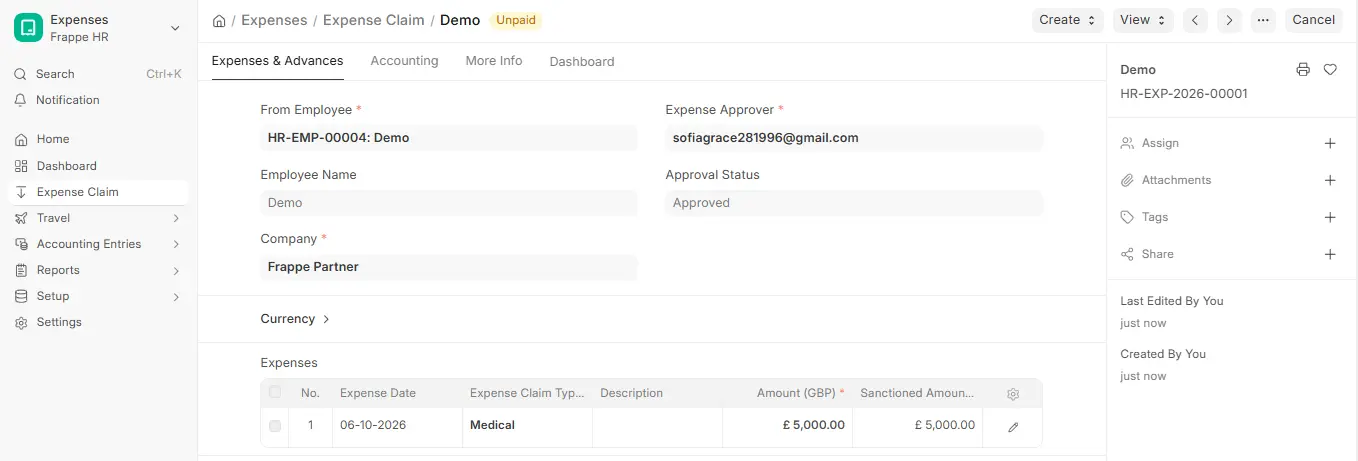
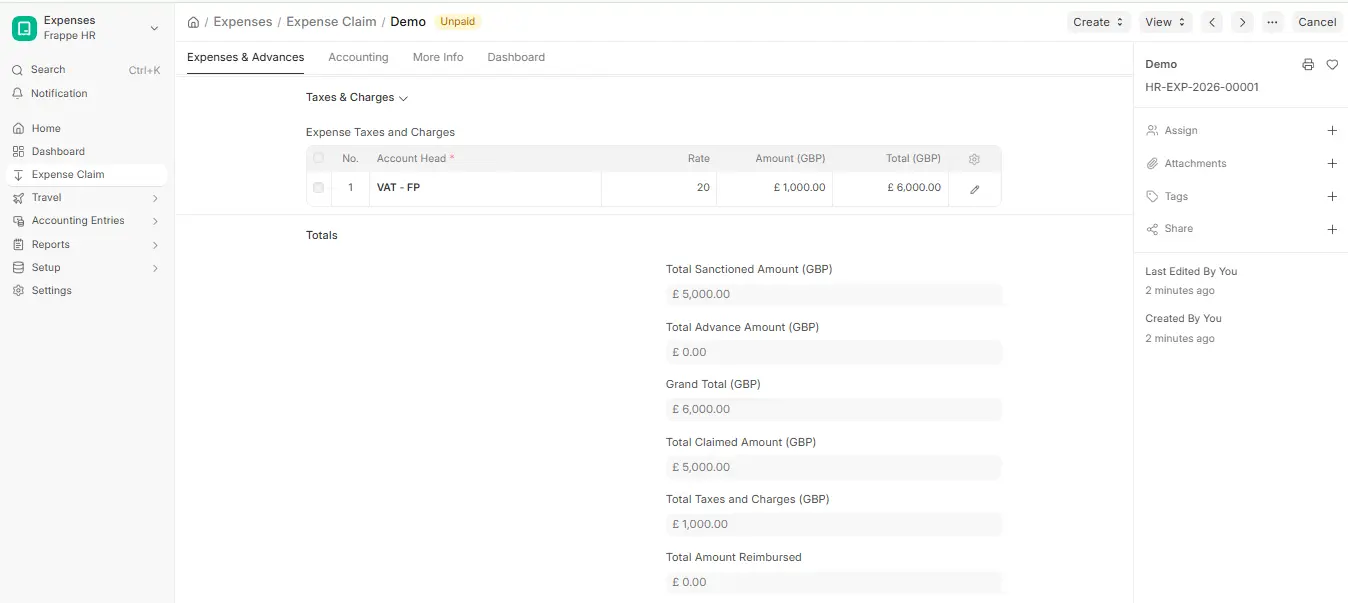
Expense Claim Workflow: Approving Expenses
- The person who approves the expense is chosen by the person who filed the claim. Staff members can choose from a list of people who have already been chosen as Expense Approvers for their department.
- If the approver you choose doesn’t already have authority to see a new Expense Claim, ERPNext will immediately send the document to that approver and let them “Submit.”
- After saving the Expense Claim, the employee must send it to the approver. This job sends an email to the person who has to approve it. You can also set up Email Alerts in the system to make this procedure automatic.
- The Expense Claim Approver can look over the claimed amount and, if necessary, change the Sanctioned Amount.
- The status of the approval must be “Approved” or “Rejected.”
- If authorised, the cost claim is finished and sent in.
- If the approver doesn’t approve it, they can put remarks in the remarks area to explain why they didn’t approve it. This is done to be clear and keep records.
- Making the reservation
When you send in and get accepted for an Expense Claim:
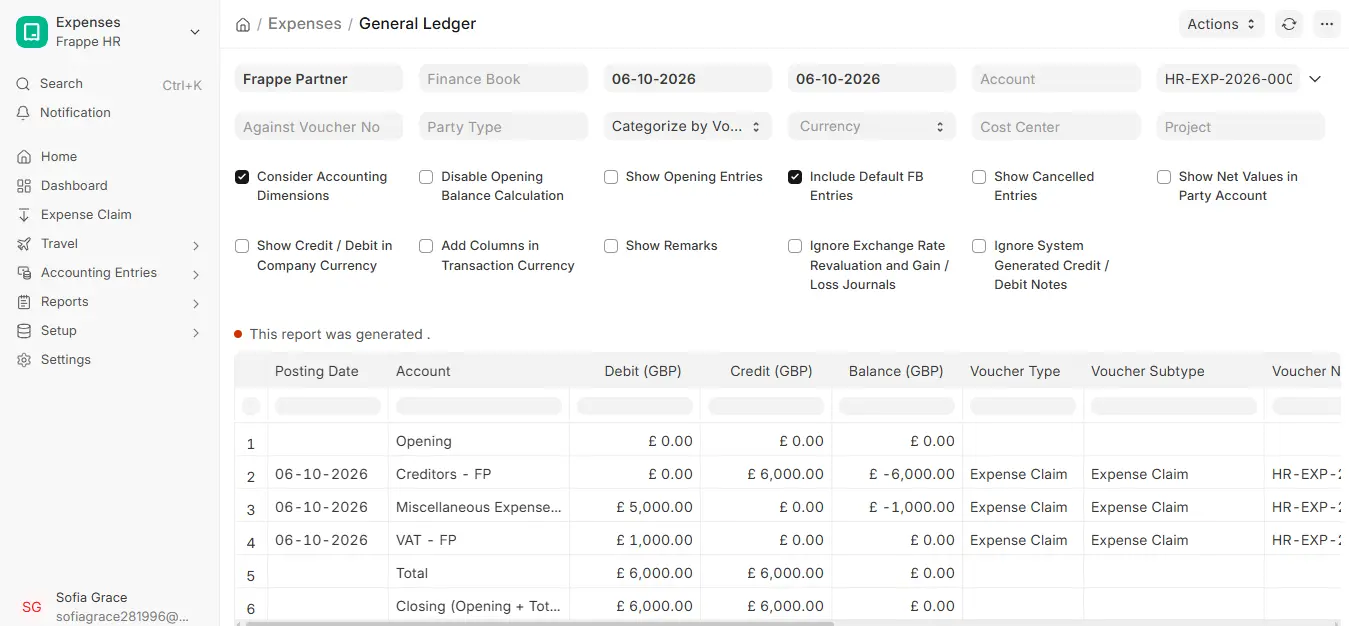
- The system automatically adds the cost to the right Expense Account.
- It also puts the amount owed on the employee’s account as a liability until the payment is fulfilled.
- By running the “Unpaid Expense Claim” report in ERPNext, users can see all the expense claims that haven’t been paid yet.
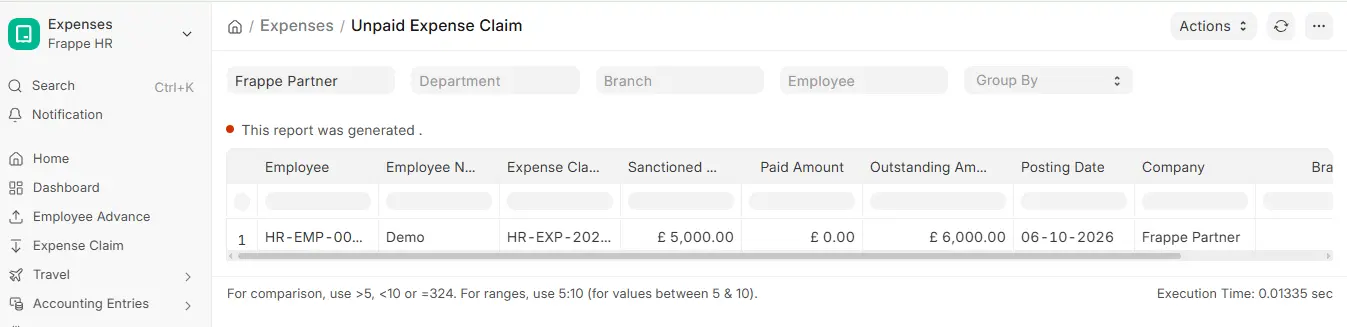
Paying for a claim for expenses
- Fill out the payment information and send in the Payment Entry.
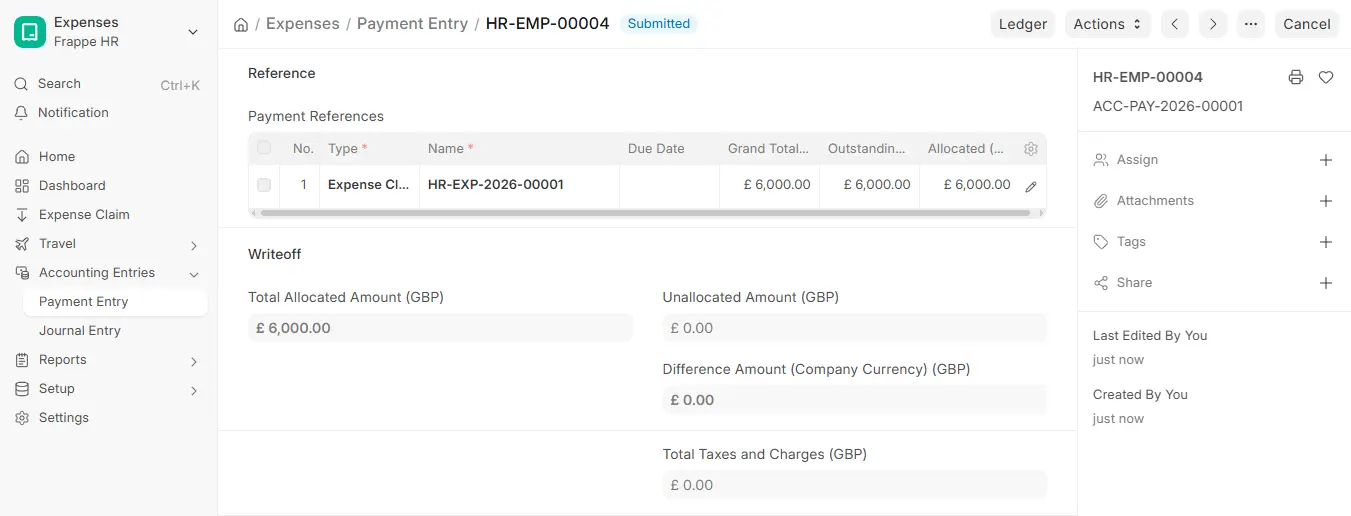
Important: Don’t combine this payment with the employee’s salary payment in Payroll, because that would make the reimbursement taxable in most places.
Another way:
- Choose “Pay” as the Payment Type, “Employee” as the payee type, and the employee who is getting the money back.
- Choose the bank account or cash account from which the payment will be taken.
- You can choose how much to pay each of that employee’s outstanding expense claims, and they will all show up instantly.
- Linking Tasks and Projects: You may also attach Expense Claims to Tasks or Projects, which makes it easier to keep track of costs and project accounting.

