Payment Request
Payment Request is employed to request payment from a customer for a Sales Order or an Invoice.
Payment Requests are typically dispatched through email and may have a link to a Payment Gateway if set up. You can create a Payment Request from a Sales Order or Sales Invoice. You can also make a Payment Request internally against a Purchase Order or Purchase Invoice. Payments can also be made in bulk through a payment order.
Payment Request Access
To access the Payment Request, go to:
1. Prerequisites
Before creating a Payment Request, ensure that you have already created the following:
2. How to Create a Payment Request
In ERPNext, you do not enter a Payment Request manually like you do for other documents.
It gets automatically created when you’re handling a Sales Order, Sales Invoice, Purchase Order, or Purchase Invoice. The system automatically creates the Payment Request based on those documents — because that’s when you actually have to collect or pay cash.
Example:
- Your business gets a Sales Order from a customer for Rs. 50,000.
- After verifying the order, you wish to request an advance payment or complete payment prior to delivery.
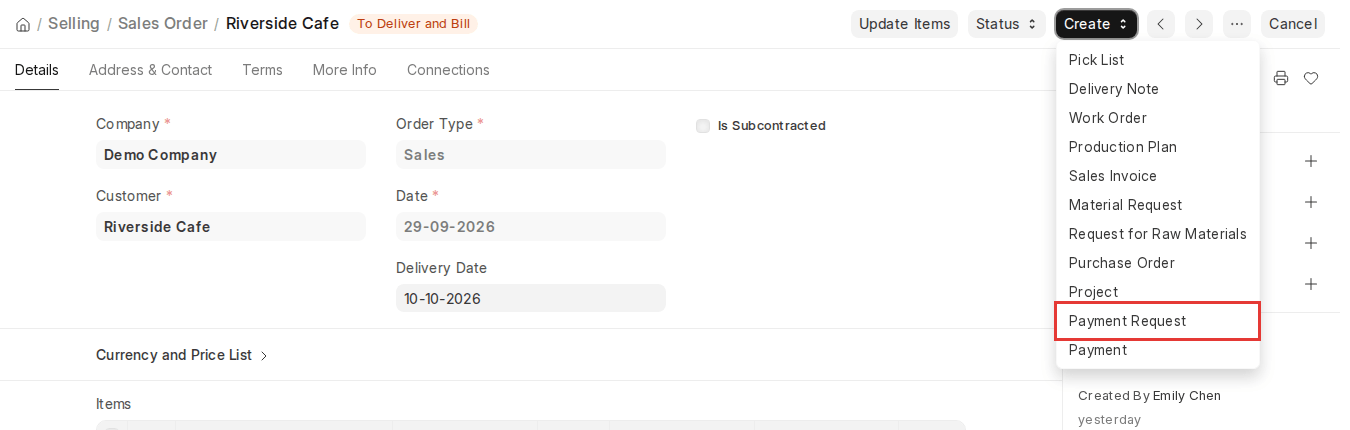
- Rather than creating a payment request manually, you navigate to the Sales Order and click on Create > Payment Request.
- ERPNext takes all the information (customer name, amount, items) and creates the Payment Request for you.
Now you can send this request to the customer, and when they pay, you can associate it with a Payment Entry.
Why it is done this way?
Because payment requests are always associated with real business transactions, and ERPNext ensures all figures match up with the purchase or sales documents — so you don’t get errors.
2.1 Creating a Payment Request via Sales Order
- Open a Sales Order.
- Click on Create, then choose Payment request to make an advance payment.For further information, go to the Advance Payment Entry
2.2 Generating a Payment Request through Sales Invoice
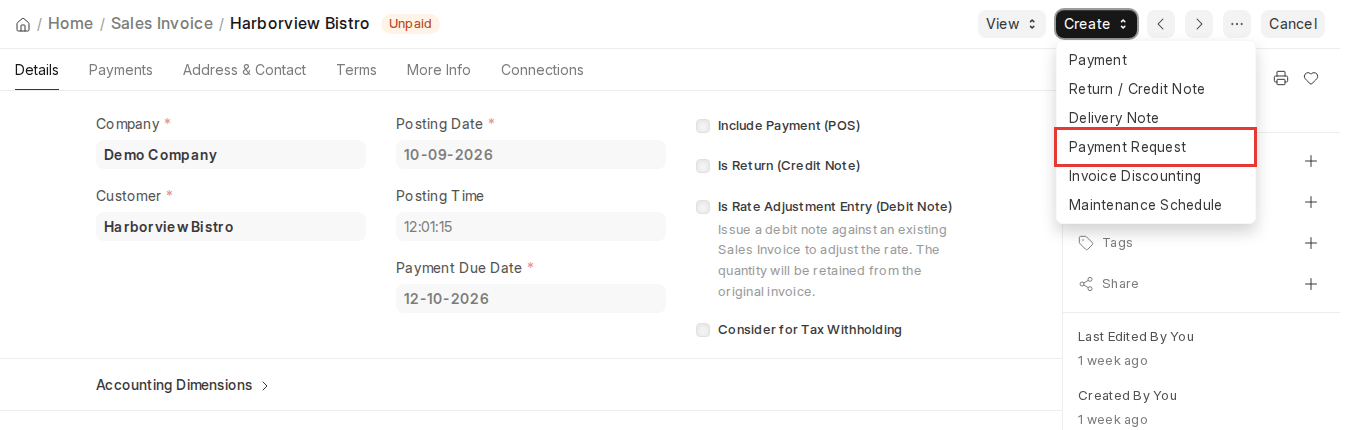
- Open a Sales Invoice.
- Click on Create and then select Payment request to pay against the invoice.
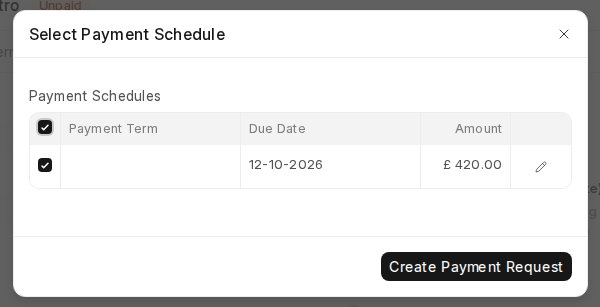
- If the invoice has a payment schedule, ERPNext v16 shows a Select Payment Schedule dialog. Tick the instalment(s) you want to request and click Create Payment Request.
Choose the correct Payment Gateway Account for posting (this field is shown when the Payment Request Type is Inward). The Account Head defined on the payment gateway will be utilized to create a Journal Entry.
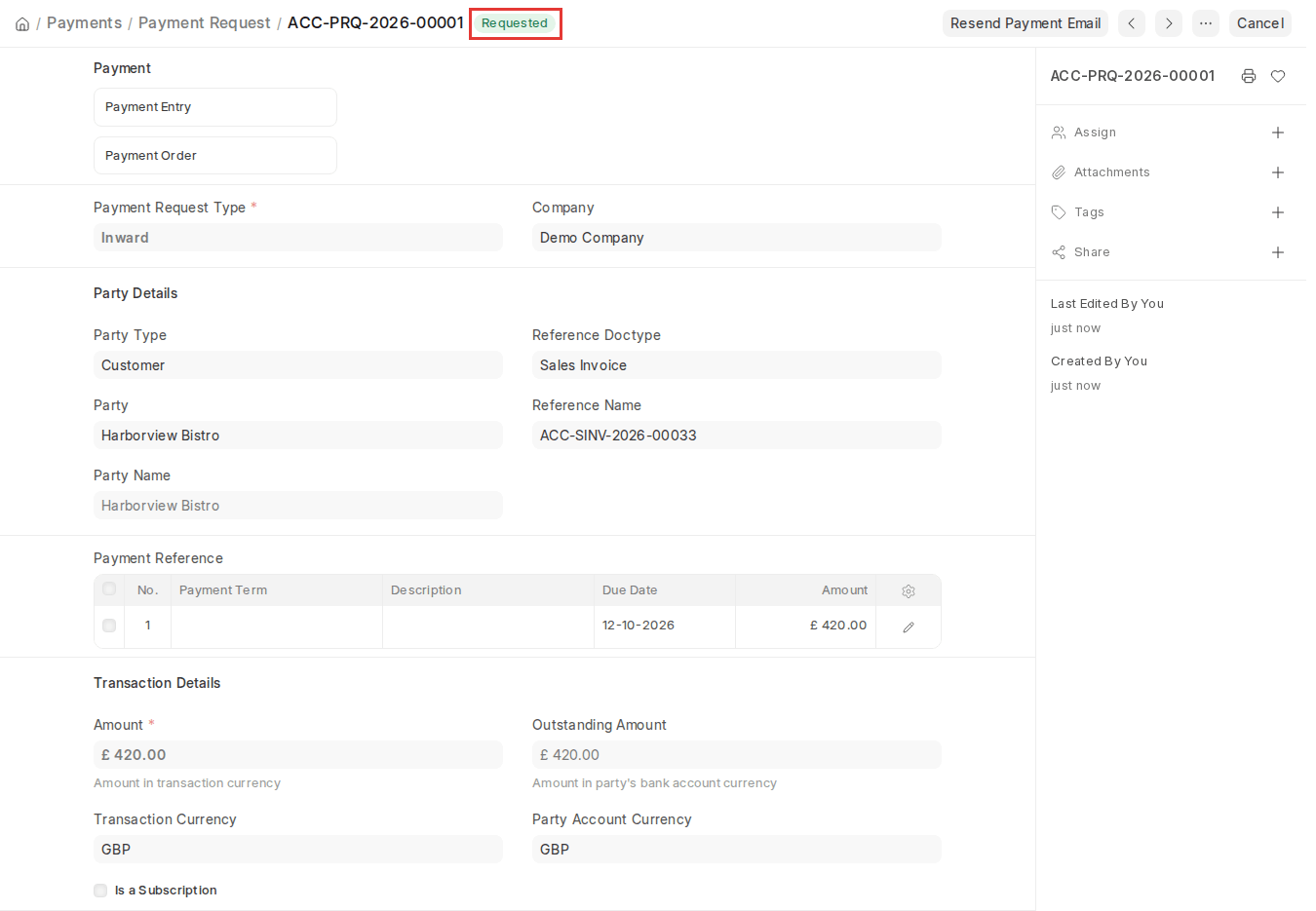
2.3. Notifying the Customer
You may notify the customer with Print Format in the Payment Request. If the contact email of the customer is configured, it will be retrieved automatically. If not, you may input the email address manually in the Payment Request.

2.4. Request Mail
If you’ve integrated ERPNext with an online payment gateway such as Stripe, PayPal, or even JazzCash, then ERPNext can automatically send your customer a payment link via an email.
You don’t have to do anything manually—no copying and pasting or typing lengthy messages.
Example:
Suppose you’ve raised a Sales Invoice for your customer, and you’ve already integrated Stripe with your ERPNext. Now, when you submit the Payment Request, ERPNext sends the email on its own (unless Mute Email is ticked), and you can send it again with the Resend Payment Email button. The email body comes from the Message template, which fills in the contact name, the document reference and amount. That email will contain a button or link with something like Pay Now on it.
When the customer hits it, they’ll be directed to a secure page and can pay using their card or whatever you’ve arranged. You don’t have to create that email yourself—it does it for you.
Why is this helpful?
- Saves you time
- Looks professional
- Makes it ridiculously easy for your customer to pay
- You get paid faster
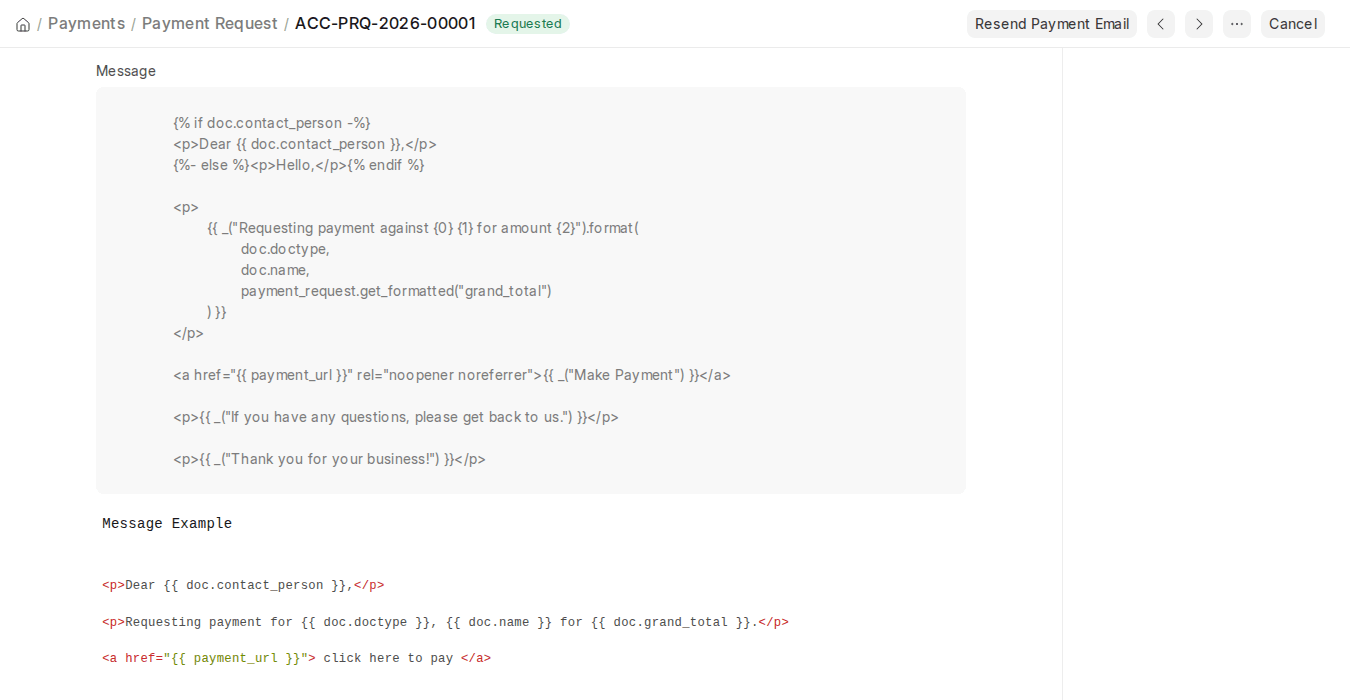
2.5. Payment Request Without Using a Gateway
If you don’t need to use a payment gateway (such as Stripe or PayPal), yet you still need to request your customer to pay manually, you can simply provide them with your bank account in the Payment Request.
You do this by simply configuring the Bank Account in ERPNext. Your system will then send an email containing your bank details, so your customer can directly send money to your account.
Example:
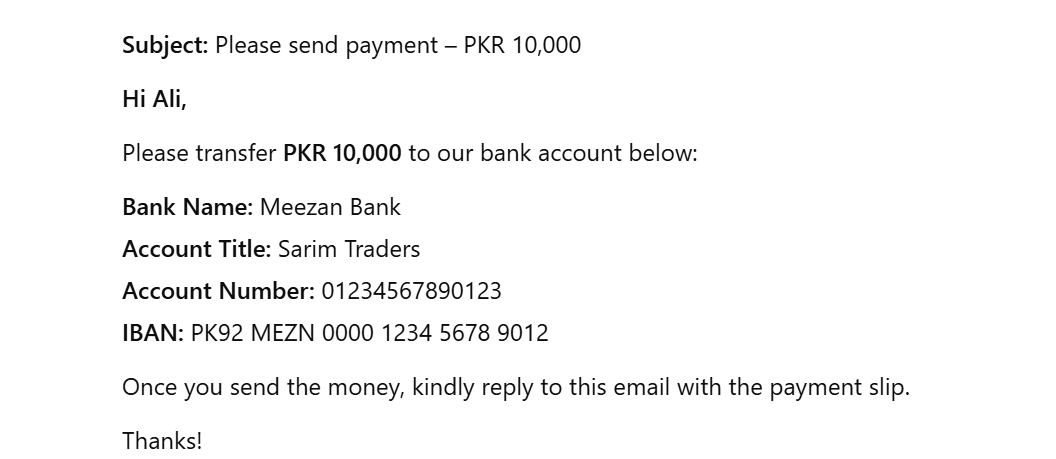
Suppose you would like to receive PKR 10,000 from your customer. Rather than requiring them to pay online, you desire them to transfer to your bank account.
Here’s how the email/message would appear: