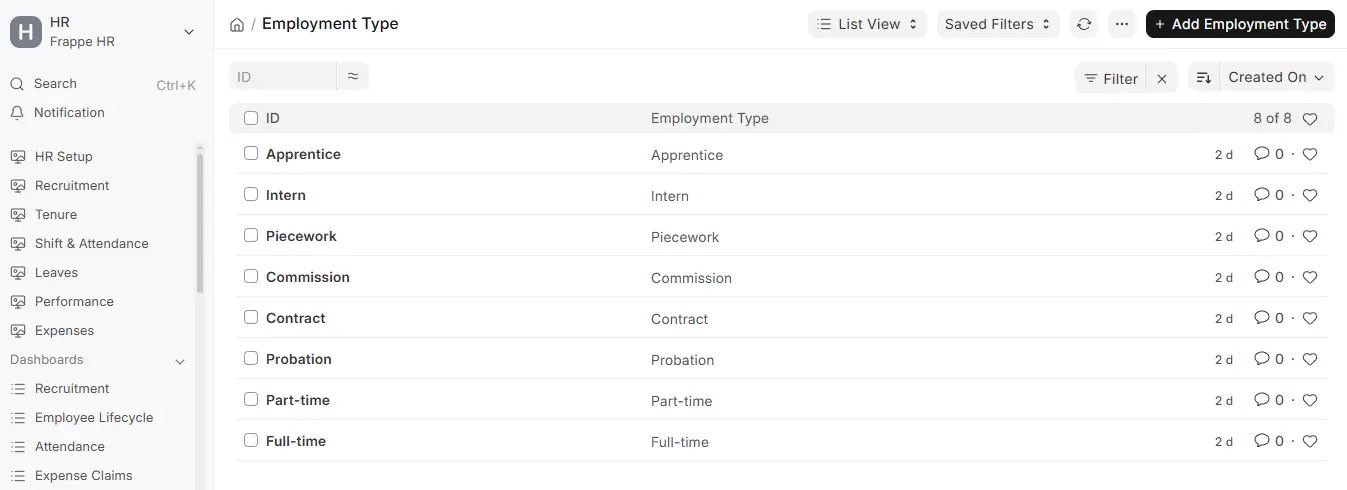
Employment Type
In every organization, workers can be employed under various categories, and every Employment Type typically has its own pay scales, compensation benefits, and particular entitlements of leaves; this classification is officially known as an Employment Type. Control of employment types maintains consistent application of policies to the workforce while also providing flexibility to HR teams to support various patterns of work, like full-time, part-time, or contractual work.
Frappe HR in ERPNext v16 enables you to either choose an Employment Type from an out-of-the-box pre-defined standard list or to build an entirely new Employment Type completely from scratch, customized as per your organization’s policy and needs, thus providing you both ease and flexibility.
To access and set up the Employment Type doctype, follow the following path:
1. Creating an Employment Type
To add a new Employment Type in ERPNext v16, navigate to the Employment Type list view and then click on Add Employment Type. In the form that appears, fill in the Name of the Employment Type, e.g., Full-Time, Part-Time, Internship, or Consultant, according to your needs, and then click on Save to complete the entry.
After saving, the just-created Employment Type can be easily associated with the Employee master record so that you can filter employees and apply salary, benefit, and leave policies by employment type (for example, in Bulk Salary Structure Assignment and Leave Control Panel filters).