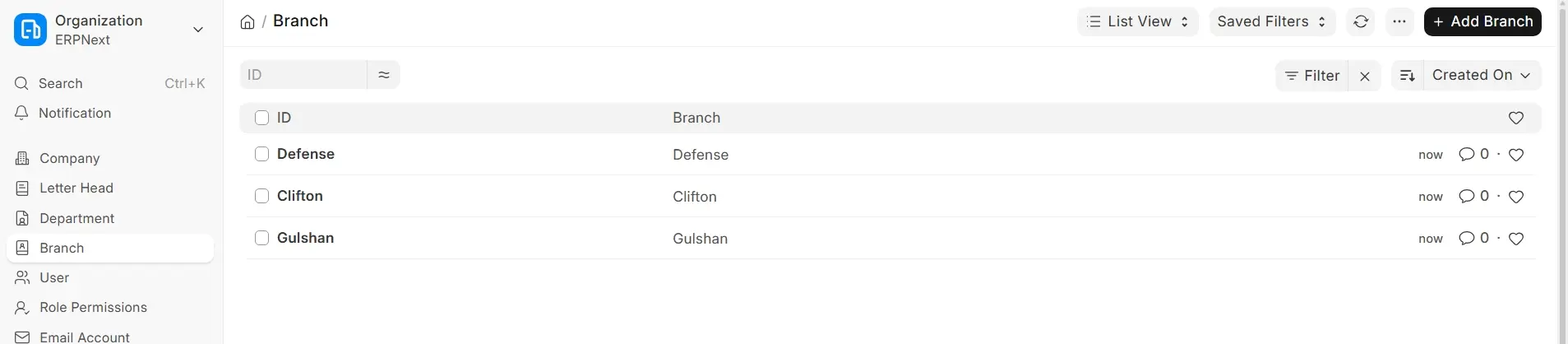
Branch
A branch office is a part of a firm that is located in a different area from the main office or headquarters. It could be a regional office, a sales outlet, or even a satellite office that was set up to cover more ground and do more business. If you have accurate branch records in your HR module, you can be sure that employees are linked to their jobs correctly and that policies are followed according to the rules at each location.
The Frappe HR module in ERPNext v16 lets you make and keep very detailed records of different branches in your company. This makes it easy for HR departments and administrators to find employees based on their branch assignment and lets them work together across many locations.
To get to the Branch doctype, go to the following path:
1. Requirements
It is necessary to first create the Company record in ERPNext before creating a Branch. Note that the Branch record itself only holds the branch name and is not linked to a specific Company; the company link comes from the Employee records that use the branch.
2. Making a Branch
To add a new Branch, go to the Branch list view and click on Add Branch. Fill out the Name of the Branch in the box that opens. This could be the city, area, or a specific outlet location (for example, New York Office, Dubai Branch, or Lahore Regional Office). After you fill out all the essential information, click Save.
The Branch record can be attached directly to the Employee master record after it has been Saved. This will make it easier to report, pay, and follow leave restrictions, as well as do other HR tasks related to branches.