
Salary Structure Assignment
With the Salary Structure Assignment form, you may give an Employee a certain Salary Structure for a set amount of time. It connects the employee to his or her salary plan so that all earnings, deductions, and tax postings are made correctly according to the set structure.
Different Salary Structures. In the most recent versions of Frappe HR, you may make assignments for the same employee for different periods of time. This makes it easier to handle changes in pay, including promotions, job changes, or new pay structures.
1. Requirements
Before you make a Salary Structure Assignment, you need to make sure that the documents indicated below are set up and configured correctly:
- Employee: The Employee record must be there and working. Change the joining date, department, and designation information because it can be used in filters or for bulk assignment.
- Salary Component: You should set up all of the earning and deduction components under Salary Components, together with the right conditions, accounts, and formulas.
- Salary Structure: There should be a correct Salary Structure in place, together with the parts that go with it and the rules on how to figure it out.
Important: If your business has more than one company or currency, make sure that the Employee and Salary Structure are in the same company and that the exchange rates are set up in the Company settings for cross-currency processing.
2. How to make a Salary Structure Assignment
- To make a new Salary Structure Assignment:
- Go to the list of Salary Structure Assignments and click + Add Salary Structure Assignment.
- Select the Employee to whom you want to apply the structure.
- Pick the right Salary Structure from the ones that are there.
- Select the From Date that will start the structure. There is no End Date: the assignment applies until a newer assignment with a later From Date replaces it.
- Pick the Income Tax Slab for the worker based on where they live, what kind of job they have, and how much money they make.
- Fill in the Base and Variable amounts based on how the salary is set up.
- The Base Amount is the set wage that is paid every pay period, no matter how well you do your job.
- The Variable Amount is the part of the salary or incentive that is depending on performance and is given when certain goals, milestones, or evaluations are met.
- In the present edition, ERPNext lets you use variable components as either fixed amounts or percentages of Base Pay that are based on a formula.
- In ERPNext v16 the Base, Variable & Leave Encashment section also shows the Annual Gross Earning and the Total Cost To Company (CTC), and lets you set a Leave Encashment Amount Per Day.
- Other v16 sections: Opening Balances (Taxable Earnings Till Date and Tax Deducted Till Date, for an employee who joins part way through the year), Employee Benefits (Maximum Benefit Amount and Flexible Benefits) and Payroll Cost Centers.
- Save and Submit the assignment.
- The assignment tells the employee the wage structure and calculation logic to apply starting on the provided effective date once it has been saved. When it makes Salary Slips and Payroll Entries, ERPNext automatically uses this record.
- If an employee gets a promotion or moves to a new job, just make a new Salary Structure Assignment with the new structure and date. ERPNext will save both records for the long term to make sure payroll and audit trails are correct.
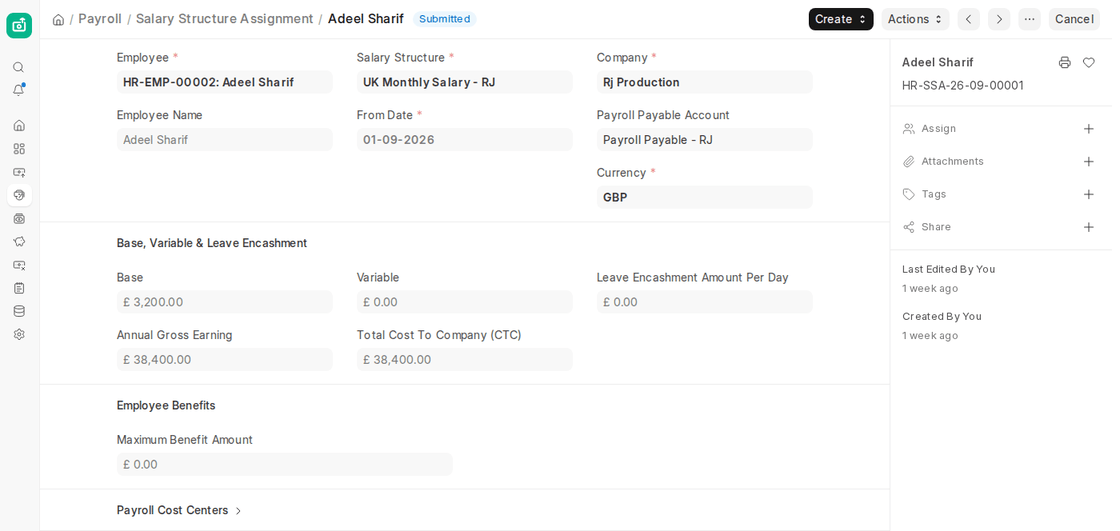
3.1 Assigning a Bulk Salary Structure
- Frappe HR lets HR Managers and Payroll Officers assign Salary Structures to more than one person at a time. This cuts down on the amount of work that needs to be done by hand and makes salary setups more consistent.
- To give out Salary Structure Assignments in large numbers:
- Open a submitted Salary Structure.
- Click Create > Bulk Assignments.
- This opens the Bulk Salary Structure Assignment tool, which makes it easy to assign the structure to many employees at once. You can also open it from the Payroll workspace.
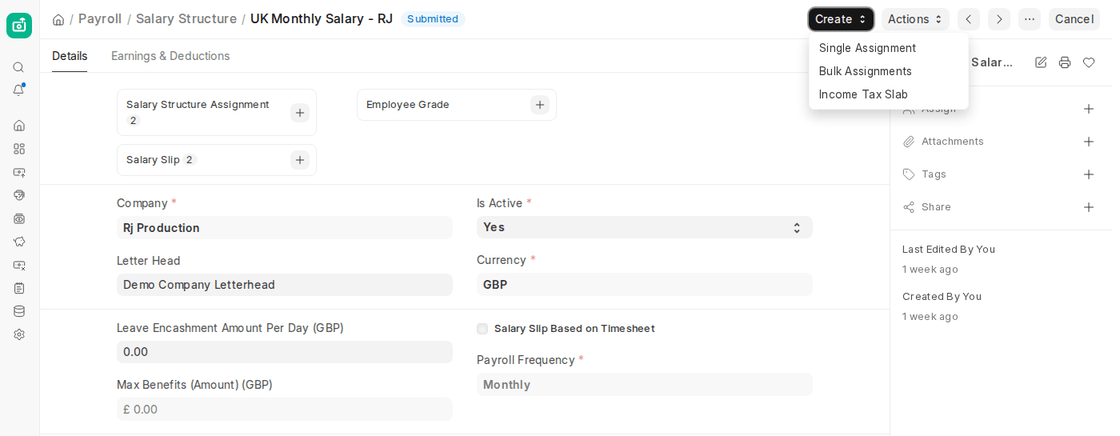
This is how to accomplish it:
- Choose the Salary Structure that will be used.
- Enter the From Date.
- If you need to, choose the Income Tax Slab.
- Enter the Base and Variable amount for each employee in the Select Employees table.
- Use Quick Filters (Branch, Department, Designation, Employee Grade, Employment Type) or Advanced Filters to narrow down the employees.
- Tick the employees and click Assign Structure. ERPNext creates a Salary Structure Assignment for each selected employee.
- The new system also lets you see your work and inspect it before you submit it. There can’t be any duplicate or overlapping assignments for the same employee and period.
- You can also import many assignments at once with the Data Import tool, straight from a spreadsheet.
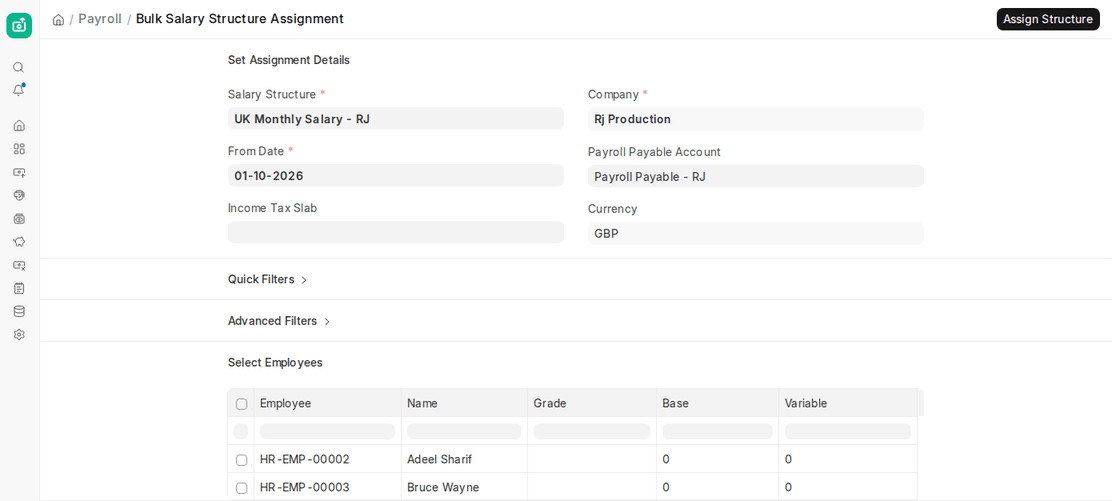
Assigning from the Salary Structure (ERPNext v16):
- You can give an employee a Salary Structure right from the submitted Salary Structure document.
- Click Create > Single Assignment to open a new Salary Structure Assignment with the structure already filled in. Choose the employee, the From Date and the Base and Variable pay.
- Click Create > Bulk Assignments to assign the structure to several employees at once, using the filters described above.
- Before the records are created, ERPNext checks for existing assignments, so the same employee does not get two assignments with the same From Date.
Useful things to know in ERPNext v16:
- Salary revisions: When pay changes, create a new assignment with the new From Date. Payroll uses the latest assignment for each period.
- Multi-Currency Salary Setup: The assignment has its own Currency and Payroll Payable Account, so you can pay staff in a different currency from the company.
- Salary history: Earlier assignments are kept, giving a clear record of every pay change for audits.
- Payroll Cost Centers: Split an employee’s payroll cost across cost centers on the assignment.

